

This article applies to the following countries
- All countries
Before you start
- You work with the review queues under Reports as an administrator or reviewer.
- Your organisation has not turned off AI features. See For administrators.
How it works
When an expense is submitted, the service compares it against previous expenses and decisions. Each expense in the review queues then gets one of two statuses:- Low risk: green status. The expense looks ready to be processed.
- ✨ Needs attention: yellow status. Something in the expense stands out. Read the reason before you decide.
What the AI checks
Each status comes with a reason that explains why the expense is considered low or high risk. The checks include:- Similar expenses have been rejected in your organisation.
- Similar expenses from the same employee have been rejected.
- Similar expenses have been rejected across all organisations.
- The expense has no valid receipt.
- The amount deviates from what is normal in your organisation.
- The amount deviates from what is normal for the employee.
- The amount deviates from what is normal across all organisations.
- The amount deviates from the expected amount.
- The purchase was made on a weekend.
- The expense contains alcohol.
- The expense contains tobacco.
Review expenses
1
Open a review queue
Go to Reports and open the For approval, Review, or Ready to send tab.
2
Read the statuses
Each expense shows a status, for example a green ✨ Ready to send or a yellow ✨ Needs attention. Start with the expenses that need attention.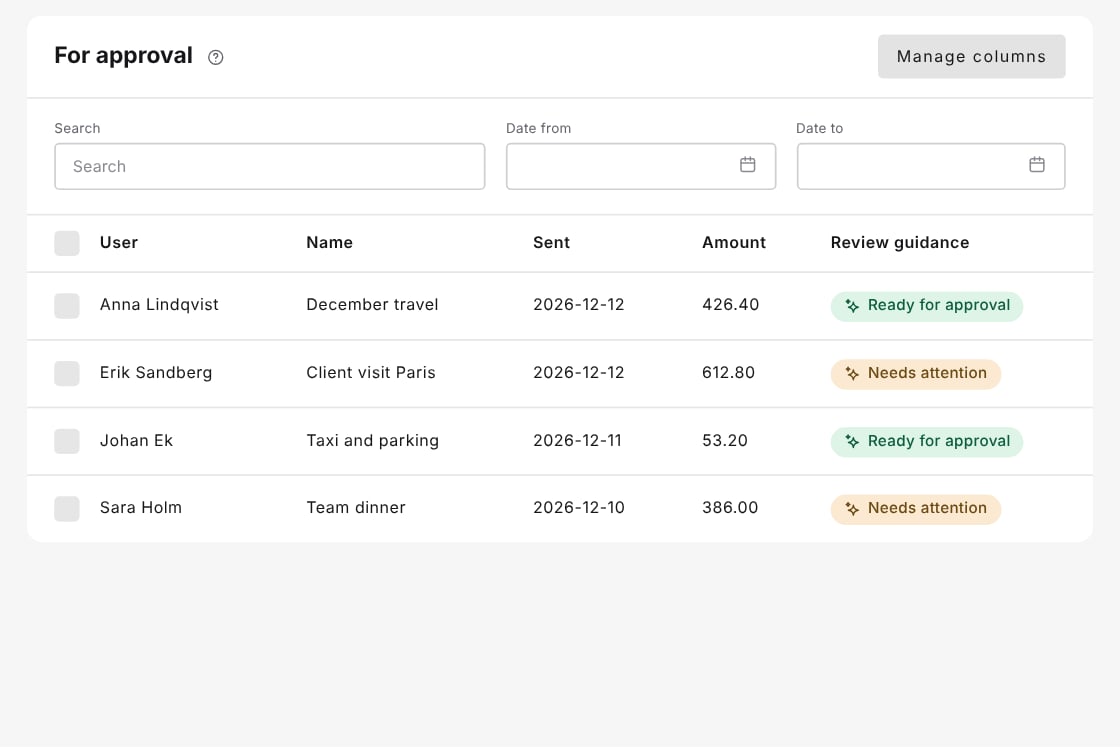
3
Read the reason
Hover over or click an expense marked ✨ Needs attention to see why it was flagged. In the report, a summary shows how many expenses need attention, and the reason is shown under each flagged expense.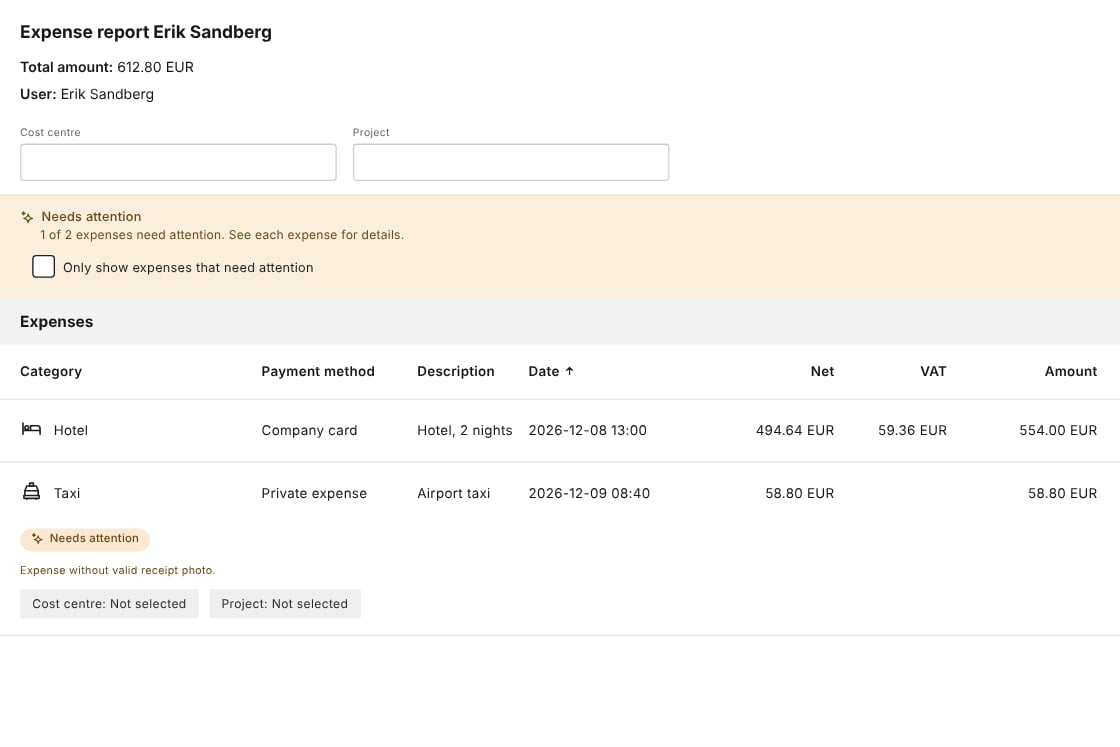
4
Show only flagged expenses
Tick Only show expenses that need attention to hide the other expenses in the report.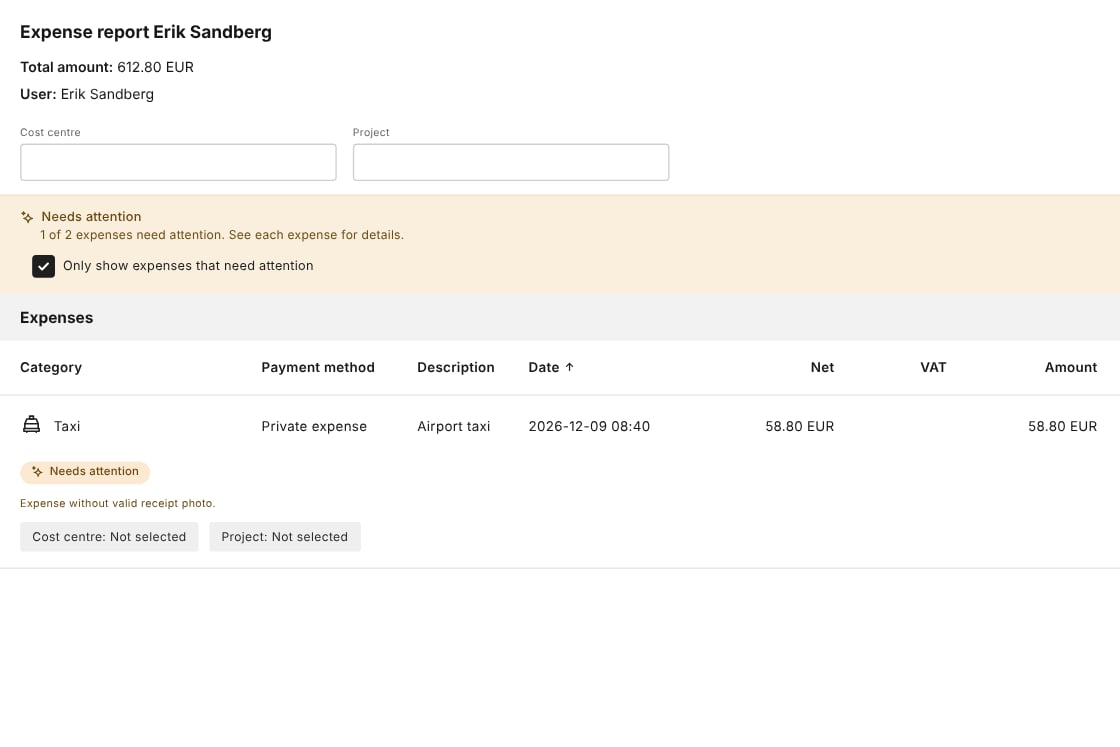
5
Handle the expense
Approve, reject, or edit the expense as usual, based on its content.
Good to know
- The statuses are guidance only. Review guidance never approves, rejects, or changes anything automatically. You always make the decision.
- A low risk status means that nothing stood out in the checks, not that every detail has been verified. Open the expense if you are unsure.
- Review guidance works for administrators and reviewers. For approvers, see Approval guidance & Bulk approval.
For administrators
Review guidance is on by default. It is turned off if you disable all AI features for the organisation:1
Open the admin view
Go to the organisation’s Admin view.
2
Navigate to the settings
Go to Settings → Expense management → Report workflow / Advanced settings.
3
Disable AI features
Tick Disable all AI-powered product features in your organisation and save. All AI features in the expense management platform are turned off for the organisation from that point on.
Next steps
How Findity uses AI in expense management
What the AI does, data privacy, and human oversight.
Approval guidance & Bulk approval
AI assistance for approvers in the approval list.
Manage reports under Ready to send
How to review and send reports before they are exported.
FAQ
Why is an expense marked Needs attention?
Why is an expense marked Needs attention?
Hover over or click the expense to see the reason. Common reasons are a missing or invalid receipt, an amount that deviates from the norm, or that similar expenses have been rejected before.
Does Review guidance approve or reject expenses automatically?
Does Review guidance approve or reject expenses automatically?
No. Review guidance only shows a status and a reason. You approve, reject, or edit the expense yourself.
Can I approve an expense marked Needs attention?
Can I approve an expense marked Needs attention?
Yes. The status is guidance. Read the reason first and handle the expense as usual if it is in order.
Why does the status say Ready for approval in the Review tab?
Why does the status say Ready for approval in the Review tab?
If your organisation’s approval step comes after the review step, the low risk status in the Review tab is ✨ Ready for approval instead of ✨ Ready to send.
Can we turn the feature off?
Can we turn the feature off?
Yes. An administrator can turn off all AI features for the organisation. See For administrators.
AI features in Findity
Findity’s AI features are divided into basic AI features, which are always on, and additional AI features, which administrators control with one switch.Basic AI features (always on)
Always available. They cannot be turned off.- Receipt analysis
- Receipt matching
- New self onboarding
- Duplicate receipt detection
Additional AI features (admin switch, on by default)
Administrators can turn off the additional AI features for the whole organisation under Settings → Expense management → Reports workflow → Advanced settings. On for everyone- Auto-generated description
- Auto-fetched email receipts (the user connects their inbox)
- Approval guidance (approvers)
- Review guidance (admins)
- Expense assistant chat
- Auto-submit (off by default): employees turn it on.
- Auto-approval (off by default): approvers turn it on. Admins can turn it off for the whole organisation, for manual approvals only.