
This article applies to the following countries
- All countries
- How do I add my card?
- How do I manage my transactions?
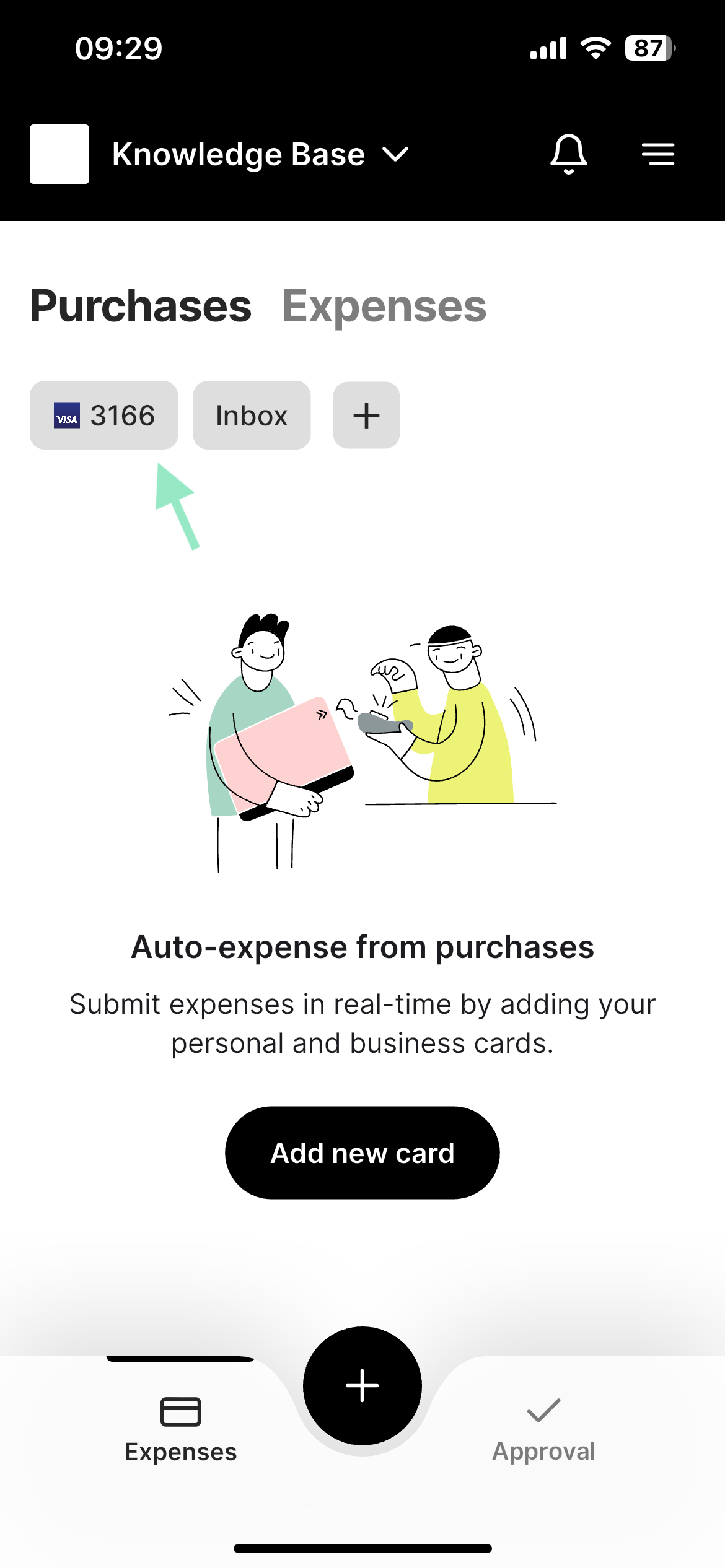
Under the Purchases tab, then Card, click the Add new card button to start linking your card.
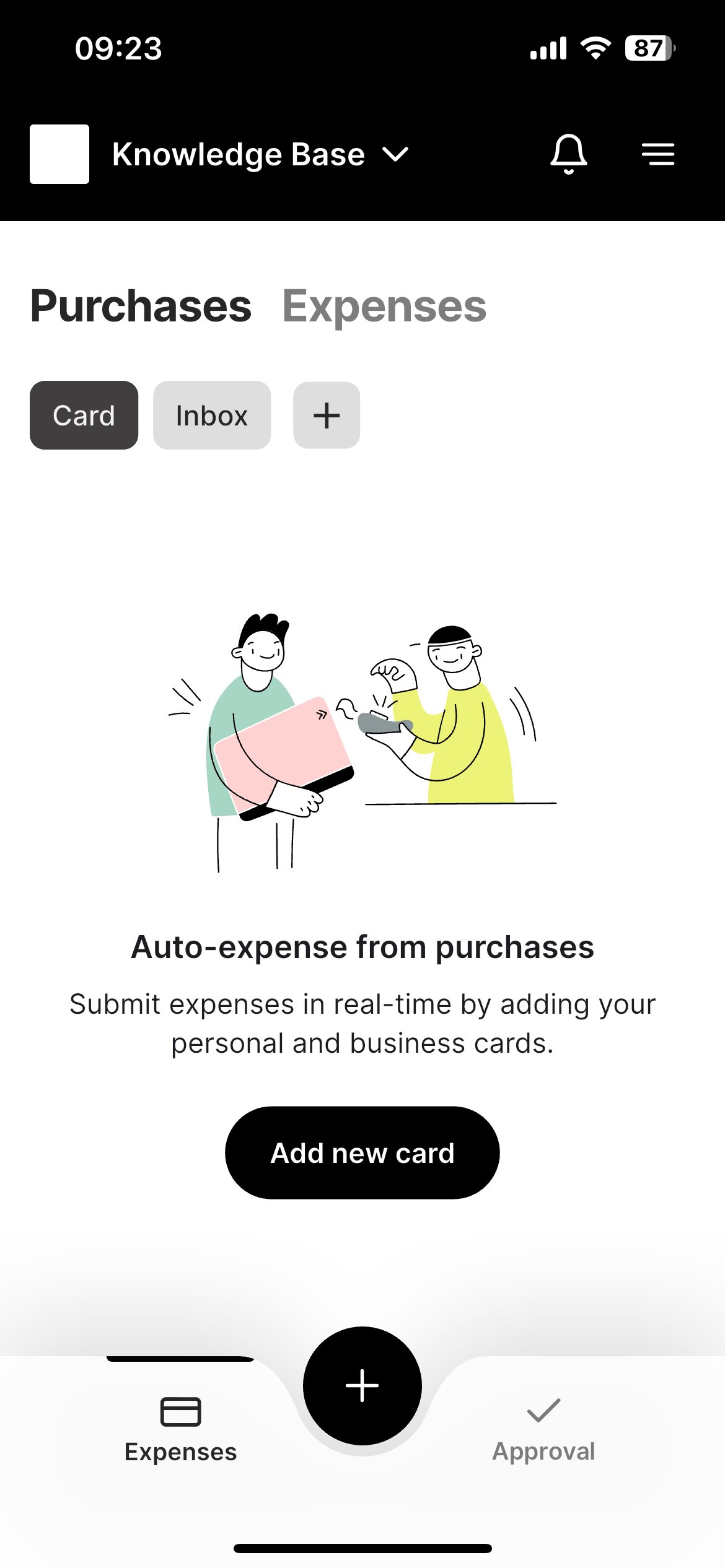
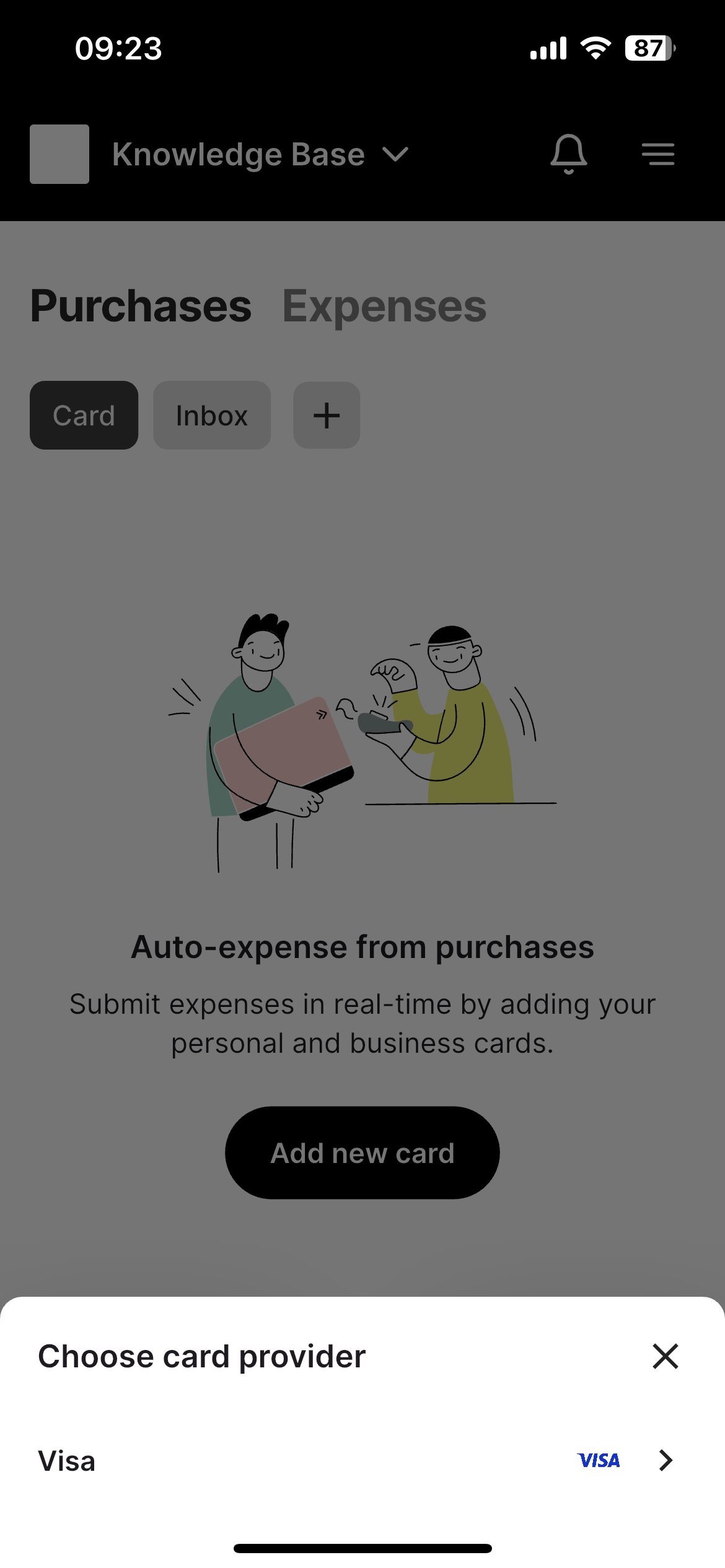
When you click the button, a new window opens where you can select the card provider you want to link. Here, we choose VISA.
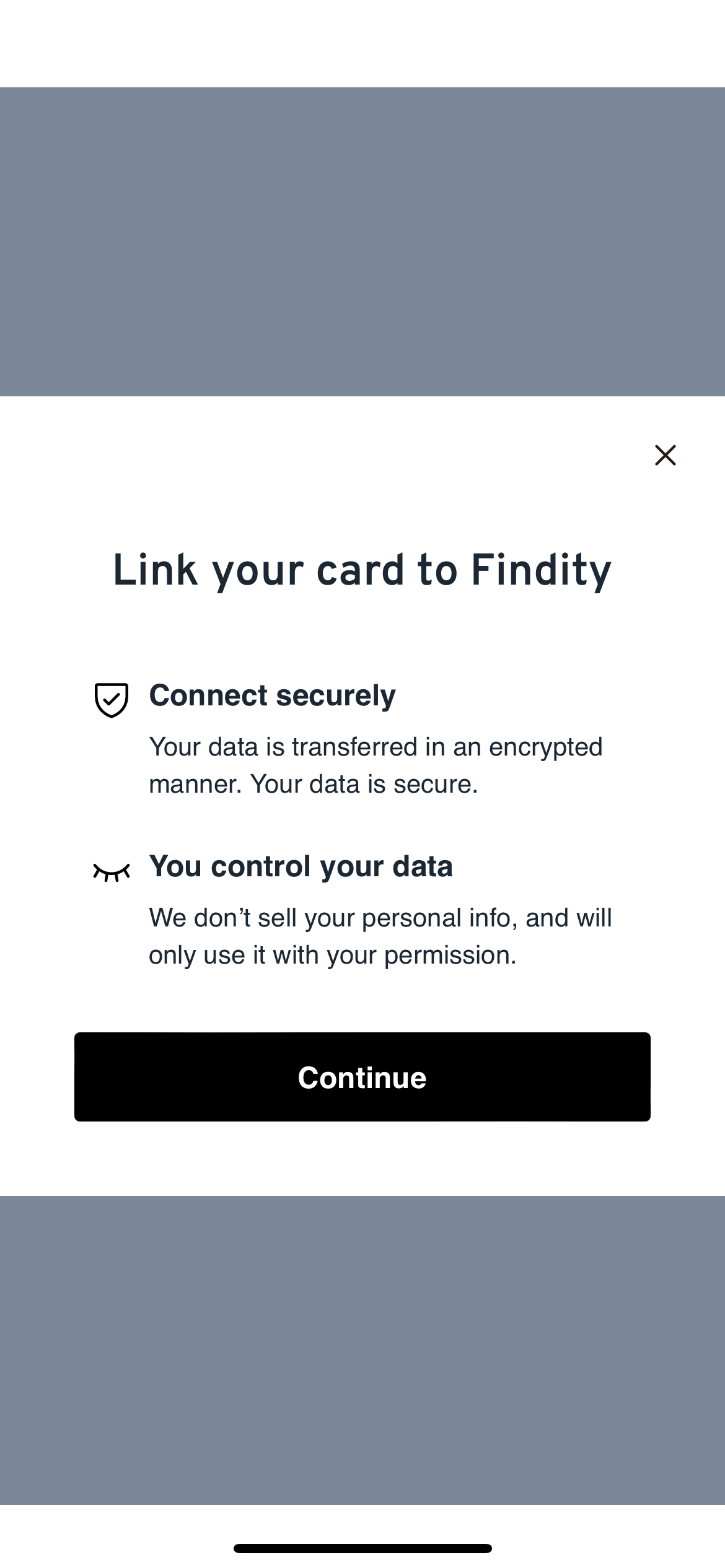
A new window opens where you need to click Continue to proceed.
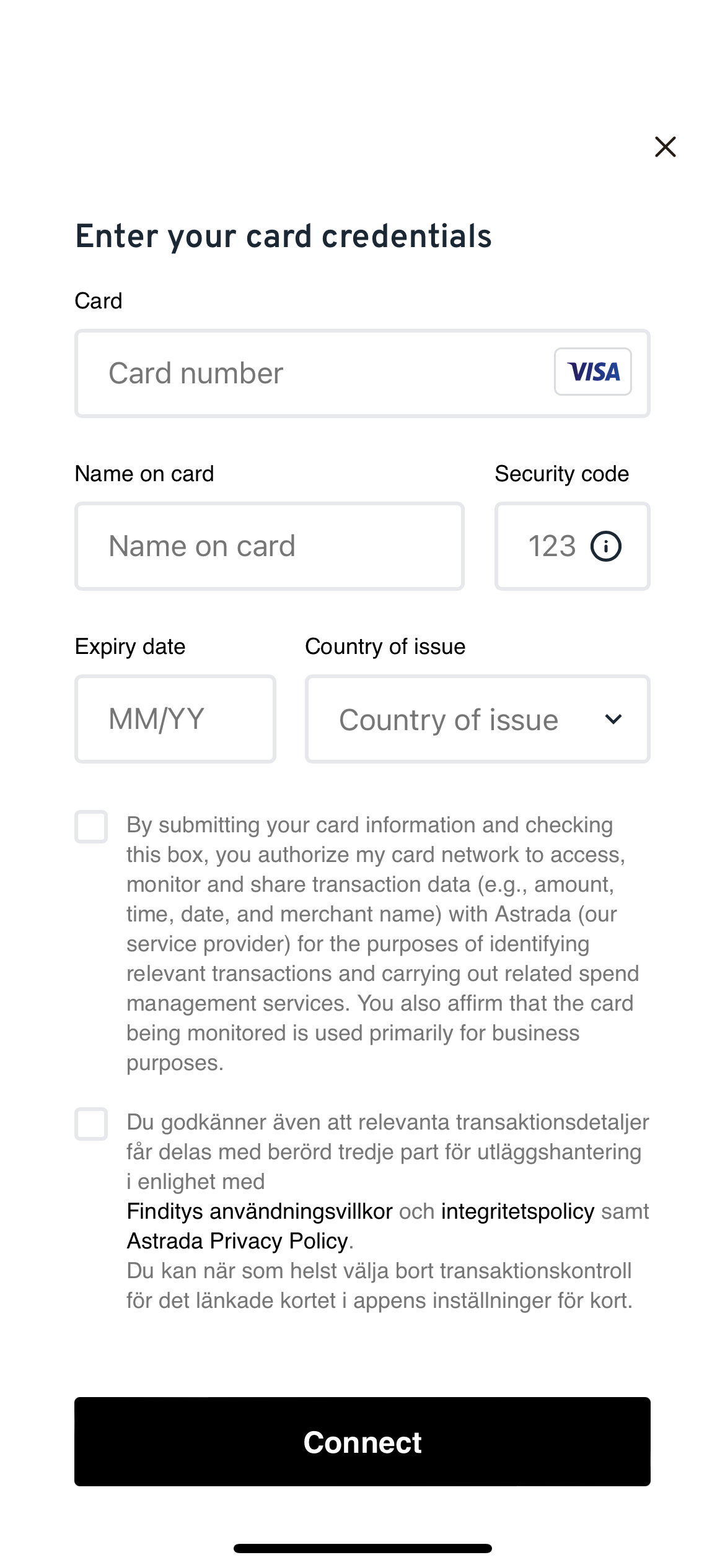
In the next step, you enter your card details and then click Connect to link the card.
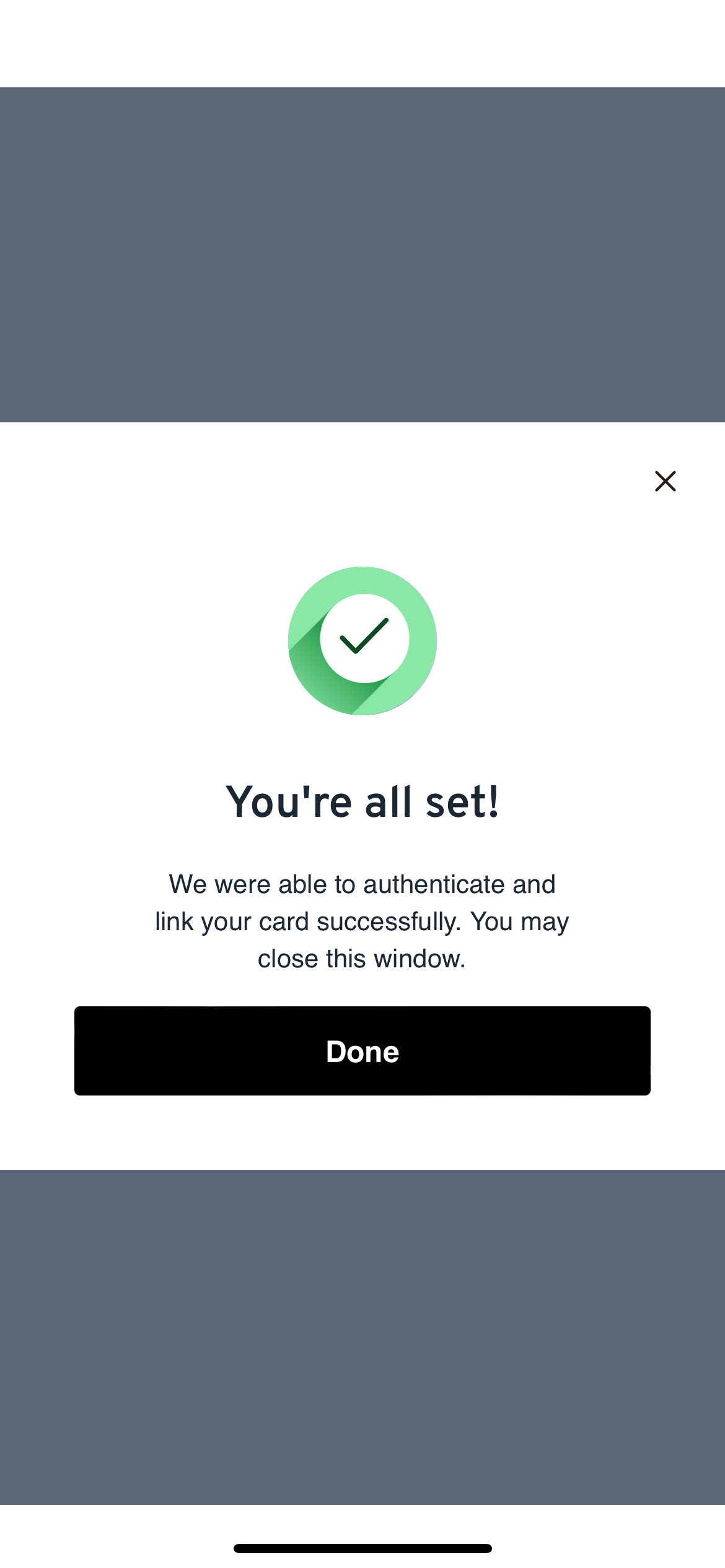
You will now be redirected and need to approve the connection using BankID.Once this is done, the connection is complete.
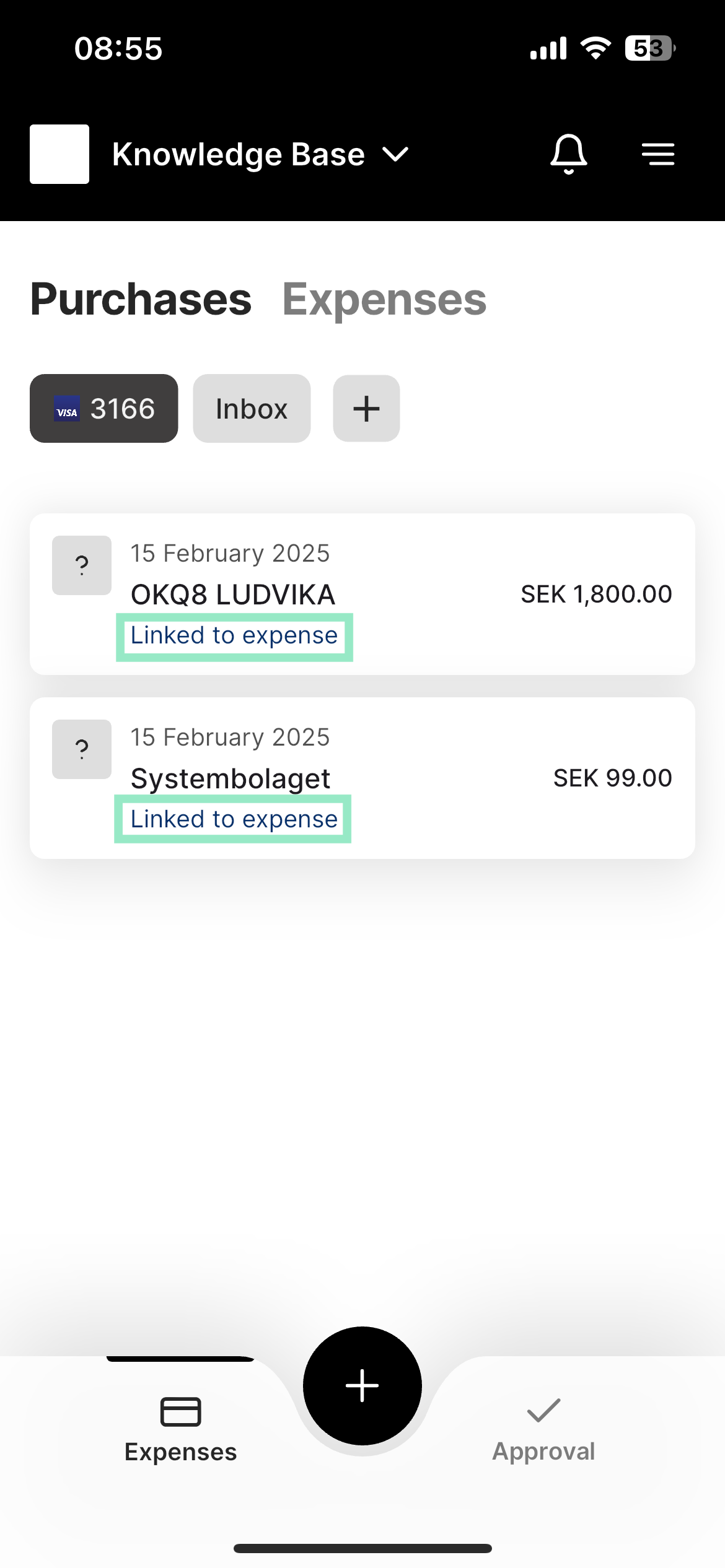
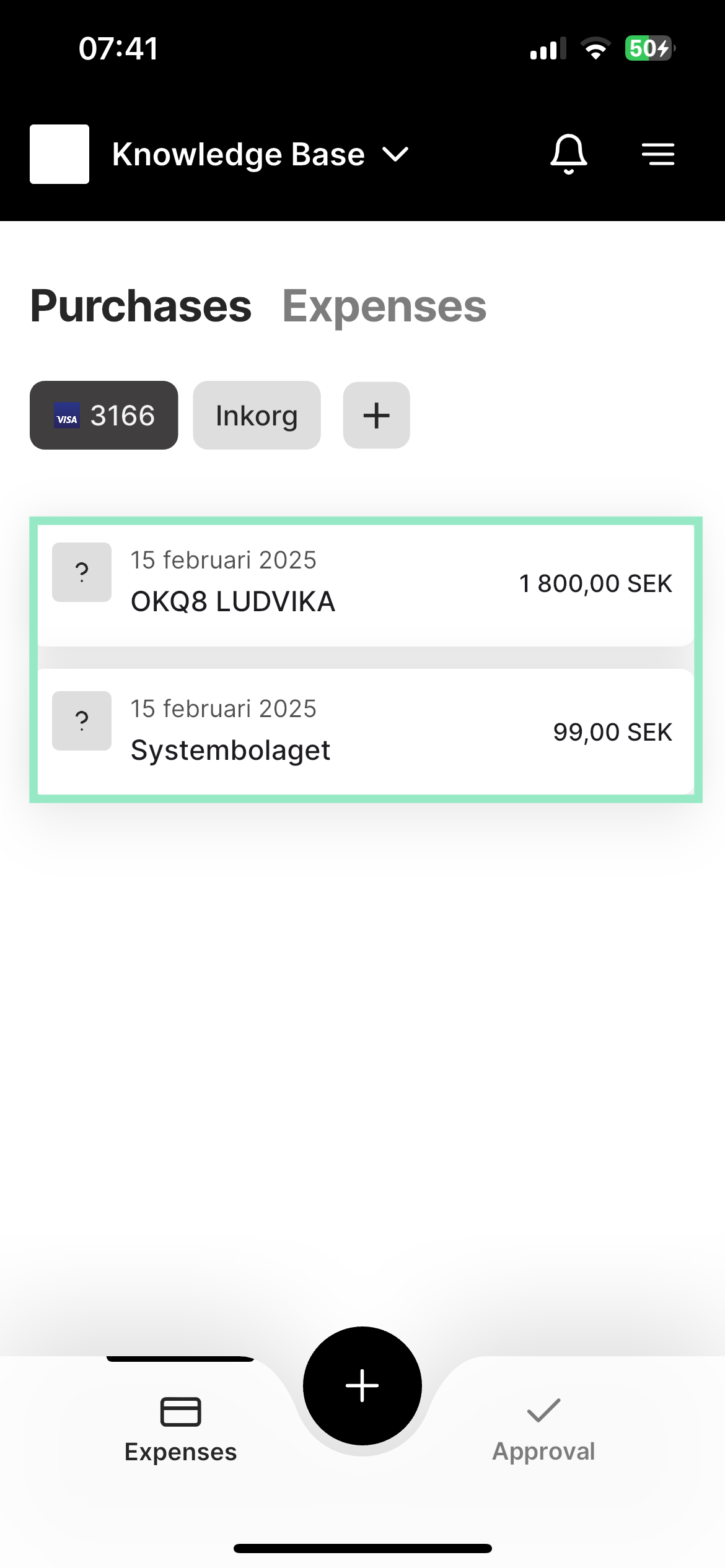
You can now see your linked card under the Purchases tab.
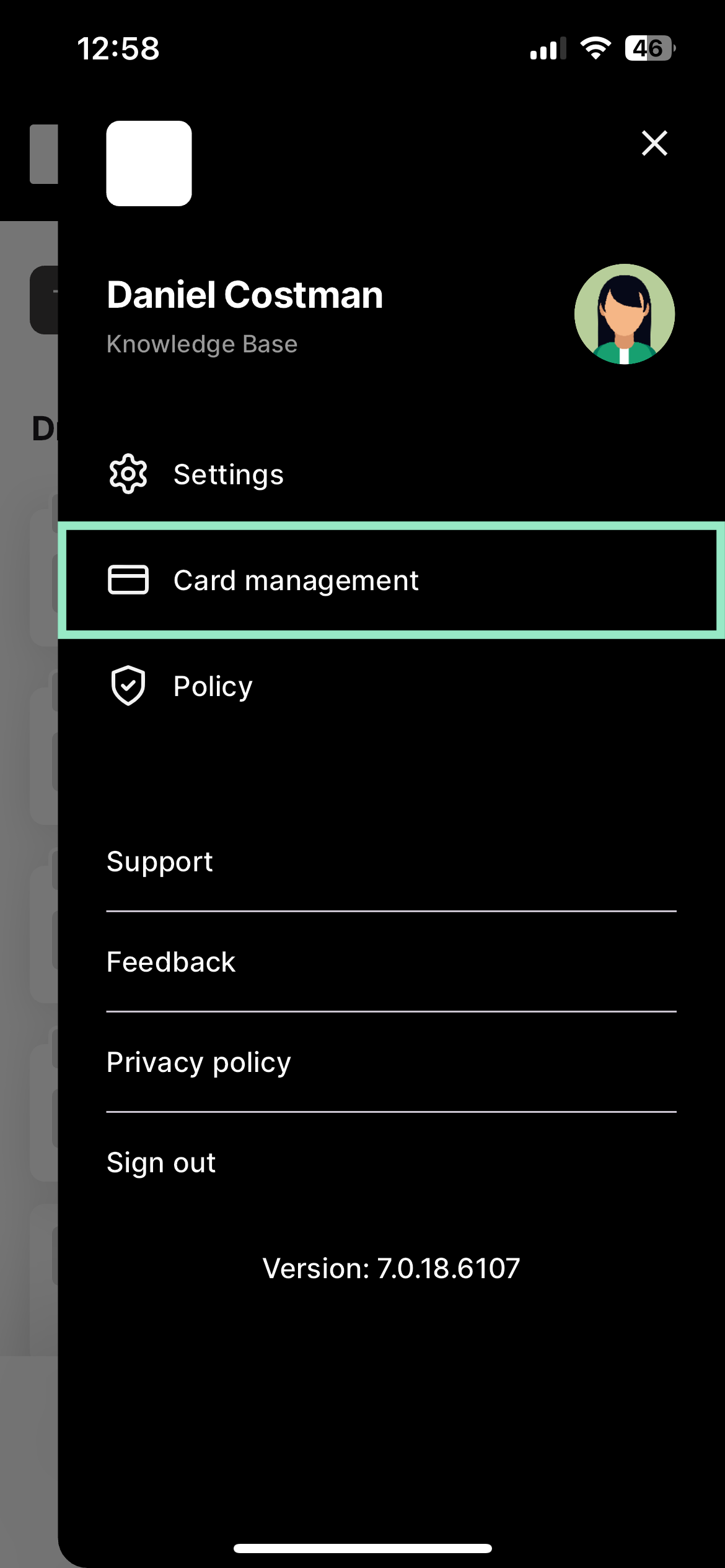
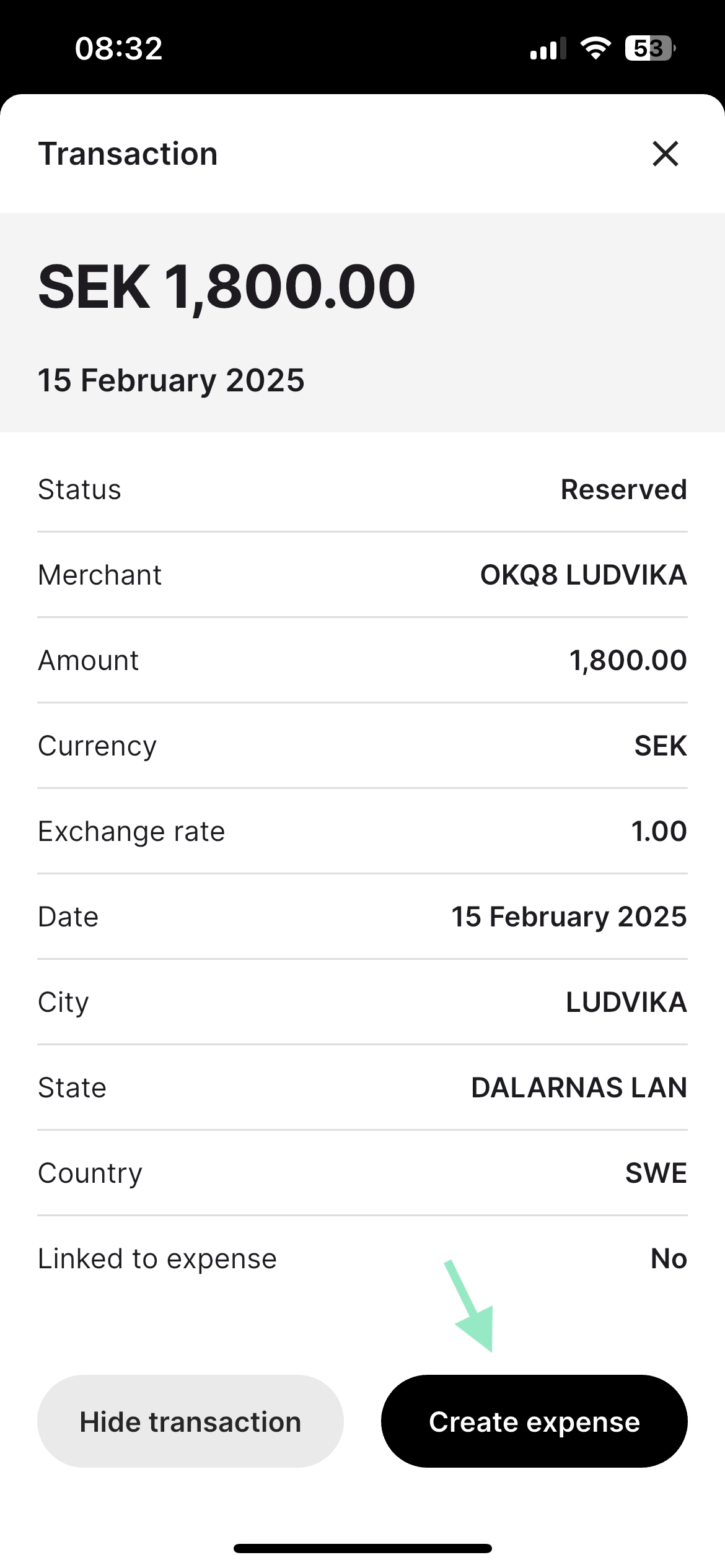
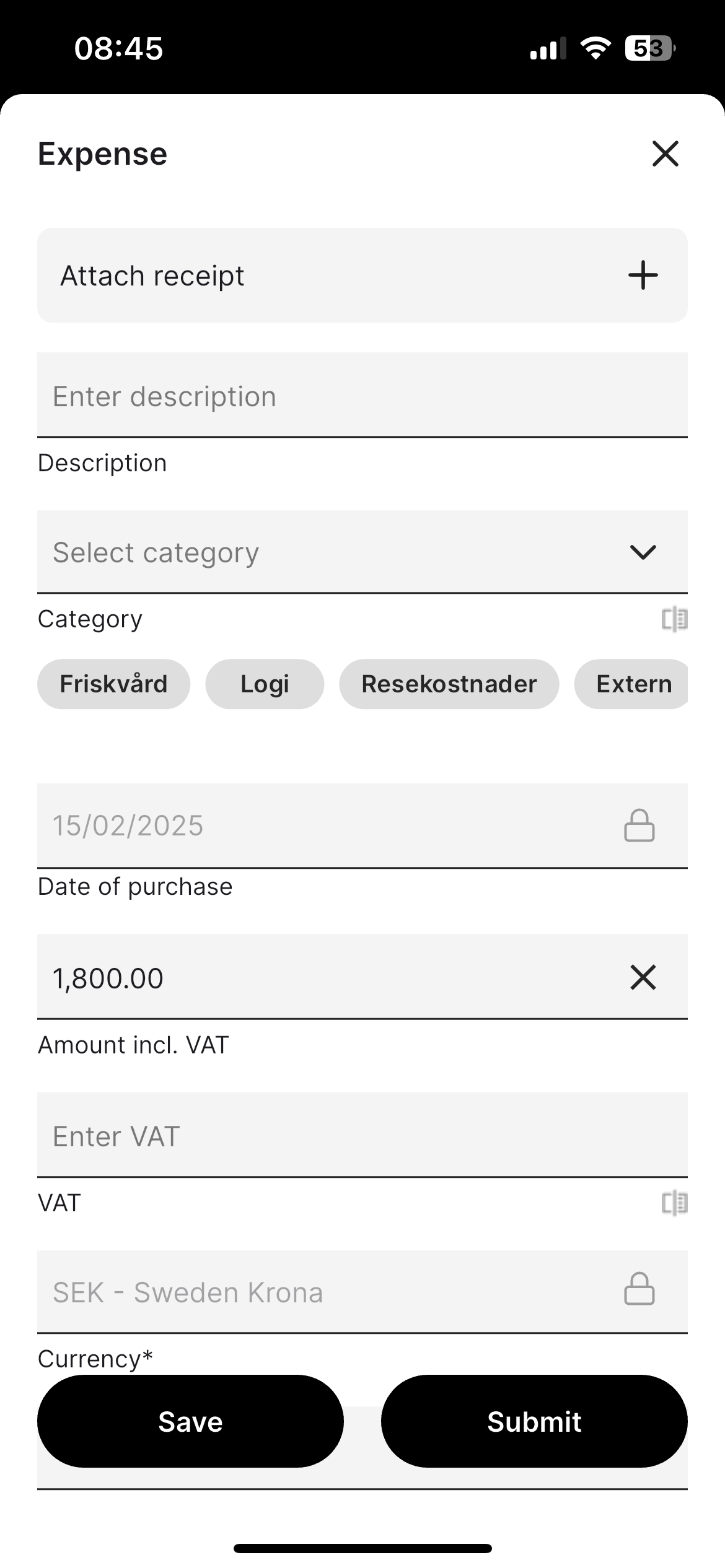
When you connect your card, the system automatically detects whether it is a company card or a personal card:Company card: All transactions are automatically created as expenses in the service.Personal card: You need to configure a setting for transactions to be created as expenses automatically.Alternatively, you can manually select which transactions should become expenses.To configure a personal card, click on the three lines at the top right of the service:

Good to know regarding cards that cannot be linked:If you’re having trouble linking your card, log in to your online banking and activate online purchases. Once activated, try linking your card again.


- Select Cards management
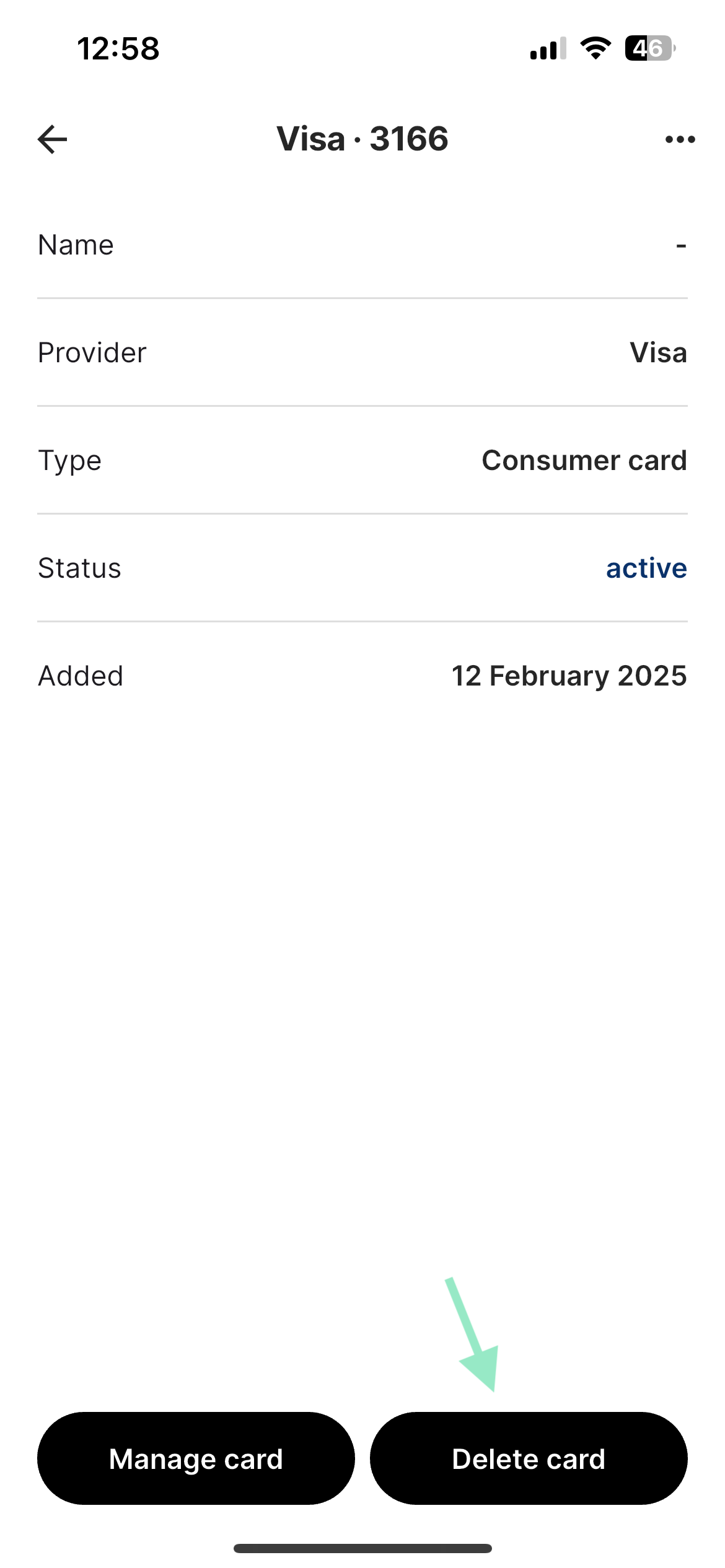
- Select your card from the list.
- Click Manage card on the left.
- Adjust the settings for how transactions should be handled.
Related articles
- I made a personal purchase with my corporate card. How do I report this as a personal purchase?
- I have submitted a report with a manually created expense but now I have received bank transactions on my user for the same expense/receipt. What should I do?
- How do I import a receipt for my corporate card transaction from an already existing expense?
- Mastercard - Real time transactions
- How do I manage my transactions from Nordea First Card Real Time?