

This article applies to the following countries
- All countries
Before you start
- You use the expense app as an employee.
- Your organisation has not turned off AI features. See For administrators.
How it works
The expense assistant uses two sources:- Help articles and policy information: to answer questions about what you can expense and how the rules work in your organisation.
- Your expenses: to see the status of your expenses and reports, for example approval status and why an expense was flagged.
Ask a question
1
Open the chat
Open the expense assistant in the expense app.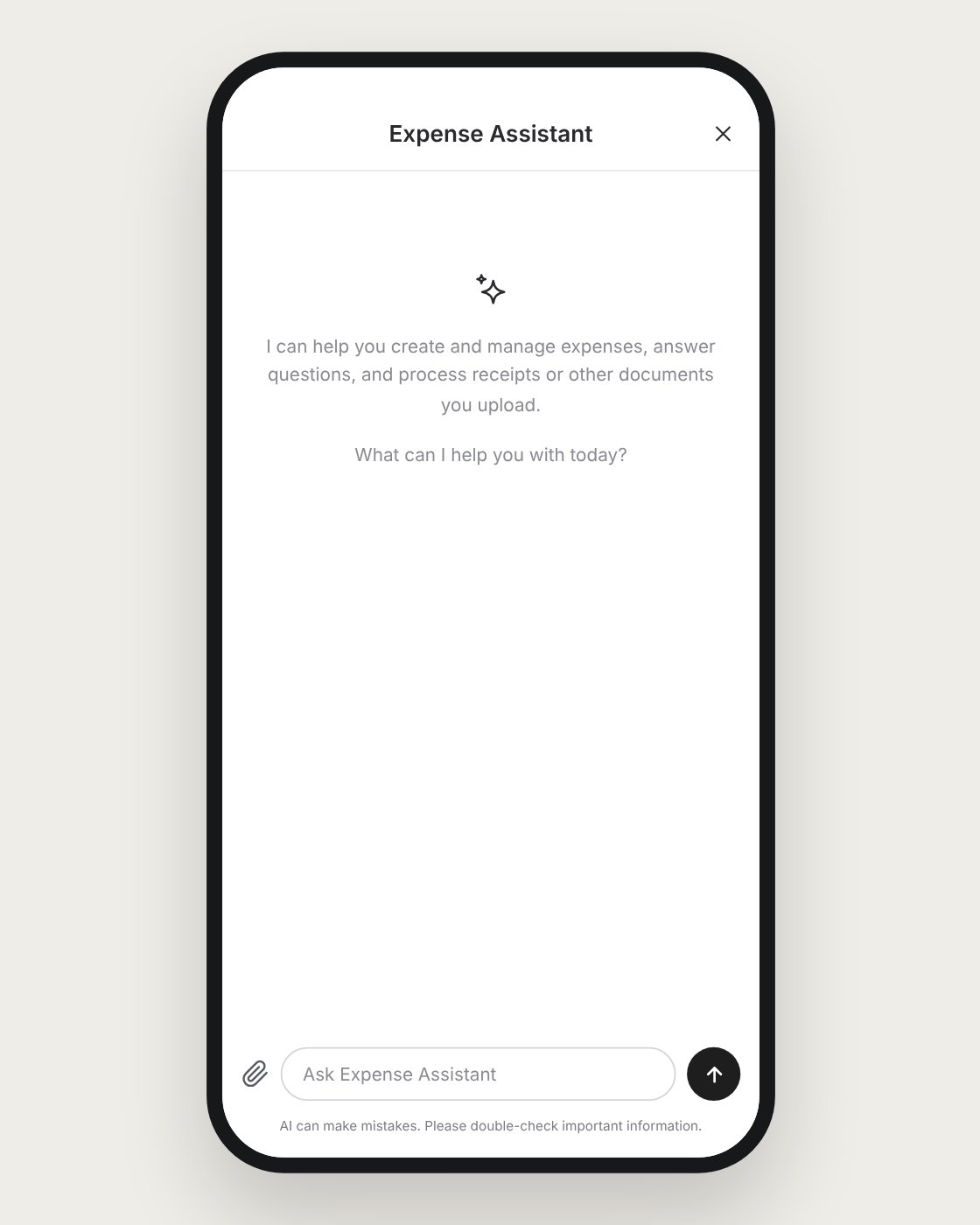
2
Ask your question
Write your question in plain language, for example “Why was my report flagged?” or “What is the meal allowance?”.
3
Read the answer
The assistant replies with an explanation based on your organisation’s rules and your own expenses. If it can help you with the next step, it offers to do so.
Create an expense from a receipt
1
Attach the receipt
Tap the paperclip icon next to Ask Expense Assistant and attach a photo of the receipt.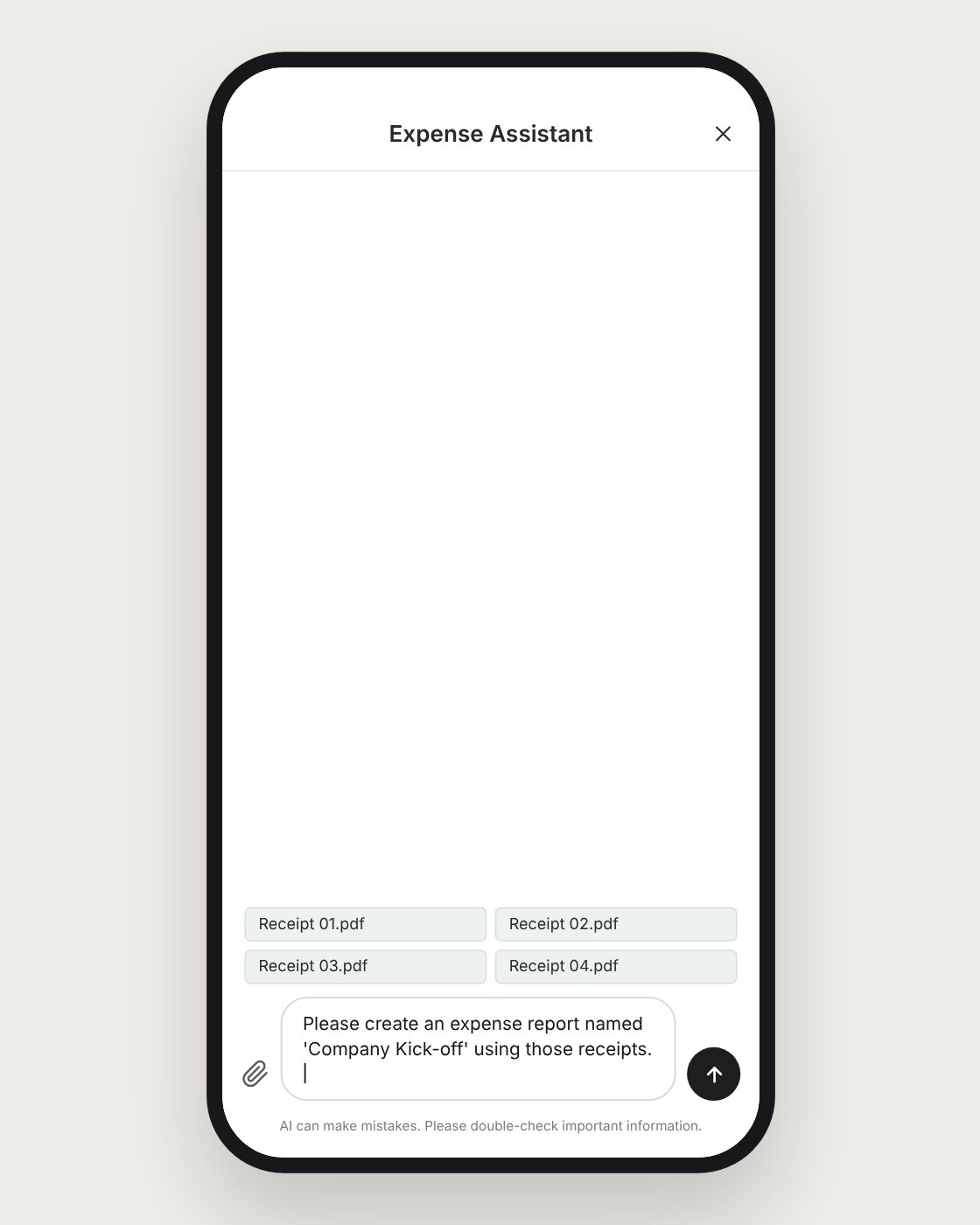
2
The expense is created
The assistant reads the receipt and creates a new expense with description, date, amount, and category. The expense is saved as a draft.
3
Choose what happens next
The assistant asks if you want to submit the expense or add it to a report.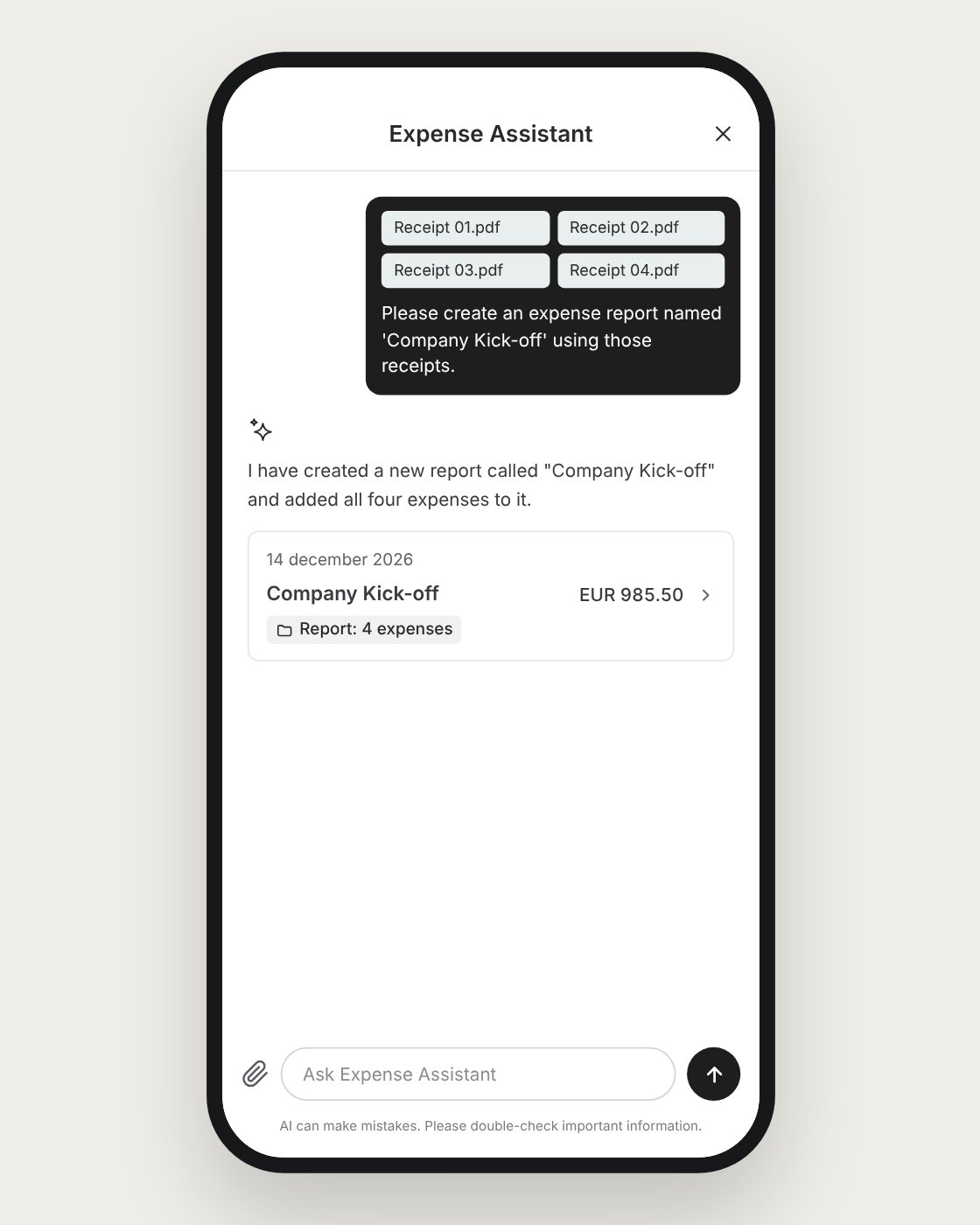
Let the assistant fix an expense
1
Describe the problem
Ask the assistant to fix the issue, for example that an expense has the wrong category.
2
The expense is updated
The assistant makes the correction and the expense is updated right away.
3
Check the result
Open the expense and check that the change is correct before you submit it.
Good to know
- The expense assistant is available at any time of day.
- Answers about rules are based on your organisation’s information and Findity’s help articles.
- All changes made by the assistant are logged, so it is always possible to see what was changed.
- You can always edit an expense yourself, also after the assistant has changed it.
- AI can make mistakes. Double-check important information, for example amounts and dates, before you submit.
For administrators
The expense assistant is on by default for everyone in the organisation. It is turned off if you disable all AI features for the organisation:1
Open the admin view
Go to the organisation’s Admin view.
2
Navigate to the settings
Go to Settings → Expense management → Reports workflow → Advanced settings.
3
Disable AI features
Tick Disable all AI-powered product features in your organisation and save. All AI features in the expense management platform are turned off for the organisation from that point on.
Next steps
How Findity uses AI in expense management
What the AI does, data privacy, and human oversight.
Auto-submit business expenses
Complete business card expenses are submitted automatically.
FAQ
What can I ask the expense assistant?
What can I ask the expense assistant?
For example what you are allowed to expense, why an expense or report was flagged, and where an expense is in the approval flow.
Can the assistant change my expenses?
Can the assistant change my expenses?
Yes. When you ask it to fix something, for example a wrong category, it updates the expense directly. Every change is logged.
Where do the answers come from?
Where do the answers come from?
From your organisation’s rules, Findity’s help articles, and the information in your own expenses.
Is the assistant available outside office hours?
Is the assistant available outside office hours?
Yes. The expense assistant is available around the clock.
Can we turn the feature off?
Can we turn the feature off?
Yes. An administrator can turn off all AI features for the organisation. See For administrators.
AI features in Findity
Findity’s AI features are divided into basic AI features, which are always on, and additional AI features, which administrators control with one switch.Basic AI features (always on)
Always available. They cannot be turned off.- Receipt analysis
- Receipt matching
- New self onboarding
- Duplicate receipt detection
Additional AI features (admin switch, on by default)
Administrators can turn off the additional AI features for the whole organisation under Settings → Expense management → Reports workflow → Advanced settings. On for everyone- Auto-generated description
- Auto-fetched email receipts (the user connects their inbox)
- Approval guidance (approvers)
- Review guidance (admins)
- Expense assistant chat
- Auto-submit (off by default): employees turn it on.
- Auto-approval (off by default): approvers turn it on. Admins can turn it off for the whole organisation, for manual approvals only.