

This article applies to the following countries
- All countries
-
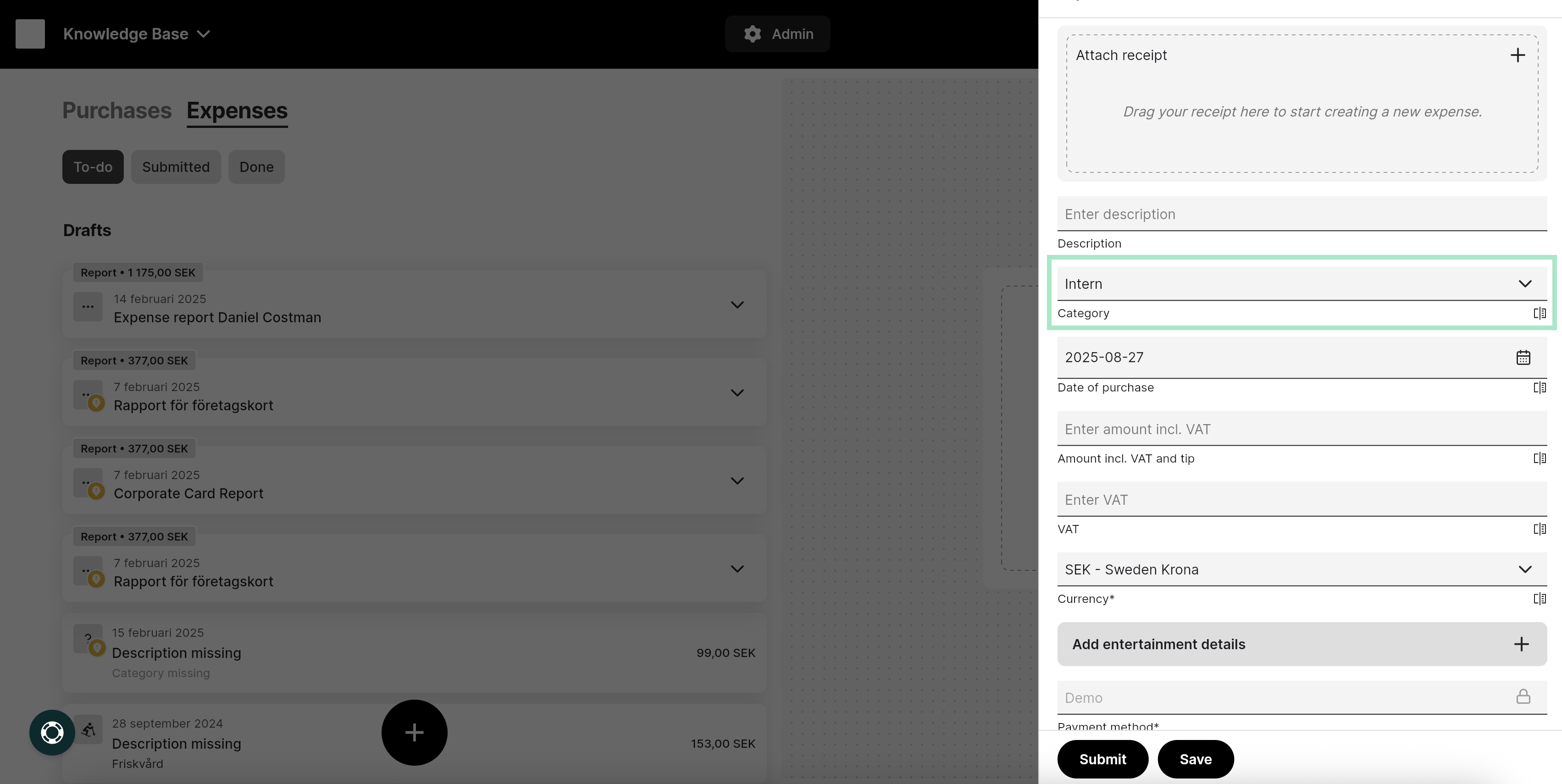
Make sure that the category is an entertainment category. Once you have photographed the receipt, the system will automatically analyze it. If the category has been analyzed incorrectly, you can click on the category line and select the correct one from the list.
-
It is mandatory to enter who participated in the entertainment. You can either add the participants by clicking on the row Add entertainment details, which you will find further down in the view, and then enter the participants’ names manually.
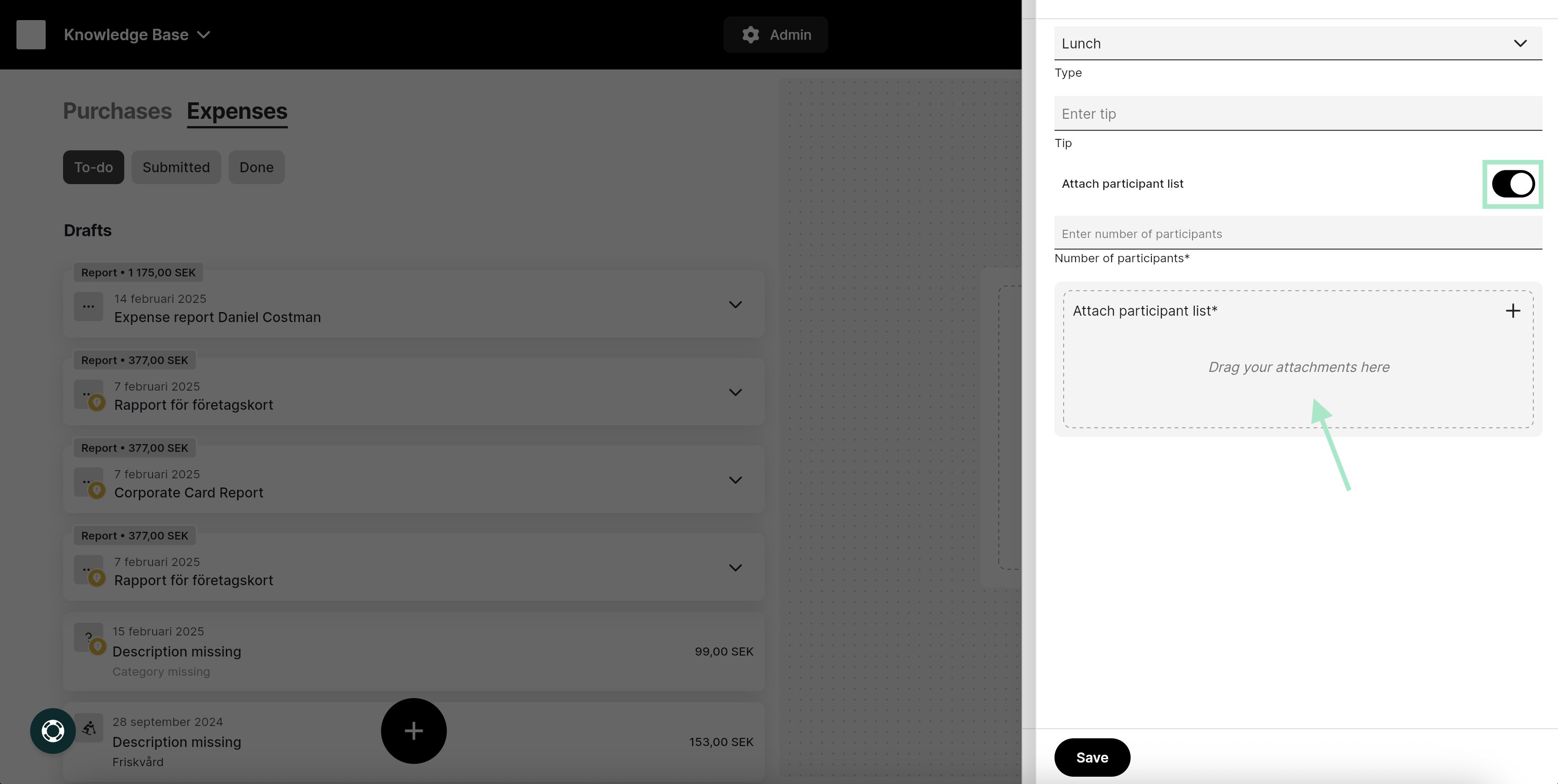
 Alternatively, you can click the button next to Attach participant list to instead attach a list of the participants. Enter the Number of participants and then attach the list by dragging your file into the box as shown in the image, or click in the box to select and upload your saved file. Also, select the Type of entertainment it was. In the example below, we have selected that it was a lunch.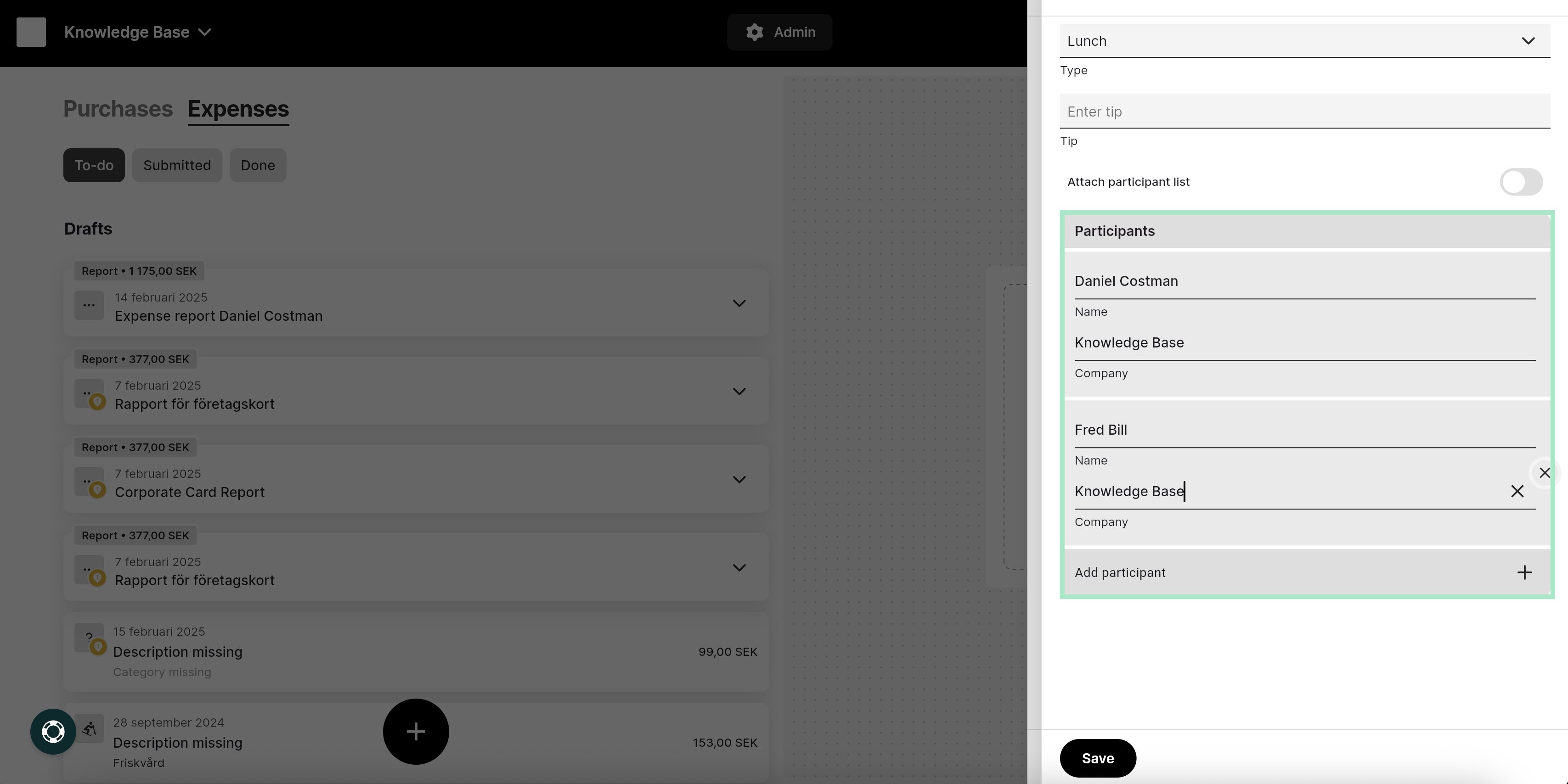
- Finish by saving by clicking the Save button at the bottom of the screen.
Related articles
- How do I add an expense?
- I made a mistake in my expense report, how can I get my report back so I can make the changes?
- I have registered my receipt in the wrong organisation, can I move that to another organisation?
- Can I email my receipts to the service?
- Can I split an expense into two separate expenses?