Gör det enklare att rapportera milersättning för resor i tjänsten genom att koppla systemet till elektroniska körjournaler. Detta innebär att användaren får alla resor automatiskt inrapporterade till tjänsten för att sedan enkelt kunna skicka in dessa för bokföring och utbetalning. På så sätt får du ett korrekt underlag för alla tjänsteresor direkt i appen, med stöd för både privat- och tjänstebil.Denna instruktion beskriver hur du kopplar din elektroniska körjournal till tjänsten.
Automile
Infobric Fleet
Paydrive Sense
Volvo on Call
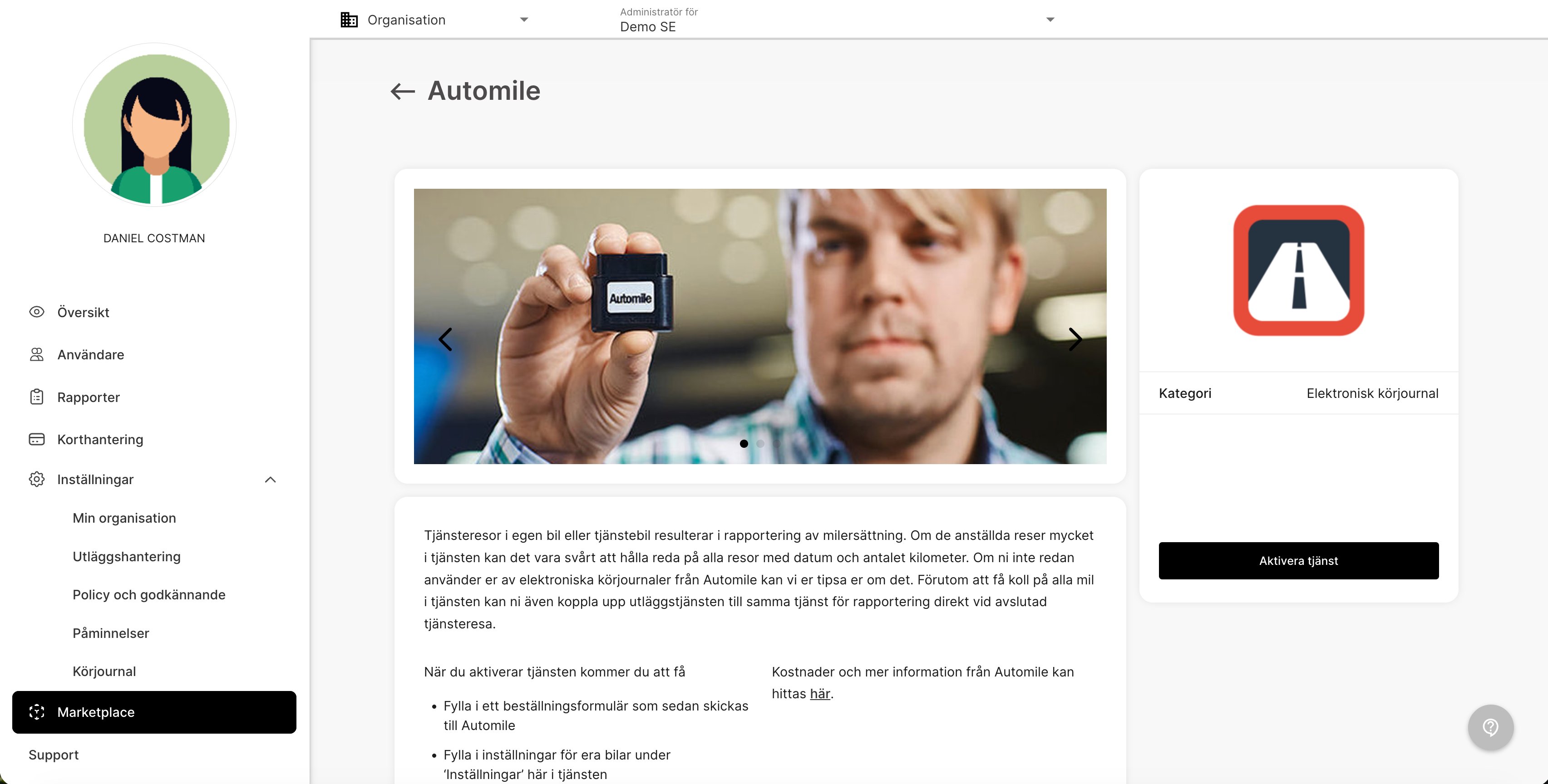
Gå till fliken Marketplace och välj kategorin Elektronisk körjournal. Klicka på valet Automile. Välj att aktivera tjänsten.
Fyll i den information som är obligatorisk i rutan som dyker upp på sidan. Markera rutan att ni godkänner att kostnaden ökar och välj Spara.
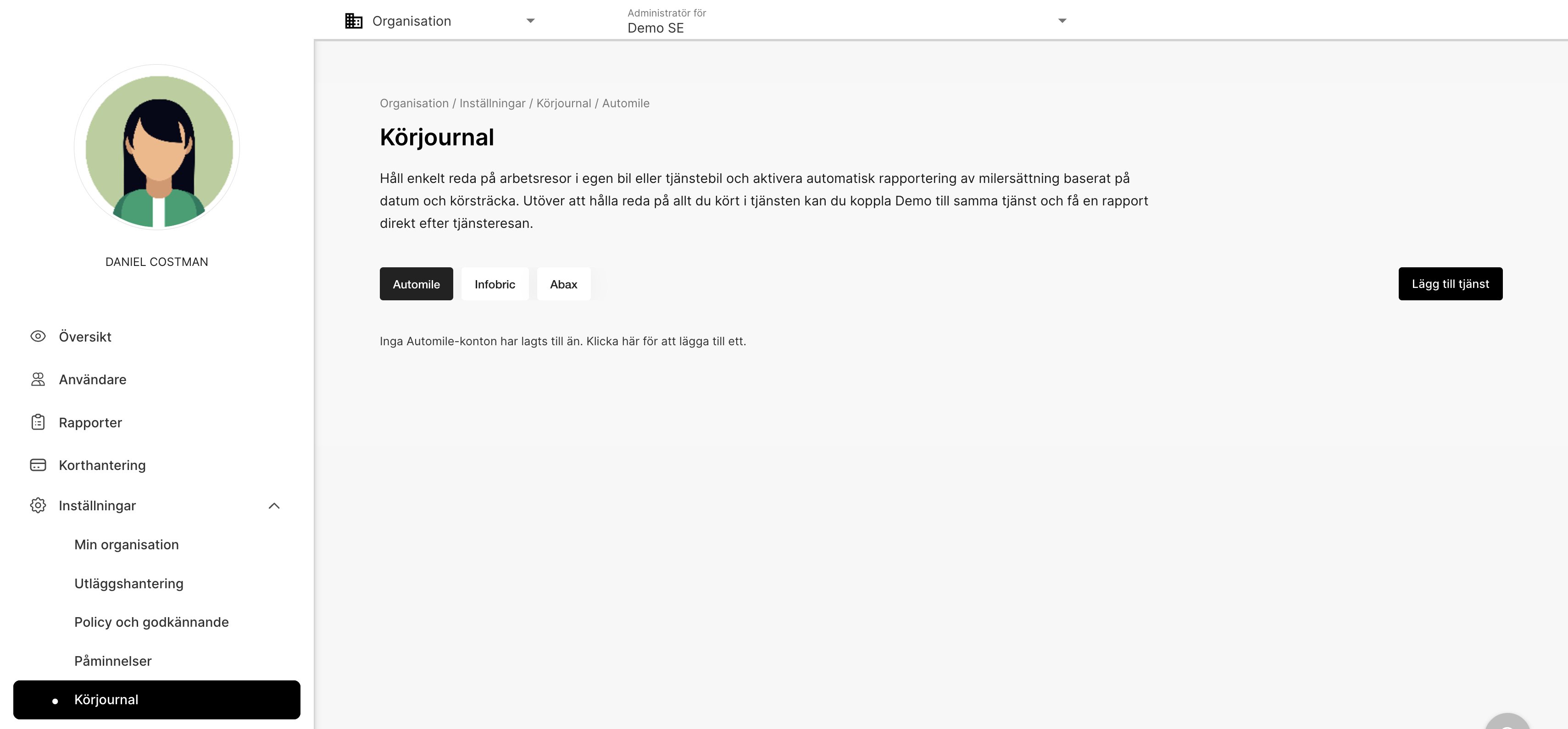
Gå till fliken Inställningar och Körjournal. Klicka på Lägg till tjänst.
Lägg till en Beskrivning (till exempel Automile) och en Klientidentifierare och Klientnyckel.Klientidentifierare och Klientnyckel hittar du på ditt användarkonto i Automile under: Inställningar/Utvecklare/API-klienter/Klicka på “Lägg till ny”/Under fliken ” Hemlig”Klicka på Spara när du är klar.
Nu visas en popup-sida i din webbläsare (kika gärna så du accepterar popup-sidor i din webbläsare) där du måste logga in med ditt Automile-konto för att slutföra kopplingen.
Integrationen till Automile är nu aktiverad.Välj vilka Restyper under inställningarna för körjournal som ni vill använda er utav på organisationen.
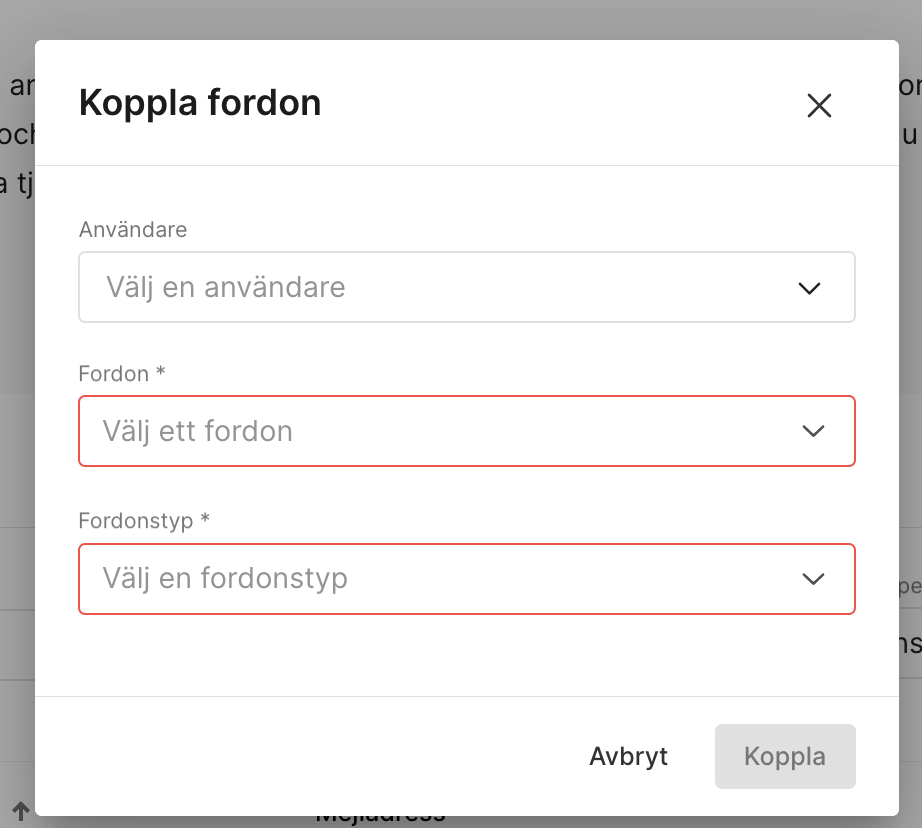
Nu är det dags att lägga till användarna. Klicka på Koppla fordon.Välj Användare, Fordon och Fordonstyp och klicka på Koppla. De fordon och fordonstyper som är registrerade på ditt Automilekonto visas som valbara fordon i tjänsten. När informationen är ifylld klickar du på Koppla.
Nu är användaren upplagd och listas under fliken för Automile.
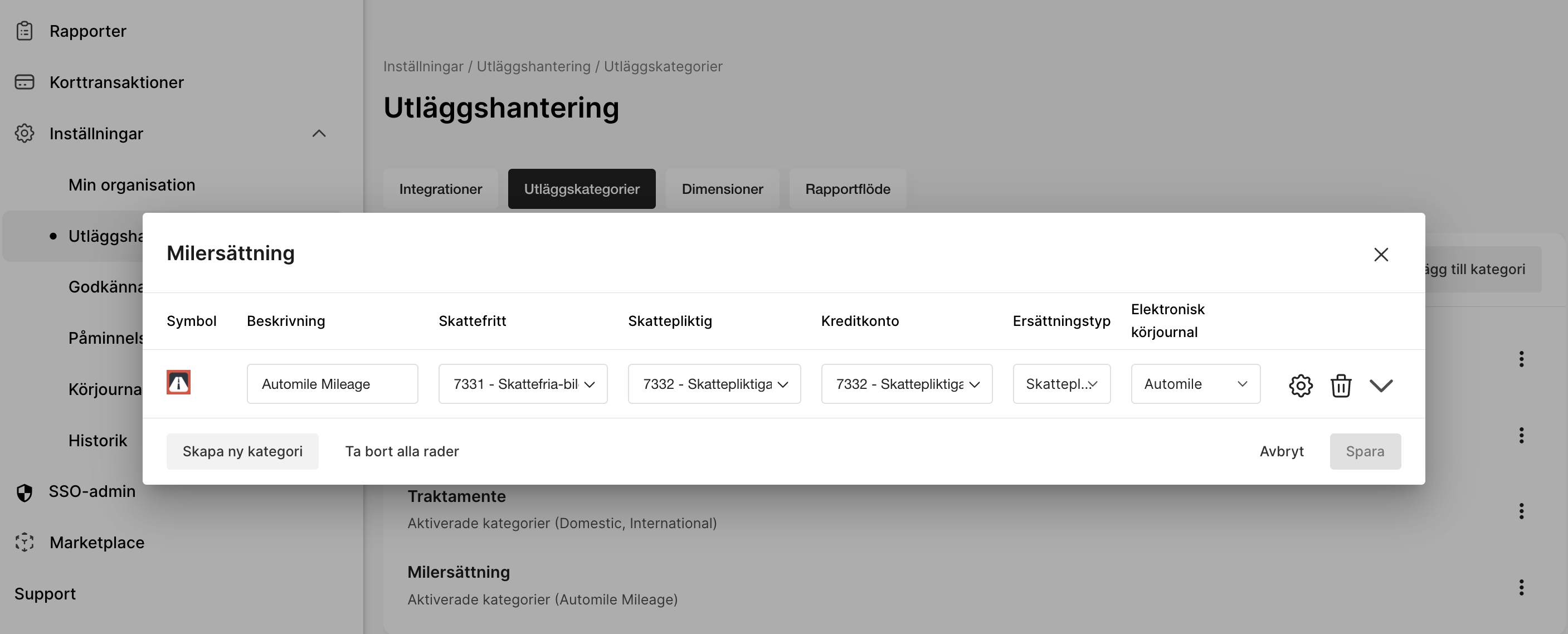
Gå nu till fliken Inställningar - Utläggshantering - Utläggskategorier - Milersättning.Klicka på Skapa ny kategori. Välj en Beskrivning på kategorin och koppla Automile i menyn till höger under fliken Elektronisk körjournal.
Inställningarna är nu klara!
Gå till fliken Marketplace och välj kategorin Elektronisk körjournal. Klicka på valet Infobric Fleet. Välj att Aktivera tjänst.
Fyll i uppgifterna och tryck på Spara.
Gå till fliken Körjournal och klicka på Lägg till tjänst.
Lägg till en Beskrivning och de inloggningsuppgifterna som du har i ditt Infobric fleet konto under fälten för Användare och Lösenord.Klicka sen på Spara.
Klicka på Kopplafordon för att lägga till användarna och välj de Restyper som ni vill använda er utav.
Nu är det dags att koppla inställningen för milersättning till körjournalen. Gå till Inställningar - Utläggshantering - Utläggskategorier - Milersättning.Klicka på rutan under fliken Elektronisk körjournal för att koppla kategorin till Infobric fleet eller skapa en ny kategori och gör kopplingen där.
Enheter kommer att levereras till användarna/organisationen från Infrobric fleet. Användarna kopplar in enheten i sin bil för att läsa av resorna.
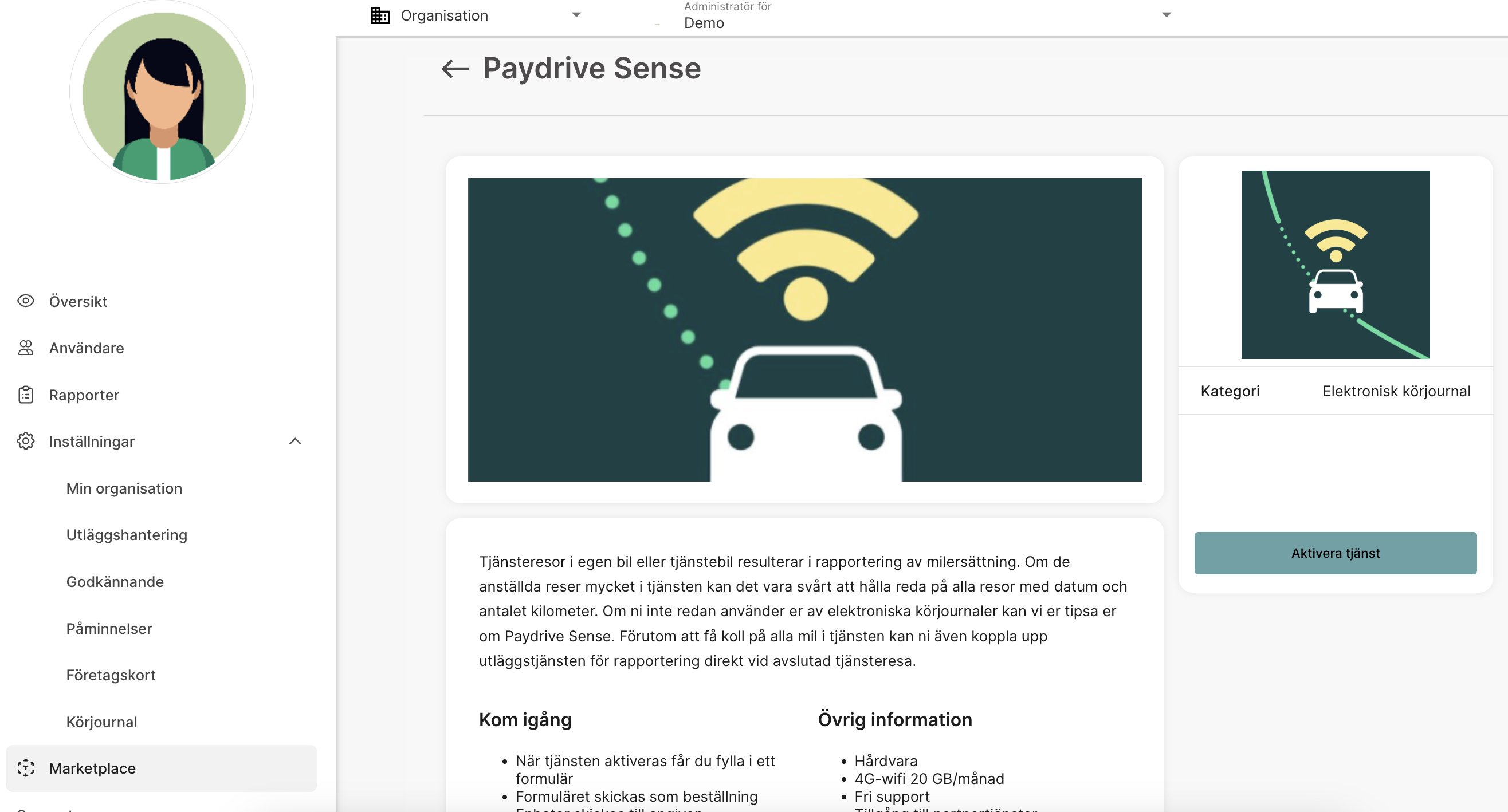
Gå till fliken Marketplace och välj kategorin Elektronisk körjournal. Klicka på valet Paydrive Sense. Välj att Aktivera tjänst.
Fyll i uppgifterna och tryck på Spara.
Enheter för Paydrive Sense kommer att levereras. Användarna behöver koppla in enheten i sin bil för att börja läsa av resorna.Ladda sen ned och öppna appen Paydrive Sense. Klicka på Mer och välj där att lägga till din utläggshanterare i partnertjänsten.
Gå till fliken Marketplace och välj kategorin Eletronisk körjournal. Klicka på valet Volvo on call. Välj att Aktivera tjänst.
Fyll i uppgifterna och tryck på Spara.
Användaren öppnar därefter sin Volvo On Call-app och markerar de resor som ska skickas till tjänsten.När resorna har valts exporterar användaren dem genom att skicka dem som en CSV-fil via e-post.Det är viktigt att resorna skickas från samma e-postadress som är registrerad på användarkontot i tjänsten.Nästa gång användaren loggar in i systemet finns resorna uppladdade under Att göra som utkast.
{"docsConfig":{"theme":"palm","$schema":"https://mintlify.com/docs.json","name":"Findity Help","colors":{"primary":"#012A2D","light":"#3FA9A5","dark":"#012A2D"},"logo":{"light":"https://mintcdn.com/findityab/AH6tM5UvHfZ-J7RD/images/logo/light.avif?fit=max\u0026auto=format\u0026n=AH6tM5UvHfZ-J7RD\u0026q=85\u0026s=7eeff06f4650ceed95357cc6214100d3","dark":"https://mintcdn.com/findityab/AH6tM5UvHfZ-J7RD/images/logo/dark.png?fit=max\u0026auto=format\u0026n=AH6tM5UvHfZ-J7RD\u0026q=85\u0026s=57da802101e85cffd0f955947be2ae0f","href":"/"},"favicon":"https://mintcdn.com/findityab/AH6tM5UvHfZ-J7RD/images/logo/favicon.jpeg?fit=max\u0026auto=format\u0026n=AH6tM5UvHfZ-J7RD\u0026q=85\u0026s=a73565ede059e91de69f6bc8cb692a31","navbar":{"links":[{"icon":"globe","href":"/sv","label":"Svenska"},{"icon":"globe","href":"/","label":"English"}]},"footer":{"socials":{"facebook":"https://www.facebook.com/findity","linkedin":"https://www.linkedin.com/company/findity"},"links":[{"header":" ","items":[{"label":"Privacy policy","href":"https://www.findity.com/legal"},{"label":"Privacy policy UK","href":"https://www.findity.com/uk-legal"},{"label":"Support","href":"https://www.findity.com/support"}]}]},"seo":{"metatags":{"robots":"noindex"}},"fonts":{"heading":{"family":"Montserrat","format":"woff2"},"body":{"family":"Montserrat","format":"woff2"}},"contextual":{"options":["copy","view","chatgpt","claude","perplexity","mcp","cursor","vscode"],"display":"header"},"metadata":{"timestamp":true},"variables":{"brandName":"Findity","supportEmail":"support@findity.com","devPortalUrl":"https://developer.findity.com/docs","appUrl":"https://expense.findity.com","supportUrl":"https://www.findity.com/support"},"styling":{"latex":false},"navigation":{"languages":[{"language":"en","href":""},{"language":"sv","href":"sv"}]}},"deployment":{"deploymentMetadataValue":{"subdomain":"findityab","hasAudioNarration":false,"actualSubdomain":"findityab","customDomains":["help.findity.com"],"gitSource":{"type":"gitlab","owner":"findity/ce","repo":"api-documentation","deployBranch":"main","contentDirectory":"kb-core","isPrivate":true,"projectId":85772420,"mountPath":"","label":""},"chroma":{"collectionId":"a338c7f7-d5f4-487f-9936-644cfaebda81","liveDeploymentHistoryId":"6ae056e3bb643463995203ad","schemaVersion":"v3","latestBuiltDeploymentHistoryId":"6ae056e3bb643463995203ad"},"entitlements":{"AI_CHAT":{"status":"ENABLED"},"REMOVE_BRANDING":{"status":"ENABLED"},"CONTEXTUAL_FEEDBACK":{"status":"ENABLED"},"CODE_SNIPPET_FEEDBACK":{"status":"ENABLED"},"WEB_MCP":{"status":"ENABLED"},"NARRATION":{"status":"ENABLED"}},"buildId":"6ae056e3bb643463995203ad","clientVersion":"0.0.4044","searchFilterCounts":[{"language":"en","tag":"For administrators","count":128},{"language":"sv","tag":"För administratören","count":127},{"language":"en","tag":"Settings","count":90},{"language":"sv","tag":"Inställningar","count":89},{"language":"sv","tag":"För användaren","count":66},{"language":"en","tag":"For users","count":64},{"language":"sv","tag":"Övrigt","count":52},{"language":"en","tag":"Other","count":50},{"language":"en","tag":"Expense and reports","count":45},{"language":"sv","tag":"Utlägg \u0026 Rapporter","count":29},{"language":"en","tag":"Corporate cards","count":21},{"language":"sv","tag":"Företagskort","count":21},{"language":"sv","tag":"Hantera utlägg och rapporter","count":16},{"language":"en","tag":"For Partner administrator","count":13},{"language":"sv","tag":"För partneradministratören","count":13},{"language":"sv","tag":"Kvitto \u0026 Resa","count":5},{"language":"en","tag":"Consultant","count":4},{"language":"sv","tag":"Konsult","count":4},{"language":"en","tag":"Get started","count":2},{"language":"en","tag":"Home","count":2}]},"assistantConfig":{"enableAskAiButton":false,"enableStarterQuestions":false,"enableContextualStarterQuestions":false,"enableAskAiSearchBar":true},"basePath":"","hasChatPermissions":true,"hasWebMcpPermissions":true,"toggles":[{"name":"kill-isr","enabled":true,"variant":{"name":"disabled","enabled":false,"feature_enabled":true},"impressionData":false},{"name":"agent-mintlify-slack","enabled":true,"variant":{"name":"disabled","enabled":false,"feature_enabled":true},"impressionData":false},{"name":"agent-integrations-settings","enabled":true,"variant":{"name":"disabled","enabled":false,"feature_enabled":true},"impressionData":false},{"name":"automations-pr-grouping","enabled":true,"variant":{"name":"disabled","enabled":false,"feature_enabled":true},"impressionData":false},{"name":"custom-prefix","enabled":true,"variant":{"name":"disabled","enabled":false,"feature_enabled":true},"impressionData":false},{"name":"analytics-v7","enabled":true,"variant":{"name":"disabled","enabled":false,"feature_enabled":true},"impressionData":false},{"name":"user-flows-analytics","enabled":true,"variant":{"name":"disabled","enabled":false,"feature_enabled":true},"impressionData":false},{"name":"no-publish-flow","enabled":true,"variant":{"name":"disabled","enabled":false,"feature_enabled":true},"impressionData":false},{"name":"workos-onboarding","enabled":true,"variant":{"name":"disabled","enabled":false,"feature_enabled":true},"impressionData":false},{"name":"llms-txt-v2","enabled":true,"variant":{"name":"disabled","enabled":false,"feature_enabled":true},"impressionData":false},{"name":"snapshot-serving-live","enabled":true,"variant":{"name":"disabled","enabled":false,"feature_enabled":true},"impressionData":false},{"name":"stripTemperatureMiddleware","enabled":true,"variant":{"name":"disabled","enabled":false,"feature_enabled":true},"impressionData":false},{"name":"support-platform-pylon-zendesk","enabled":true,"variant":{"name":"disabled","enabled":false,"feature_enabled":true},"impressionData":false},{"name":"snapshot-serving","enabled":true,"variant":{"name":"disabled","enabled":false,"feature_enabled":true},"impressionData":false},{"name":"instant-rollback","enabled":true,"variant":{"name":"disabled","enabled":false,"feature_enabled":true},"impressionData":false},{"name":"granular-notifications-server","enabled":true,"variant":{"name":"disabled","enabled":false,"feature_enabled":true},"impressionData":false},{"name":"granular-notifications","enabled":true,"variant":{"name":"disabled","enabled":false,"feature_enabled":true},"impressionData":false},{"name":"automations-fable","enabled":true,"variant":{"name":"disabled","enabled":false,"feature_enabled":true},"impressionData":false},{"name":"fixed-ai-action-pricing","enabled":true,"variant":{"name":"disabled","enabled":false,"feature_enabled":true},"impressionData":false},{"name":"automation-resolve-merge-conflict","enabled":true,"variant":{"name":"disabled","enabled":false,"feature_enabled":true},"impressionData":false},{"name":"scoped-publishing","enabled":true,"variant":{"name":"disabled","enabled":false,"feature_enabled":true},"impressionData":false},{"name":"mintql","enabled":true,"variant":{"name":"disabled","enabled":false,"feature_enabled":true},"impressionData":false},{"name":"page-level-analytics","enabled":true,"variant":{"name":"disabled","enabled":false,"feature_enabled":true},"impressionData":false},{"name":"editor-version-history-v2","enabled":true,"variant":{"name":"disabled","enabled":false,"feature_enabled":true},"impressionData":false},{"name":"billing-page-v2","enabled":true,"variant":{"name":"disabled","enabled":false,"feature_enabled":true},"impressionData":false},{"name":"full-page-search","enabled":true,"variant":{"name":"disabled","enabled":false,"feature_enabled":true},"impressionData":false},{"name":"workspace-projects","enabled":true,"variant":{"name":"disabled","enabled":false,"feature_enabled":true},"impressionData":false},{"name":"assistant-v5","enabled":true,"variant":{"name":"disabled","enabled":false,"feature_enabled":true},"impressionData":false},{"name":"byok-sep-25","enabled":true,"variant":{"name":"disabled","enabled":false,"feature_enabled":true},"impressionData":false},{"name":"fork-pr-previews","enabled":true,"variant":{"name":"disabled","enabled":false,"feature_enabled":true},"impressionData":false},{"name":"revalidation-jwt","enabled":true,"variant":{"name":"disabled","enabled":false,"feature_enabled":true},"impressionData":false},{"name":"vite-origin","enabled":true,"variant":{"name":"disabled","enabled":false,"feature_enabled":true},"impressionData":false},{"name":"billing-updated-9-15","enabled":true,"variant":{"name":"disabled","enabled":false,"feature_enabled":true},"impressionData":false},{"name":"workos-sso-scim","enabled":true,"variant":{"name":"disabled","enabled":false,"feature_enabled":true},"impressionData":false},{"name":"hobby-abuse-scan","enabled":true,"variant":{"name":"disabled","enabled":false,"feature_enabled":true},"impressionData":false},{"name":"dashboard-inbox","enabled":true,"variant":{"name":"disabled","enabled":false,"feature_enabled":true},"impressionData":false},{"name":"workos-signup","enabled":true,"variant":{"name":"disabled","enabled":false,"feature_enabled":true},"impressionData":false},{"name":"turbopuffer-dual-write","enabled":true,"variant":{"name":"disabled","enabled":false,"feature_enabled":true},"impressionData":false},{"name":"workos-enabled","enabled":true,"variant":{"name":"disabled","enabled":false,"feature_enabled":true},"impressionData":false},{"name":"approve-review-flow","enabled":true,"variant":{"name":"disabled","enabled":false,"feature_enabled":true},"impressionData":false},{"name":"sso-setup-deadline-banner","enabled":true,"variant":{"name":"disabled","enabled":false,"feature_enabled":true},"impressionData":false}],"googleFontsInlined":true},"customCss":[{"filePath":"styles.css","content":".tabs{margin-top:20px;border:1px solid rgb(var(--default-border-color));padding:2px 6px 6px;border-radius:4px}ul[role=tablist][data-component-part=tabs-list]{flex-wrap:wrap;overflow:visible;row-gap:.5rem}.mdx-content .frame img{max-height:700px}html:not([data-current-path^=\"/sv\"]) .navbar-link a[href=\"/\"],html:not([data-current-path^=\"/sv\"]) .navbar-link[href=\"/\"],html[data-current-path^=\"/sv\"] .navbar-link a[href=\"/sv\"],html[data-current-path^=\"/sv\"] .navbar-link[href=\"/sv\"]{display:none!important}#findity-lang-mobile{display:none}@media (max-width:1023.98px){.findity-hide-mobile{display:none!important}#findity-lang-mobile{display:inline-flex;align-items:center;gap:6px;flex-shrink:0;height:32px;margin-left:6px;padding:0 12px;border:1px solid rgba(1,42,45,.18);border-radius:9999px;color:#012a2d;font-size:13px;font-weight:500;line-height:1;white-space:nowrap;text-decoration:none;-webkit-tap-highlight-color:transparent;transition:background-color .15s ease,border-color .15s ease}#findity-lang-mobile:active,#findity-lang-mobile:hover{background-color:rgba(1,42,45,.06);border-color:rgba(1,42,45,.3)}#findity-lang-mobile:focus-visible{outline:2px solid currentColor;outline-offset:2px}#findity-lang-mobile svg{flex-shrink:0;opacity:.8}html.dark #findity-lang-mobile{color:#f3f4f6;border-color:rgba(255,255,255,.22)}html.dark #findity-lang-mobile:active,html.dark #findity-lang-mobile:hover{background-color:rgba(255,255,255,.08);border-color:rgba(255,255,255,.35)}.findity-menu-host{font-size:0!important}.findity-menu-host>:not(.findity-keep):not(.findity-menu-label){display:none!important}.findity-menu-host>.findity-menu-label{display:inline!important;font-size:.875rem;font-weight:600;line-height:1.5rem}button.findity-menu-host{gap:.75rem}}#chat-assistant-textarea,.chat-assistant-input{color:#012a2d!important}#chat-assistant-textarea::placeholder,.chat-assistant-input::placeholder{color:#012a2d!important;opacity:1}"}],"page":{"pagePath":"sv/settings-administrator/activate-fleet-management","slug":"/sv/settings-administrator/activate-fleet-management","pageMetadata":{"title":"Aktivera Elektronisk körjournal","source_url":"https://help.findity.com/sv_SE/inst%C3%A4llningar-%E2%80%93-administrat%C3%B6r-/aktivera-elektronisk-k%C3%B6rjournal-","breadcrumbs":"Home > För administratören > Inställningar – Administratör","syncId":"sv-aktivera-elektronisk-korjournal","sync":"none","description":null,"href":"/sv/settings-administrator/activate-fleet-management"},"pageType":"default","mdx":{"mdxSource":{"compiledSource":"\"use strict\";const{Fragment:_Fragment,jsx:_jsx,jsxs:_jsxs}=arguments[0];const{useMDXComponents:_provideComponents}=arguments[0];function _createMdxContent(props){const _components={a:`a`,em:`em`,li:`li`,p:`p`,strong:`strong`,ul:`ul`,..._provideComponents(),...props.components},{Frame,Heading,Note,OptimizedImage,Tab,Tabs}=_components;if(!Frame)_missingMdxReference(`Frame`,true);if(!Heading)_missingMdxReference(`Heading`,true);if(!Note)_missingMdxReference(`Note`,true);if(!OptimizedImage)_missingMdxReference(`OptimizedImage`,true);if(!Tab)_missingMdxReference(`Tab`,true);if(!Tabs)_missingMdxReference(`Tabs`,true);return _jsxs(_Fragment,{children:[_jsxs(Note,{children:[_jsx(_components.p,{children:_jsx(_components.strong,{children:`Den här artikeln avser följande länder:`})}),_jsxs(_components.ul,{children:[`\n`,_jsx(_components.li,{children:`Sverige`}),`\n`]})]}),`\n`,_jsxs(_components.p,{children:[`Gör det enklare att rapportera milersättning för resor i tjänsten genom att koppla systemet till elektroniska körjournaler. Detta innebär att användaren får alla resor automatiskt inrapporterade till tjänsten för att sedan enkelt kunna skicka in dessa för bokföring `,_jsx(_components.em,{children:`och`}),` utbetalning. På så sätt får du ett korrekt underlag för alla tjänsteresor direkt i appen, med stöd för både privat- och tjänstebil.`]}),`\n`,_jsx(_components.p,{children:`Denna instruktion beskriver hur du kopplar din elektroniska körjournal till tjänsten.`}),`\n`,_jsxs(Tabs,{children:[_jsxs(Tab,{title:`Automile`,id:`automile`,children:[_jsxs(_components.p,{children:[`Gå till fliken `,_jsx(_components.em,{children:`Marketplace`}),` och välj kategorin `,_jsx(_components.em,{children:`Elektronisk körjournal.`}),` Klicka på valet `,_jsx(_components.em,{children:`Automile.`}),` Välj att `,_jsx(_components.em,{children:`aktivera tjänsten.`})]}),_jsx(Frame,{children:_jsx(OptimizedImage,{src:`https://mintcdn.com/findityab/AH6tM5UvHfZ-J7RD/images/sv/aktivera-elektronisk-korjournal/01.png?fit=max\u0026auto=format\u0026n=AH6tM5UvHfZ-J7RD\u0026q=85\u0026s=e69254c91aa530828a42056ec630051f`,alt:``,\"data-og-width\":`3410`,width:`3410`,\"data-og-height\":`1728`,height:`1728`,\"data-path\":`images/sv/aktivera-elektronisk-korjournal/01.png`,\"data-optimize\":`true`,\"data-opv\":`3`,srcset:`https://mintcdn.com/findityab/AH6tM5UvHfZ-J7RD/images/sv/aktivera-elektronisk-korjournal/01.png?w=280\u0026fit=max\u0026auto=format\u0026n=AH6tM5UvHfZ-J7RD\u0026q=85\u0026s=283cb3e2cbf7892715fe1386774b81a8 280w, https://mintcdn.com/findityab/AH6tM5UvHfZ-J7RD/images/sv/aktivera-elektronisk-korjournal/01.png?w=560\u0026fit=max\u0026auto=format\u0026n=AH6tM5UvHfZ-J7RD\u0026q=85\u0026s=4bfa19e53fe22468cb047581ec40596d 560w, https://mintcdn.com/findityab/AH6tM5UvHfZ-J7RD/images/sv/aktivera-elektronisk-korjournal/01.png?w=840\u0026fit=max\u0026auto=format\u0026n=AH6tM5UvHfZ-J7RD\u0026q=85\u0026s=22095012125c3b84c9485823418897e8 840w, https://mintcdn.com/findityab/AH6tM5UvHfZ-J7RD/images/sv/aktivera-elektronisk-korjournal/01.png?w=1100\u0026fit=max\u0026auto=format\u0026n=AH6tM5UvHfZ-J7RD\u0026q=85\u0026s=6106fda5d27e6bbe056d025061921629 1100w, https://mintcdn.com/findityab/AH6tM5UvHfZ-J7RD/images/sv/aktivera-elektronisk-korjournal/01.png?w=1650\u0026fit=max\u0026auto=format\u0026n=AH6tM5UvHfZ-J7RD\u0026q=85\u0026s=0ffdb19dbe3da165fd2a541995823d15 1650w, https://mintcdn.com/findityab/AH6tM5UvHfZ-J7RD/images/sv/aktivera-elektronisk-korjournal/01.png?w=2500\u0026fit=max\u0026auto=format\u0026n=AH6tM5UvHfZ-J7RD\u0026q=85\u0026s=d9c5e271e570b72d8993939323c15a69 2500w`})}),_jsxs(_components.p,{children:[`Fyll i den information som är obligatorisk i rutan som dyker upp på sidan. Markera rutan att ni godkänner att kostnaden ökar och välj `,_jsx(_components.em,{children:`Spara`}),`.`]}),_jsx(Frame,{children:_jsx(OptimizedImage,{src:`https://mintcdn.com/findityab/AH6tM5UvHfZ-J7RD/images/sv/aktivera-elektronisk-korjournal/02.png?fit=max\u0026auto=format\u0026n=AH6tM5UvHfZ-J7RD\u0026q=85\u0026s=41ff04057be10c55acca969ba9e36d74`,alt:``,\"data-og-width\":`1706`,width:`1706`,\"data-og-height\":`1256`,height:`1256`,\"data-path\":`images/sv/aktivera-elektronisk-korjournal/02.png`,\"data-optimize\":`true`,\"data-opv\":`3`,srcset:`https://mintcdn.com/findityab/AH6tM5UvHfZ-J7RD/images/sv/aktivera-elektronisk-korjournal/02.png?w=280\u0026fit=max\u0026auto=format\u0026n=AH6tM5UvHfZ-J7RD\u0026q=85\u0026s=0a2c95529188f1216187c7014afc0a85 280w, https://mintcdn.com/findityab/AH6tM5UvHfZ-J7RD/images/sv/aktivera-elektronisk-korjournal/02.png?w=560\u0026fit=max\u0026auto=format\u0026n=AH6tM5UvHfZ-J7RD\u0026q=85\u0026s=6e5c99af89c7c68dc9ed5bf86e3de838 560w, https://mintcdn.com/findityab/AH6tM5UvHfZ-J7RD/images/sv/aktivera-elektronisk-korjournal/02.png?w=840\u0026fit=max\u0026auto=format\u0026n=AH6tM5UvHfZ-J7RD\u0026q=85\u0026s=a0784781fccb47ad7ddef3b1c92affb1 840w, https://mintcdn.com/findityab/AH6tM5UvHfZ-J7RD/images/sv/aktivera-elektronisk-korjournal/02.png?w=1100\u0026fit=max\u0026auto=format\u0026n=AH6tM5UvHfZ-J7RD\u0026q=85\u0026s=9f40981a1629211dc751db2d1314c1db 1100w, https://mintcdn.com/findityab/AH6tM5UvHfZ-J7RD/images/sv/aktivera-elektronisk-korjournal/02.png?w=1650\u0026fit=max\u0026auto=format\u0026n=AH6tM5UvHfZ-J7RD\u0026q=85\u0026s=e7cfc1527b1cf0a3ba87cab748ff95b6 1650w, https://mintcdn.com/findityab/AH6tM5UvHfZ-J7RD/images/sv/aktivera-elektronisk-korjournal/02.png?w=2500\u0026fit=max\u0026auto=format\u0026n=AH6tM5UvHfZ-J7RD\u0026q=85\u0026s=8c5193c7fd178a67fe6665b521eb16f6 2500w`})}),_jsxs(_components.p,{children:[`Gå till fliken `,_jsx(_components.em,{children:`Inställningar`}),` och `,_jsx(_components.em,{children:`Körjournal`}),`. Klicka på `,_jsx(_components.em,{children:`Lägg till tjänst.`})]}),_jsx(Frame,{children:_jsx(OptimizedImage,{src:`https://mintcdn.com/findityab/AH6tM5UvHfZ-J7RD/images/sv/aktivera-elektronisk-korjournal/03.png?fit=max\u0026auto=format\u0026n=AH6tM5UvHfZ-J7RD\u0026q=85\u0026s=d3c5f320a878ad3297765f90fd7ea225`,alt:``,\"data-og-width\":`3418`,width:`3418`,\"data-og-height\":`1590`,height:`1590`,\"data-path\":`images/sv/aktivera-elektronisk-korjournal/03.png`,\"data-optimize\":`true`,\"data-opv\":`3`,srcset:`https://mintcdn.com/findityab/AH6tM5UvHfZ-J7RD/images/sv/aktivera-elektronisk-korjournal/03.png?w=280\u0026fit=max\u0026auto=format\u0026n=AH6tM5UvHfZ-J7RD\u0026q=85\u0026s=7871f809d042f8d1d0aebfeb0e871e8a 280w, https://mintcdn.com/findityab/AH6tM5UvHfZ-J7RD/images/sv/aktivera-elektronisk-korjournal/03.png?w=560\u0026fit=max\u0026auto=format\u0026n=AH6tM5UvHfZ-J7RD\u0026q=85\u0026s=63bb2c6e1af3762a181eb0648d3259aa 560w, https://mintcdn.com/findityab/AH6tM5UvHfZ-J7RD/images/sv/aktivera-elektronisk-korjournal/03.png?w=840\u0026fit=max\u0026auto=format\u0026n=AH6tM5UvHfZ-J7RD\u0026q=85\u0026s=19544eec8879ceb1bbb1987928446f0b 840w, https://mintcdn.com/findityab/AH6tM5UvHfZ-J7RD/images/sv/aktivera-elektronisk-korjournal/03.png?w=1100\u0026fit=max\u0026auto=format\u0026n=AH6tM5UvHfZ-J7RD\u0026q=85\u0026s=6e9ffc6b0a9c2f6a11a3abe9fad9f698 1100w, https://mintcdn.com/findityab/AH6tM5UvHfZ-J7RD/images/sv/aktivera-elektronisk-korjournal/03.png?w=1650\u0026fit=max\u0026auto=format\u0026n=AH6tM5UvHfZ-J7RD\u0026q=85\u0026s=c7a9b4bea783460a7afde0300e66a444 1650w, https://mintcdn.com/findityab/AH6tM5UvHfZ-J7RD/images/sv/aktivera-elektronisk-korjournal/03.png?w=2500\u0026fit=max\u0026auto=format\u0026n=AH6tM5UvHfZ-J7RD\u0026q=85\u0026s=d71862db51ce2c3a034078ffc12e0703 2500w`})}),_jsxs(_components.p,{children:[`Lägg till en `,_jsx(_components.em,{children:`Beskrivning`}),` (till exempel Automile) och en `,_jsx(_components.em,{children:`Klientidentifierare`}),` och `,_jsx(_components.em,{children:`Klientnyckel`}),`.`]}),_jsxs(_components.p,{children:[_jsx(_components.em,{children:`Klientidentifierare`}),` och `,_jsx(_components.em,{children:`Klientnyckel`}),` hittar du på ditt användarkonto i Automile under: \\xA0Inställningar/Utvecklare/API-klienter/Klicka på “Lägg till ny”/Under fliken `,_jsx(_components.em,{children:`”`}),` Hemlig”`]}),_jsxs(_components.p,{children:[`Klicka på\\xA0`,_jsx(_components.em,{children:`Spara`}),` när du är klar.`]}),_jsx(Frame,{children:_jsx(OptimizedImage,{src:`https://mintcdn.com/findityab/AH6tM5UvHfZ-J7RD/images/sv/aktivera-elektronisk-korjournal/04.png?fit=max\u0026auto=format\u0026n=AH6tM5UvHfZ-J7RD\u0026q=85\u0026s=6678bbbc38aec1cbcd450457dabbfcaf`,alt:``,\"data-og-width\":`954`,width:`954`,\"data-og-height\":`852`,height:`852`,\"data-path\":`images/sv/aktivera-elektronisk-korjournal/04.png`,\"data-optimize\":`true`,\"data-opv\":`3`,srcset:`https://mintcdn.com/findityab/AH6tM5UvHfZ-J7RD/images/sv/aktivera-elektronisk-korjournal/04.png?w=280\u0026fit=max\u0026auto=format\u0026n=AH6tM5UvHfZ-J7RD\u0026q=85\u0026s=9c35773585580bc34cb7caefbb1d8b2b 280w, https://mintcdn.com/findityab/AH6tM5UvHfZ-J7RD/images/sv/aktivera-elektronisk-korjournal/04.png?w=560\u0026fit=max\u0026auto=format\u0026n=AH6tM5UvHfZ-J7RD\u0026q=85\u0026s=b245b3ec9b8f466268389f80259a6a19 560w, https://mintcdn.com/findityab/AH6tM5UvHfZ-J7RD/images/sv/aktivera-elektronisk-korjournal/04.png?w=840\u0026fit=max\u0026auto=format\u0026n=AH6tM5UvHfZ-J7RD\u0026q=85\u0026s=65dd0123bcf9103a115eb66a39a6f295 840w, https://mintcdn.com/findityab/AH6tM5UvHfZ-J7RD/images/sv/aktivera-elektronisk-korjournal/04.png?w=1100\u0026fit=max\u0026auto=format\u0026n=AH6tM5UvHfZ-J7RD\u0026q=85\u0026s=bc4b82162a4cbb529cd287985eeef7ee 1100w, https://mintcdn.com/findityab/AH6tM5UvHfZ-J7RD/images/sv/aktivera-elektronisk-korjournal/04.png?w=1650\u0026fit=max\u0026auto=format\u0026n=AH6tM5UvHfZ-J7RD\u0026q=85\u0026s=9d615766070f666e3f0954776d25903c 1650w, https://mintcdn.com/findityab/AH6tM5UvHfZ-J7RD/images/sv/aktivera-elektronisk-korjournal/04.png?w=2500\u0026fit=max\u0026auto=format\u0026n=AH6tM5UvHfZ-J7RD\u0026q=85\u0026s=e047be5d37c8964cfbd60053e3aa375d 2500w`})}),_jsx(_components.p,{children:`Nu visas en popup-sida i din webbläsare (kika gärna så du accepterar popup-sidor i din webbläsare) där du måste logga in med ditt Automile-konto för att slutföra kopplingen.`}),_jsx(Frame,{children:_jsx(OptimizedImage,{src:`https://mintcdn.com/findityab/AH6tM5UvHfZ-J7RD/images/sv/aktivera-elektronisk-korjournal/05.png?fit=max\u0026auto=format\u0026n=AH6tM5UvHfZ-J7RD\u0026q=85\u0026s=3e0d90dec40f3d7fbfad80b8eace0f1e`,alt:``,\"data-og-width\":`780`,width:`780`,\"data-og-height\":`814`,height:`814`,\"data-path\":`images/sv/aktivera-elektronisk-korjournal/05.png`,\"data-optimize\":`true`,\"data-opv\":`3`,srcset:`https://mintcdn.com/findityab/AH6tM5UvHfZ-J7RD/images/sv/aktivera-elektronisk-korjournal/05.png?w=280\u0026fit=max\u0026auto=format\u0026n=AH6tM5UvHfZ-J7RD\u0026q=85\u0026s=829322ca0a3854486f35288a86e9ad6e 280w, https://mintcdn.com/findityab/AH6tM5UvHfZ-J7RD/images/sv/aktivera-elektronisk-korjournal/05.png?w=560\u0026fit=max\u0026auto=format\u0026n=AH6tM5UvHfZ-J7RD\u0026q=85\u0026s=d5c8cd61d61ea3c05c66efb595adca34 560w, https://mintcdn.com/findityab/AH6tM5UvHfZ-J7RD/images/sv/aktivera-elektronisk-korjournal/05.png?w=840\u0026fit=max\u0026auto=format\u0026n=AH6tM5UvHfZ-J7RD\u0026q=85\u0026s=cd416c0ee2e272d87862ff6265994795 840w, https://mintcdn.com/findityab/AH6tM5UvHfZ-J7RD/images/sv/aktivera-elektronisk-korjournal/05.png?w=1100\u0026fit=max\u0026auto=format\u0026n=AH6tM5UvHfZ-J7RD\u0026q=85\u0026s=6bbd6be05d40fc21932a57c149946bf4 1100w, https://mintcdn.com/findityab/AH6tM5UvHfZ-J7RD/images/sv/aktivera-elektronisk-korjournal/05.png?w=1650\u0026fit=max\u0026auto=format\u0026n=AH6tM5UvHfZ-J7RD\u0026q=85\u0026s=29a24df11f014c658c1457f52c71ceda 1650w, https://mintcdn.com/findityab/AH6tM5UvHfZ-J7RD/images/sv/aktivera-elektronisk-korjournal/05.png?w=2500\u0026fit=max\u0026auto=format\u0026n=AH6tM5UvHfZ-J7RD\u0026q=85\u0026s=6642c822ed5c268ac7cef21f1dab59ae 2500w`})}),_jsx(_components.p,{children:`Integrationen till Automile är nu aktiverad.`}),_jsxs(_components.p,{children:[`Välj vilka `,_jsx(_components.em,{children:`Restyper`}),` under inställningarna för körjournal som ni vill använda er utav på organisationen.`]}),_jsx(Frame,{children:_jsx(OptimizedImage,{src:`https://mintcdn.com/findityab/AH6tM5UvHfZ-J7RD/images/sv/aktivera-elektronisk-korjournal/06.png?fit=max\u0026auto=format\u0026n=AH6tM5UvHfZ-J7RD\u0026q=85\u0026s=db8c5b178b101f233e777d1d84c35894`,alt:``,\"data-og-width\":`2146`,width:`2146`,\"data-og-height\":`984`,height:`984`,\"data-path\":`images/sv/aktivera-elektronisk-korjournal/06.png`,\"data-optimize\":`true`,\"data-opv\":`3`,srcset:`https://mintcdn.com/findityab/AH6tM5UvHfZ-J7RD/images/sv/aktivera-elektronisk-korjournal/06.png?w=280\u0026fit=max\u0026auto=format\u0026n=AH6tM5UvHfZ-J7RD\u0026q=85\u0026s=16c2f5e5497a1d2a7a425aefd38198ed 280w, https://mintcdn.com/findityab/AH6tM5UvHfZ-J7RD/images/sv/aktivera-elektronisk-korjournal/06.png?w=560\u0026fit=max\u0026auto=format\u0026n=AH6tM5UvHfZ-J7RD\u0026q=85\u0026s=1c167590d68c890c3ac608ed6d9099ea 560w, https://mintcdn.com/findityab/AH6tM5UvHfZ-J7RD/images/sv/aktivera-elektronisk-korjournal/06.png?w=840\u0026fit=max\u0026auto=format\u0026n=AH6tM5UvHfZ-J7RD\u0026q=85\u0026s=6785954dc86f9f61f9cec0235f0254c0 840w, https://mintcdn.com/findityab/AH6tM5UvHfZ-J7RD/images/sv/aktivera-elektronisk-korjournal/06.png?w=1100\u0026fit=max\u0026auto=format\u0026n=AH6tM5UvHfZ-J7RD\u0026q=85\u0026s=e878c4ada56abb9f28caf8b0289fbf74 1100w, https://mintcdn.com/findityab/AH6tM5UvHfZ-J7RD/images/sv/aktivera-elektronisk-korjournal/06.png?w=1650\u0026fit=max\u0026auto=format\u0026n=AH6tM5UvHfZ-J7RD\u0026q=85\u0026s=80270804cb688875833569fa0091fa6b 1650w, https://mintcdn.com/findityab/AH6tM5UvHfZ-J7RD/images/sv/aktivera-elektronisk-korjournal/06.png?w=2500\u0026fit=max\u0026auto=format\u0026n=AH6tM5UvHfZ-J7RD\u0026q=85\u0026s=a86ae35f303426bd6c801a118a21591a 2500w`})}),_jsxs(_components.p,{children:[`Nu är det dags att lägga till användarna. Klicka på `,_jsx(_components.em,{children:`Koppla fordon`}),`.`]}),_jsxs(_components.p,{children:[`Välj `,_jsx(_components.em,{children:`Användare, Fordon`}),` och `,_jsx(_components.em,{children:`Fordonstyp`}),` och klicka på `,_jsx(_components.em,{children:`Koppla`}),`. De fordon och fordonstyper som är registrerade på ditt Automilekonto visas som valbara fordon i tjänsten. När informationen är ifylld klickar du på `,_jsx(_components.em,{children:`Koppla`}),`.`]}),_jsx(Frame,{children:_jsx(OptimizedImage,{src:`https://mintcdn.com/findityab/AH6tM5UvHfZ-J7RD/images/sv/aktivera-elektronisk-korjournal/07.png?fit=max\u0026auto=format\u0026n=AH6tM5UvHfZ-J7RD\u0026q=85\u0026s=35d13ddfb3c19735486708fab491a087`,alt:``,\"data-og-width\":`922`,width:`922`,\"data-og-height\":`828`,height:`828`,\"data-path\":`images/sv/aktivera-elektronisk-korjournal/07.png`,\"data-optimize\":`true`,\"data-opv\":`3`,srcset:`https://mintcdn.com/findityab/AH6tM5UvHfZ-J7RD/images/sv/aktivera-elektronisk-korjournal/07.png?w=280\u0026fit=max\u0026auto=format\u0026n=AH6tM5UvHfZ-J7RD\u0026q=85\u0026s=9df8d14ba8e4262f69f8d40bb29972c9 280w, https://mintcdn.com/findityab/AH6tM5UvHfZ-J7RD/images/sv/aktivera-elektronisk-korjournal/07.png?w=560\u0026fit=max\u0026auto=format\u0026n=AH6tM5UvHfZ-J7RD\u0026q=85\u0026s=419d842e1fbea91b77c8131fc6459a61 560w, https://mintcdn.com/findityab/AH6tM5UvHfZ-J7RD/images/sv/aktivera-elektronisk-korjournal/07.png?w=840\u0026fit=max\u0026auto=format\u0026n=AH6tM5UvHfZ-J7RD\u0026q=85\u0026s=68cfc9e34bf8268bdde2cd7342d9ddc3 840w, https://mintcdn.com/findityab/AH6tM5UvHfZ-J7RD/images/sv/aktivera-elektronisk-korjournal/07.png?w=1100\u0026fit=max\u0026auto=format\u0026n=AH6tM5UvHfZ-J7RD\u0026q=85\u0026s=d5fbd62ed435046226c0c44e64b90ab1 1100w, https://mintcdn.com/findityab/AH6tM5UvHfZ-J7RD/images/sv/aktivera-elektronisk-korjournal/07.png?w=1650\u0026fit=max\u0026auto=format\u0026n=AH6tM5UvHfZ-J7RD\u0026q=85\u0026s=8034eed86c280caf45af6c14a1050a5d 1650w, https://mintcdn.com/findityab/AH6tM5UvHfZ-J7RD/images/sv/aktivera-elektronisk-korjournal/07.png?w=2500\u0026fit=max\u0026auto=format\u0026n=AH6tM5UvHfZ-J7RD\u0026q=85\u0026s=628198e89bdf90fde182d0331da346de 2500w`})}),_jsx(_components.p,{children:`Nu är användaren upplagd och listas under fliken för Automile.`}),_jsx(Frame,{children:_jsx(OptimizedImage,{src:`https://mintcdn.com/findityab/AH6tM5UvHfZ-J7RD/images/sv/aktivera-elektronisk-korjournal/08.png?fit=max\u0026auto=format\u0026n=AH6tM5UvHfZ-J7RD\u0026q=85\u0026s=21da99830272ca685031dedb8834b595`,alt:``,\"data-og-width\":`2496`,width:`2496`,\"data-og-height\":`1132`,height:`1132`,\"data-path\":`images/sv/aktivera-elektronisk-korjournal/08.png`,\"data-optimize\":`true`,\"data-opv\":`3`,srcset:`https://mintcdn.com/findityab/AH6tM5UvHfZ-J7RD/images/sv/aktivera-elektronisk-korjournal/08.png?w=280\u0026fit=max\u0026auto=format\u0026n=AH6tM5UvHfZ-J7RD\u0026q=85\u0026s=03941df0df1a5aededd2cc4b5bb1c003 280w, https://mintcdn.com/findityab/AH6tM5UvHfZ-J7RD/images/sv/aktivera-elektronisk-korjournal/08.png?w=560\u0026fit=max\u0026auto=format\u0026n=AH6tM5UvHfZ-J7RD\u0026q=85\u0026s=1d1ea25fa03ecfa26fe5fbf3f3488557 560w, https://mintcdn.com/findityab/AH6tM5UvHfZ-J7RD/images/sv/aktivera-elektronisk-korjournal/08.png?w=840\u0026fit=max\u0026auto=format\u0026n=AH6tM5UvHfZ-J7RD\u0026q=85\u0026s=6ef26dbe885de565da85be996070828a 840w, https://mintcdn.com/findityab/AH6tM5UvHfZ-J7RD/images/sv/aktivera-elektronisk-korjournal/08.png?w=1100\u0026fit=max\u0026auto=format\u0026n=AH6tM5UvHfZ-J7RD\u0026q=85\u0026s=a172f35133dba1f575670c35f550caa7 1100w, https://mintcdn.com/findityab/AH6tM5UvHfZ-J7RD/images/sv/aktivera-elektronisk-korjournal/08.png?w=1650\u0026fit=max\u0026auto=format\u0026n=AH6tM5UvHfZ-J7RD\u0026q=85\u0026s=d1341934e8b0e3f804e57630fe104bde 1650w, https://mintcdn.com/findityab/AH6tM5UvHfZ-J7RD/images/sv/aktivera-elektronisk-korjournal/08.png?w=2500\u0026fit=max\u0026auto=format\u0026n=AH6tM5UvHfZ-J7RD\u0026q=85\u0026s=35b3dfe861da3b0568b88353422fb57e 2500w`})}),_jsxs(_components.p,{children:[`Gå nu till fliken `,_jsx(_components.em,{children:`Inställningar - Utläggshantering - Utläggskategorier - Milersättning.`})]}),_jsxs(_components.p,{children:[`Klicka på `,_jsx(_components.em,{children:`Skapa ny kategori.`}),` Välj en `,_jsx(_components.em,{children:`Beskrivning`}),` på kategorin och koppla Automile i menyn till höger under fliken `,_jsx(_components.em,{children:`Elektronisk körjournal.`})]}),_jsx(Frame,{children:_jsx(OptimizedImage,{src:`https://mintcdn.com/findityab/AH6tM5UvHfZ-J7RD/images/sv/aktivera-elektronisk-korjournal/09.png?fit=max\u0026auto=format\u0026n=AH6tM5UvHfZ-J7RD\u0026q=85\u0026s=7a3c9a723d88354e289fcc01df022fce`,alt:``,\"data-og-width\":`2814`,width:`2814`,\"data-og-height\":`1138`,height:`1138`,\"data-path\":`images/sv/aktivera-elektronisk-korjournal/09.png`,\"data-optimize\":`true`,\"data-opv\":`3`,srcset:`https://mintcdn.com/findityab/AH6tM5UvHfZ-J7RD/images/sv/aktivera-elektronisk-korjournal/09.png?w=280\u0026fit=max\u0026auto=format\u0026n=AH6tM5UvHfZ-J7RD\u0026q=85\u0026s=ab3665164b883b1c0c61f599db0e8db3 280w, https://mintcdn.com/findityab/AH6tM5UvHfZ-J7RD/images/sv/aktivera-elektronisk-korjournal/09.png?w=560\u0026fit=max\u0026auto=format\u0026n=AH6tM5UvHfZ-J7RD\u0026q=85\u0026s=cfb1b8d78ab972653079354806951e90 560w, https://mintcdn.com/findityab/AH6tM5UvHfZ-J7RD/images/sv/aktivera-elektronisk-korjournal/09.png?w=840\u0026fit=max\u0026auto=format\u0026n=AH6tM5UvHfZ-J7RD\u0026q=85\u0026s=911aca187eed4adb96ae3bb89b428f44 840w, https://mintcdn.com/findityab/AH6tM5UvHfZ-J7RD/images/sv/aktivera-elektronisk-korjournal/09.png?w=1100\u0026fit=max\u0026auto=format\u0026n=AH6tM5UvHfZ-J7RD\u0026q=85\u0026s=b9347fc76009f8eb57a0881d585bffb6 1100w, https://mintcdn.com/findityab/AH6tM5UvHfZ-J7RD/images/sv/aktivera-elektronisk-korjournal/09.png?w=1650\u0026fit=max\u0026auto=format\u0026n=AH6tM5UvHfZ-J7RD\u0026q=85\u0026s=72f860275edf652f8bb51a22f7dbdd3a 1650w, https://mintcdn.com/findityab/AH6tM5UvHfZ-J7RD/images/sv/aktivera-elektronisk-korjournal/09.png?w=2500\u0026fit=max\u0026auto=format\u0026n=AH6tM5UvHfZ-J7RD\u0026q=85\u0026s=7675778881fbb82860ce9a69f05edfeb 2500w`})}),_jsx(_components.p,{children:`Inställningarna är nu klara!`})]}),_jsxs(Tab,{title:`Infobric Fleet`,id:`infobric-fleet`,children:[_jsxs(_components.p,{children:[`Gå till fliken `,_jsx(_components.em,{children:`Marketplace`}),` och välj kategorin `,_jsx(_components.em,{children:`Elektronisk körjournal.`}),` Klicka på valet `,_jsx(_components.em,{children:`Infobric Fleet.`}),` Välj att `,_jsx(_components.em,{children:`Aktivera tjänst.`})]}),_jsx(Frame,{children:_jsx(OptimizedImage,{src:`https://mintcdn.com/findityab/AH6tM5UvHfZ-J7RD/images/sv/aktivera-elektronisk-korjournal/10.png?fit=max\u0026auto=format\u0026n=AH6tM5UvHfZ-J7RD\u0026q=85\u0026s=211d5c29a5eec3786d75f376643a7039`,alt:``,\"data-og-width\":`2642`,width:`2642`,\"data-og-height\":`1420`,height:`1420`,\"data-path\":`images/sv/aktivera-elektronisk-korjournal/10.png`,\"data-optimize\":`true`,\"data-opv\":`3`,srcset:`https://mintcdn.com/findityab/AH6tM5UvHfZ-J7RD/images/sv/aktivera-elektronisk-korjournal/10.png?w=280\u0026fit=max\u0026auto=format\u0026n=AH6tM5UvHfZ-J7RD\u0026q=85\u0026s=9071c5c22d707107545eb9c3237ee92e 280w, https://mintcdn.com/findityab/AH6tM5UvHfZ-J7RD/images/sv/aktivera-elektronisk-korjournal/10.png?w=560\u0026fit=max\u0026auto=format\u0026n=AH6tM5UvHfZ-J7RD\u0026q=85\u0026s=5973931d2c6005a83cbce37c421d50d2 560w, https://mintcdn.com/findityab/AH6tM5UvHfZ-J7RD/images/sv/aktivera-elektronisk-korjournal/10.png?w=840\u0026fit=max\u0026auto=format\u0026n=AH6tM5UvHfZ-J7RD\u0026q=85\u0026s=e03664f49897b6212f7893606ee1a594 840w, https://mintcdn.com/findityab/AH6tM5UvHfZ-J7RD/images/sv/aktivera-elektronisk-korjournal/10.png?w=1100\u0026fit=max\u0026auto=format\u0026n=AH6tM5UvHfZ-J7RD\u0026q=85\u0026s=86d62ba473fe0ad828a3245a5f561583 1100w, https://mintcdn.com/findityab/AH6tM5UvHfZ-J7RD/images/sv/aktivera-elektronisk-korjournal/10.png?w=1650\u0026fit=max\u0026auto=format\u0026n=AH6tM5UvHfZ-J7RD\u0026q=85\u0026s=278ecae746a7570348e15f527d70215a 1650w, https://mintcdn.com/findityab/AH6tM5UvHfZ-J7RD/images/sv/aktivera-elektronisk-korjournal/10.png?w=2500\u0026fit=max\u0026auto=format\u0026n=AH6tM5UvHfZ-J7RD\u0026q=85\u0026s=8159f21b37b9f52bfeb67260caff8cac 2500w`})}),_jsxs(_components.p,{children:[`Fyll i uppgifterna och tryck på `,_jsx(_components.em,{children:`Spara.`})]}),_jsx(Frame,{children:_jsx(OptimizedImage,{src:`https://mintcdn.com/findityab/AH6tM5UvHfZ-J7RD/images/sv/aktivera-elektronisk-korjournal/11.png?fit=max\u0026auto=format\u0026n=AH6tM5UvHfZ-J7RD\u0026q=85\u0026s=cd021a8afcf155e93f824feb64a0962c`,alt:``,\"data-og-width\":`1574`,width:`1574`,\"data-og-height\":`1268`,height:`1268`,\"data-path\":`images/sv/aktivera-elektronisk-korjournal/11.png`,\"data-optimize\":`true`,\"data-opv\":`3`,srcset:`https://mintcdn.com/findityab/AH6tM5UvHfZ-J7RD/images/sv/aktivera-elektronisk-korjournal/11.png?w=280\u0026fit=max\u0026auto=format\u0026n=AH6tM5UvHfZ-J7RD\u0026q=85\u0026s=381b9d0cc0552bd054998f91dddea4ac 280w, https://mintcdn.com/findityab/AH6tM5UvHfZ-J7RD/images/sv/aktivera-elektronisk-korjournal/11.png?w=560\u0026fit=max\u0026auto=format\u0026n=AH6tM5UvHfZ-J7RD\u0026q=85\u0026s=d7da92a96c291ad7727c241a9b6abd2b 560w, https://mintcdn.com/findityab/AH6tM5UvHfZ-J7RD/images/sv/aktivera-elektronisk-korjournal/11.png?w=840\u0026fit=max\u0026auto=format\u0026n=AH6tM5UvHfZ-J7RD\u0026q=85\u0026s=6ac857df714068793d74453df12b7be9 840w, https://mintcdn.com/findityab/AH6tM5UvHfZ-J7RD/images/sv/aktivera-elektronisk-korjournal/11.png?w=1100\u0026fit=max\u0026auto=format\u0026n=AH6tM5UvHfZ-J7RD\u0026q=85\u0026s=3c290284a493b7d4679f073bb24f8817 1100w, https://mintcdn.com/findityab/AH6tM5UvHfZ-J7RD/images/sv/aktivera-elektronisk-korjournal/11.png?w=1650\u0026fit=max\u0026auto=format\u0026n=AH6tM5UvHfZ-J7RD\u0026q=85\u0026s=514087044b568a26c15742e45d33f88d 1650w, https://mintcdn.com/findityab/AH6tM5UvHfZ-J7RD/images/sv/aktivera-elektronisk-korjournal/11.png?w=2500\u0026fit=max\u0026auto=format\u0026n=AH6tM5UvHfZ-J7RD\u0026q=85\u0026s=df791dd1fb9b9842f44bc6b3373229cf 2500w`})}),_jsxs(_components.p,{children:[`Gå till fliken `,_jsx(_components.em,{children:`Körjournal`}),` och klicka på `,_jsx(_components.em,{children:`Lägg till tjänst.`})]}),_jsx(Frame,{children:_jsx(OptimizedImage,{src:`https://mintcdn.com/findityab/AH6tM5UvHfZ-J7RD/images/sv/aktivera-elektronisk-korjournal/12.png?fit=max\u0026auto=format\u0026n=AH6tM5UvHfZ-J7RD\u0026q=85\u0026s=dd014654d9538b08d46a9990ea88b794`,alt:``,\"data-og-width\":`2730`,width:`2730`,\"data-og-height\":`1380`,height:`1380`,\"data-path\":`images/sv/aktivera-elektronisk-korjournal/12.png`,\"data-optimize\":`true`,\"data-opv\":`3`,srcset:`https://mintcdn.com/findityab/AH6tM5UvHfZ-J7RD/images/sv/aktivera-elektronisk-korjournal/12.png?w=280\u0026fit=max\u0026auto=format\u0026n=AH6tM5UvHfZ-J7RD\u0026q=85\u0026s=2005b8a73135e81ff5eef54b0292ca02 280w, https://mintcdn.com/findityab/AH6tM5UvHfZ-J7RD/images/sv/aktivera-elektronisk-korjournal/12.png?w=560\u0026fit=max\u0026auto=format\u0026n=AH6tM5UvHfZ-J7RD\u0026q=85\u0026s=fc055df26d8a16c069b3400e3379aa04 560w, https://mintcdn.com/findityab/AH6tM5UvHfZ-J7RD/images/sv/aktivera-elektronisk-korjournal/12.png?w=840\u0026fit=max\u0026auto=format\u0026n=AH6tM5UvHfZ-J7RD\u0026q=85\u0026s=962d4780c3935aec8e1e09f289cdd8f5 840w, https://mintcdn.com/findityab/AH6tM5UvHfZ-J7RD/images/sv/aktivera-elektronisk-korjournal/12.png?w=1100\u0026fit=max\u0026auto=format\u0026n=AH6tM5UvHfZ-J7RD\u0026q=85\u0026s=7f09168de66e90ae7dbfdbcea3e32eaa 1100w, https://mintcdn.com/findityab/AH6tM5UvHfZ-J7RD/images/sv/aktivera-elektronisk-korjournal/12.png?w=1650\u0026fit=max\u0026auto=format\u0026n=AH6tM5UvHfZ-J7RD\u0026q=85\u0026s=4c164d11baae6d4346f43e3e34a49238 1650w, https://mintcdn.com/findityab/AH6tM5UvHfZ-J7RD/images/sv/aktivera-elektronisk-korjournal/12.png?w=2500\u0026fit=max\u0026auto=format\u0026n=AH6tM5UvHfZ-J7RD\u0026q=85\u0026s=4fa9b5a9d6b95e865c9a8babb9a86bce 2500w`})}),_jsxs(_components.p,{children:[`Lägg till en `,_jsx(_components.em,{children:`Beskrivning`}),` och de inloggningsuppgifterna som du har i ditt Infobric fleet konto under fälten för `,_jsx(_components.em,{children:`Användare`}),` och `,_jsx(_components.em,{children:`Lösenord`}),`.`]}),_jsxs(_components.p,{children:[`Klicka sen på `,_jsx(_components.em,{children:`Spara`}),`.`]}),_jsx(Frame,{children:_jsx(OptimizedImage,{src:`https://mintcdn.com/findityab/AH6tM5UvHfZ-J7RD/images/sv/aktivera-elektronisk-korjournal/13.png?fit=max\u0026auto=format\u0026n=AH6tM5UvHfZ-J7RD\u0026q=85\u0026s=f2a75c37b35a49d6e699f7b6d99c25b1`,alt:``,\"data-og-width\":`848`,width:`848`,\"data-og-height\":`712`,height:`712`,\"data-path\":`images/sv/aktivera-elektronisk-korjournal/13.png`,\"data-optimize\":`true`,\"data-opv\":`3`,srcset:`https://mintcdn.com/findityab/AH6tM5UvHfZ-J7RD/images/sv/aktivera-elektronisk-korjournal/13.png?w=280\u0026fit=max\u0026auto=format\u0026n=AH6tM5UvHfZ-J7RD\u0026q=85\u0026s=a5ea0b1ad639a61262dbda377b9ba5d4 280w, https://mintcdn.com/findityab/AH6tM5UvHfZ-J7RD/images/sv/aktivera-elektronisk-korjournal/13.png?w=560\u0026fit=max\u0026auto=format\u0026n=AH6tM5UvHfZ-J7RD\u0026q=85\u0026s=6c416e4406128a35c00af9ca782cee05 560w, https://mintcdn.com/findityab/AH6tM5UvHfZ-J7RD/images/sv/aktivera-elektronisk-korjournal/13.png?w=840\u0026fit=max\u0026auto=format\u0026n=AH6tM5UvHfZ-J7RD\u0026q=85\u0026s=593830ee818eff85ef0334ec3d98d846 840w, https://mintcdn.com/findityab/AH6tM5UvHfZ-J7RD/images/sv/aktivera-elektronisk-korjournal/13.png?w=1100\u0026fit=max\u0026auto=format\u0026n=AH6tM5UvHfZ-J7RD\u0026q=85\u0026s=0f525e39b82bc1f651b0d6a378320a7a 1100w, https://mintcdn.com/findityab/AH6tM5UvHfZ-J7RD/images/sv/aktivera-elektronisk-korjournal/13.png?w=1650\u0026fit=max\u0026auto=format\u0026n=AH6tM5UvHfZ-J7RD\u0026q=85\u0026s=8337ceb1215d2fad7e87c9b7b9d9c710 1650w, https://mintcdn.com/findityab/AH6tM5UvHfZ-J7RD/images/sv/aktivera-elektronisk-korjournal/13.png?w=2500\u0026fit=max\u0026auto=format\u0026n=AH6tM5UvHfZ-J7RD\u0026q=85\u0026s=2e6892693a117ab28ef8bbec009f1ce2 2500w`})}),_jsxs(_components.p,{children:[`Klicka på `,_jsx(_components.em,{children:`Koppla`}),` `,_jsx(_components.em,{children:`fordon`}),` för att lägga till användarna och välj de `,_jsx(_components.em,{children:`Restyper`}),` som ni vill använda er utav.`]}),_jsx(Frame,{children:_jsx(OptimizedImage,{src:`https://mintcdn.com/findityab/AH6tM5UvHfZ-J7RD/images/sv/aktivera-elektronisk-korjournal/14.png?fit=max\u0026auto=format\u0026n=AH6tM5UvHfZ-J7RD\u0026q=85\u0026s=05985b3dbaa43689ebf0a7da9870fb78`,alt:``,\"data-og-width\":`2028`,width:`2028`,\"data-og-height\":`1158`,height:`1158`,\"data-path\":`images/sv/aktivera-elektronisk-korjournal/14.png`,\"data-optimize\":`true`,\"data-opv\":`3`,srcset:`https://mintcdn.com/findityab/AH6tM5UvHfZ-J7RD/images/sv/aktivera-elektronisk-korjournal/14.png?w=280\u0026fit=max\u0026auto=format\u0026n=AH6tM5UvHfZ-J7RD\u0026q=85\u0026s=c91543927f1ceb31c513f5058290f4db 280w, https://mintcdn.com/findityab/AH6tM5UvHfZ-J7RD/images/sv/aktivera-elektronisk-korjournal/14.png?w=560\u0026fit=max\u0026auto=format\u0026n=AH6tM5UvHfZ-J7RD\u0026q=85\u0026s=4a5058e090a153ec0c58eb18e023aa83 560w, https://mintcdn.com/findityab/AH6tM5UvHfZ-J7RD/images/sv/aktivera-elektronisk-korjournal/14.png?w=840\u0026fit=max\u0026auto=format\u0026n=AH6tM5UvHfZ-J7RD\u0026q=85\u0026s=734436543516152c0f3f7d34e0fa62cb 840w, https://mintcdn.com/findityab/AH6tM5UvHfZ-J7RD/images/sv/aktivera-elektronisk-korjournal/14.png?w=1100\u0026fit=max\u0026auto=format\u0026n=AH6tM5UvHfZ-J7RD\u0026q=85\u0026s=186f2afef68b670ec13bb52dba23f2e7 1100w, https://mintcdn.com/findityab/AH6tM5UvHfZ-J7RD/images/sv/aktivera-elektronisk-korjournal/14.png?w=1650\u0026fit=max\u0026auto=format\u0026n=AH6tM5UvHfZ-J7RD\u0026q=85\u0026s=916cda9a2fa5233b185fe8568acb8102 1650w, https://mintcdn.com/findityab/AH6tM5UvHfZ-J7RD/images/sv/aktivera-elektronisk-korjournal/14.png?w=2500\u0026fit=max\u0026auto=format\u0026n=AH6tM5UvHfZ-J7RD\u0026q=85\u0026s=a1a737dc63bc4444e1868b6f3c80bdf9 2500w`})}),_jsxs(_components.p,{children:[`Nu är det dags att koppla inställningen för milersättning till körjournalen. Gå till `,_jsx(_components.em,{children:`Inställningar - Utläggshantering - Utläggskategorier - Milersättning.`})]}),_jsxs(_components.p,{children:[`Klicka på rutan under fliken `,_jsx(_components.em,{children:`Elektronisk körjournal`}),` för att koppla kategorin till Infobric fleet eller skapa en ny kategori och gör kopplingen där.`]}),_jsx(Frame,{children:_jsx(OptimizedImage,{src:`https://mintcdn.com/findityab/AH6tM5UvHfZ-J7RD/images/sv/aktivera-elektronisk-korjournal/15.png?fit=max\u0026auto=format\u0026n=AH6tM5UvHfZ-J7RD\u0026q=85\u0026s=dcac53fc5680bcca1cb9cd4b17d80851`,alt:``,\"data-og-width\":`2302`,width:`2302`,\"data-og-height\":`512`,height:`512`,\"data-path\":`images/sv/aktivera-elektronisk-korjournal/15.png`,\"data-optimize\":`true`,\"data-opv\":`3`,srcset:`https://mintcdn.com/findityab/AH6tM5UvHfZ-J7RD/images/sv/aktivera-elektronisk-korjournal/15.png?w=280\u0026fit=max\u0026auto=format\u0026n=AH6tM5UvHfZ-J7RD\u0026q=85\u0026s=5763efdf815940945194255ceb9ac0e3 280w, https://mintcdn.com/findityab/AH6tM5UvHfZ-J7RD/images/sv/aktivera-elektronisk-korjournal/15.png?w=560\u0026fit=max\u0026auto=format\u0026n=AH6tM5UvHfZ-J7RD\u0026q=85\u0026s=712f4d03eb2c5063718daf5d519d6e6b 560w, https://mintcdn.com/findityab/AH6tM5UvHfZ-J7RD/images/sv/aktivera-elektronisk-korjournal/15.png?w=840\u0026fit=max\u0026auto=format\u0026n=AH6tM5UvHfZ-J7RD\u0026q=85\u0026s=0ddbf146226a3a48f0e58fd4bc7d1abf 840w, https://mintcdn.com/findityab/AH6tM5UvHfZ-J7RD/images/sv/aktivera-elektronisk-korjournal/15.png?w=1100\u0026fit=max\u0026auto=format\u0026n=AH6tM5UvHfZ-J7RD\u0026q=85\u0026s=0adcc5afa6e162ef24f04813f5ed8120 1100w, https://mintcdn.com/findityab/AH6tM5UvHfZ-J7RD/images/sv/aktivera-elektronisk-korjournal/15.png?w=1650\u0026fit=max\u0026auto=format\u0026n=AH6tM5UvHfZ-J7RD\u0026q=85\u0026s=aa6b546a41e156e926e552f20ffc9b0e 1650w, https://mintcdn.com/findityab/AH6tM5UvHfZ-J7RD/images/sv/aktivera-elektronisk-korjournal/15.png?w=2500\u0026fit=max\u0026auto=format\u0026n=AH6tM5UvHfZ-J7RD\u0026q=85\u0026s=5933134f22ccbec24ef7fe69e1a26f72 2500w`})}),_jsx(_components.p,{children:`Enheter kommer att levereras till användarna/organisationen från Infrobric fleet. Användarna kopplar in enheten i sin bil för att läsa av resorna.`})]}),_jsxs(Tab,{title:`Paydrive Sense`,id:`paydrive-sense`,children:[_jsxs(_components.p,{children:[`Gå till fliken `,_jsx(_components.em,{children:`Marketplace`}),` och välj kategorin `,_jsx(_components.em,{children:`Elektronisk körjournal`}),`. Klicka på valet `,_jsx(_components.em,{children:`Paydrive Sense.`}),` Välj att `,_jsx(_components.em,{children:`Aktivera tjänst.`})]}),_jsx(Frame,{children:_jsx(OptimizedImage,{src:`https://mintcdn.com/findityab/AH6tM5UvHfZ-J7RD/images/sv/aktivera-elektronisk-korjournal/16.png?fit=max\u0026auto=format\u0026n=AH6tM5UvHfZ-J7RD\u0026q=85\u0026s=3fc47102fb81bebd22180a1d3bf64a55`,alt:``,\"data-og-width\":`2632`,width:`2632`,\"data-og-height\":`1418`,height:`1418`,\"data-path\":`images/sv/aktivera-elektronisk-korjournal/16.png`,\"data-optimize\":`true`,\"data-opv\":`3`,srcset:`https://mintcdn.com/findityab/AH6tM5UvHfZ-J7RD/images/sv/aktivera-elektronisk-korjournal/16.png?w=280\u0026fit=max\u0026auto=format\u0026n=AH6tM5UvHfZ-J7RD\u0026q=85\u0026s=243381fa45c56ba600a2212564bfd63d 280w, https://mintcdn.com/findityab/AH6tM5UvHfZ-J7RD/images/sv/aktivera-elektronisk-korjournal/16.png?w=560\u0026fit=max\u0026auto=format\u0026n=AH6tM5UvHfZ-J7RD\u0026q=85\u0026s=1bb20a08fa8a59f13d97cef282d6482a 560w, https://mintcdn.com/findityab/AH6tM5UvHfZ-J7RD/images/sv/aktivera-elektronisk-korjournal/16.png?w=840\u0026fit=max\u0026auto=format\u0026n=AH6tM5UvHfZ-J7RD\u0026q=85\u0026s=22c1e955d8bbf177de4c6731ad97c37d 840w, https://mintcdn.com/findityab/AH6tM5UvHfZ-J7RD/images/sv/aktivera-elektronisk-korjournal/16.png?w=1100\u0026fit=max\u0026auto=format\u0026n=AH6tM5UvHfZ-J7RD\u0026q=85\u0026s=b5fbc75f47d5188a06bce3bb8e2aeff0 1100w, https://mintcdn.com/findityab/AH6tM5UvHfZ-J7RD/images/sv/aktivera-elektronisk-korjournal/16.png?w=1650\u0026fit=max\u0026auto=format\u0026n=AH6tM5UvHfZ-J7RD\u0026q=85\u0026s=91cf203ec5d5027226e48c3f9aa2f92c 1650w, https://mintcdn.com/findityab/AH6tM5UvHfZ-J7RD/images/sv/aktivera-elektronisk-korjournal/16.png?w=2500\u0026fit=max\u0026auto=format\u0026n=AH6tM5UvHfZ-J7RD\u0026q=85\u0026s=ae2a40e12ac35d5b6079f76828760b92 2500w`})}),_jsxs(_components.p,{children:[`Fyll i uppgifterna och tryck på `,_jsx(_components.em,{children:`Spara.`})]}),_jsx(Frame,{children:_jsx(OptimizedImage,{src:`https://mintcdn.com/findityab/AH6tM5UvHfZ-J7RD/images/sv/aktivera-elektronisk-korjournal/17.png?fit=max\u0026auto=format\u0026n=AH6tM5UvHfZ-J7RD\u0026q=85\u0026s=1922d3e32b177c5df42e6c554dda2327`,alt:``,\"data-og-width\":`1458`,width:`1458`,\"data-og-height\":`1184`,height:`1184`,\"data-path\":`images/sv/aktivera-elektronisk-korjournal/17.png`,\"data-optimize\":`true`,\"data-opv\":`3`,srcset:`https://mintcdn.com/findityab/AH6tM5UvHfZ-J7RD/images/sv/aktivera-elektronisk-korjournal/17.png?w=280\u0026fit=max\u0026auto=format\u0026n=AH6tM5UvHfZ-J7RD\u0026q=85\u0026s=9d80ddd77cd8ad60033e8523d96e4292 280w, https://mintcdn.com/findityab/AH6tM5UvHfZ-J7RD/images/sv/aktivera-elektronisk-korjournal/17.png?w=560\u0026fit=max\u0026auto=format\u0026n=AH6tM5UvHfZ-J7RD\u0026q=85\u0026s=a81e5843415407769ed4f40d2023d574 560w, https://mintcdn.com/findityab/AH6tM5UvHfZ-J7RD/images/sv/aktivera-elektronisk-korjournal/17.png?w=840\u0026fit=max\u0026auto=format\u0026n=AH6tM5UvHfZ-J7RD\u0026q=85\u0026s=39d3208012c5e5f0ba3c8a36154a1112 840w, https://mintcdn.com/findityab/AH6tM5UvHfZ-J7RD/images/sv/aktivera-elektronisk-korjournal/17.png?w=1100\u0026fit=max\u0026auto=format\u0026n=AH6tM5UvHfZ-J7RD\u0026q=85\u0026s=5d04dfecb379a7e7c493399d6a60bc30 1100w, https://mintcdn.com/findityab/AH6tM5UvHfZ-J7RD/images/sv/aktivera-elektronisk-korjournal/17.png?w=1650\u0026fit=max\u0026auto=format\u0026n=AH6tM5UvHfZ-J7RD\u0026q=85\u0026s=6918e588b051b4ba0b6a93d9709d2448 1650w, https://mintcdn.com/findityab/AH6tM5UvHfZ-J7RD/images/sv/aktivera-elektronisk-korjournal/17.png?w=2500\u0026fit=max\u0026auto=format\u0026n=AH6tM5UvHfZ-J7RD\u0026q=85\u0026s=8dc4a1e44ade73da32990c8fe17707bb 2500w`})}),_jsx(_components.p,{children:`Enheter för Paydrive Sense kommer att levereras. Användarna behöver koppla in enheten i sin bil för att börja läsa av resorna.`}),_jsxs(_components.p,{children:[`Ladda sen ned och öppna appen Paydrive Sense. Klicka på `,_jsx(_components.em,{children:`Mer`}),` och välj där att lägga till din utläggshanterare i partnertjänsten.`]})]}),_jsxs(Tab,{title:`Volvo on Call`,id:`volvo-on-call`,children:[_jsxs(_components.p,{children:[`Gå till fliken `,_jsx(_components.em,{children:`Marketplace`}),` och välj kategorin `,_jsx(_components.em,{children:`Eletronisk körjournal`}),`. Klicka på valet `,_jsx(_components.em,{children:`Volvo on call.`}),` Välj att `,_jsx(_components.em,{children:`Aktivera tjänst.`})]}),_jsx(Frame,{children:_jsx(OptimizedImage,{src:`https://mintcdn.com/findityab/AH6tM5UvHfZ-J7RD/images/sv/aktivera-elektronisk-korjournal/18.png?fit=max\u0026auto=format\u0026n=AH6tM5UvHfZ-J7RD\u0026q=85\u0026s=4197c2837addac0a836cb68f17729bf1`,alt:``,\"data-og-width\":`2638`,width:`2638`,\"data-og-height\":`1320`,height:`1320`,\"data-path\":`images/sv/aktivera-elektronisk-korjournal/18.png`,\"data-optimize\":`true`,\"data-opv\":`3`,srcset:`https://mintcdn.com/findityab/AH6tM5UvHfZ-J7RD/images/sv/aktivera-elektronisk-korjournal/18.png?w=280\u0026fit=max\u0026auto=format\u0026n=AH6tM5UvHfZ-J7RD\u0026q=85\u0026s=10d13cf6b3767c0aeeaa7adec201ba08 280w, https://mintcdn.com/findityab/AH6tM5UvHfZ-J7RD/images/sv/aktivera-elektronisk-korjournal/18.png?w=560\u0026fit=max\u0026auto=format\u0026n=AH6tM5UvHfZ-J7RD\u0026q=85\u0026s=5ff7515877dd039ef5103152257ef550 560w, https://mintcdn.com/findityab/AH6tM5UvHfZ-J7RD/images/sv/aktivera-elektronisk-korjournal/18.png?w=840\u0026fit=max\u0026auto=format\u0026n=AH6tM5UvHfZ-J7RD\u0026q=85\u0026s=8ae9ab23fd41d9dec35af3c771345224 840w, https://mintcdn.com/findityab/AH6tM5UvHfZ-J7RD/images/sv/aktivera-elektronisk-korjournal/18.png?w=1100\u0026fit=max\u0026auto=format\u0026n=AH6tM5UvHfZ-J7RD\u0026q=85\u0026s=39147ed9f4a142ab01464433c37faae7 1100w, https://mintcdn.com/findityab/AH6tM5UvHfZ-J7RD/images/sv/aktivera-elektronisk-korjournal/18.png?w=1650\u0026fit=max\u0026auto=format\u0026n=AH6tM5UvHfZ-J7RD\u0026q=85\u0026s=bf30ec657b02092fcdafff44d3df5062 1650w, https://mintcdn.com/findityab/AH6tM5UvHfZ-J7RD/images/sv/aktivera-elektronisk-korjournal/18.png?w=2500\u0026fit=max\u0026auto=format\u0026n=AH6tM5UvHfZ-J7RD\u0026q=85\u0026s=cdeb117bd5386bd2a5c2023875e063da 2500w`})}),_jsxs(_components.p,{children:[`Fyll i uppgifterna och tryck på `,_jsx(_components.em,{children:`Spara`}),`.`]}),_jsx(Frame,{children:_jsx(OptimizedImage,{src:`https://mintcdn.com/findityab/AH6tM5UvHfZ-J7RD/images/sv/aktivera-elektronisk-korjournal/19.png?fit=max\u0026auto=format\u0026n=AH6tM5UvHfZ-J7RD\u0026q=85\u0026s=8480822bf163824f48efd4d7b4a88985`,alt:``,\"data-og-width\":`1472`,width:`1472`,\"data-og-height\":`924`,height:`924`,\"data-path\":`images/sv/aktivera-elektronisk-korjournal/19.png`,\"data-optimize\":`true`,\"data-opv\":`3`,srcset:`https://mintcdn.com/findityab/AH6tM5UvHfZ-J7RD/images/sv/aktivera-elektronisk-korjournal/19.png?w=280\u0026fit=max\u0026auto=format\u0026n=AH6tM5UvHfZ-J7RD\u0026q=85\u0026s=5a747d63a6fc62fca7d0a94fa772372e 280w, https://mintcdn.com/findityab/AH6tM5UvHfZ-J7RD/images/sv/aktivera-elektronisk-korjournal/19.png?w=560\u0026fit=max\u0026auto=format\u0026n=AH6tM5UvHfZ-J7RD\u0026q=85\u0026s=9bf83ca575d2297bf54c8ce17671ecc3 560w, https://mintcdn.com/findityab/AH6tM5UvHfZ-J7RD/images/sv/aktivera-elektronisk-korjournal/19.png?w=840\u0026fit=max\u0026auto=format\u0026n=AH6tM5UvHfZ-J7RD\u0026q=85\u0026s=5d902a82abda0899b24278d66ae2eaf6 840w, https://mintcdn.com/findityab/AH6tM5UvHfZ-J7RD/images/sv/aktivera-elektronisk-korjournal/19.png?w=1100\u0026fit=max\u0026auto=format\u0026n=AH6tM5UvHfZ-J7RD\u0026q=85\u0026s=69308f18a1371810583aa4b8660b4bd1 1100w, https://mintcdn.com/findityab/AH6tM5UvHfZ-J7RD/images/sv/aktivera-elektronisk-korjournal/19.png?w=1650\u0026fit=max\u0026auto=format\u0026n=AH6tM5UvHfZ-J7RD\u0026q=85\u0026s=5c2310c702a51ad3db014564e76fe2dc 1650w, https://mintcdn.com/findityab/AH6tM5UvHfZ-J7RD/images/sv/aktivera-elektronisk-korjournal/19.png?w=2500\u0026fit=max\u0026auto=format\u0026n=AH6tM5UvHfZ-J7RD\u0026q=85\u0026s=b053c38d55ee057315fb1d144ccc6977 2500w`})}),_jsx(_components.p,{children:`Användaren öppnar därefter sin Volvo On Call-app och markerar de resor som ska skickas till tjänsten.`}),_jsx(_components.p,{children:`När resorna har valts exporterar användaren dem genom att skicka dem som en CSV-fil via e-post.`}),_jsx(_components.p,{children:`Det är viktigt att resorna skickas från samma e-postadress som är registrerad på användarkontot i tjänsten.`}),_jsxs(_components.p,{children:[`Nästa gång användaren loggar in i systemet finns resorna uppladdade under `,_jsx(_components.em,{children:`Att göra`}),` som utkast.`]})]})]}),`\n`,_jsx(Heading,{level:`2`,id:`related-articles`,children:`Related articles`}),`\n`,_jsxs(_components.ul,{children:[`\n`,_jsx(_components.li,{children:_jsx(_components.a,{href:`/sv/installningar-administrator/hur-hanterar-jag-anvandare`,children:`Hur hanterar jag användare?`})}),`\n`,_jsx(_components.li,{children:_jsx(_components.a,{href:`/sv/installningar-administrator/hur-gor-jag-andringar-i-avdelningsstrukturen`,children:`Hur gör jag ändringar i avdelningsstrukturen?`})}),`\n`,_jsx(_components.li,{children:_jsx(_components.a,{href:`/sv/installningar-administrator/hur-hanterar-jag-betalsatt-for-anvandarna`,children:`Hur hanterar jag betalsätt för användarna?`})}),`\n`,_jsx(_components.li,{children:_jsx(_components.a,{href:`/sv/installningar-administrator/hur-ger-jag-en-anvandare-administratorsbehorighet`,children:`Hur ger jag en användare administratörsbehörighet?`})}),`\n`,_jsx(_components.li,{children:_jsx(_components.a,{href:`/sv/installningar-administrator/hur-andrar-jag-verifikationsserie`,children:`Hur ändrar jag verifikationsserie?`})}),`\n`]})]})}function MDXContent(props={}){const{wrapper:MDXLayout}={..._provideComponents(),...props.components};return MDXLayout?_jsx(MDXLayout,{...props,children:_jsx(_createMdxContent,{...props})}):_createMdxContent(props)}return{default:MDXContent};function _missingMdxReference(id,component){throw new Error(`Expected `+(component?`component`:`object`)+\" `\"+id+\"` to be defined: you likely forgot to import, pass, or provide it.\")}","frontmatter":{},"scope":{"config":{},"pageMetadata":{"title":"Aktivera Elektronisk körjournal","source_url":"https://help.findity.com/sv_SE/inst%C3%A4llningar-%E2%80%93-administrat%C3%B6r-/aktivera-elektronisk-k%C3%B6rjournal-","breadcrumbs":"Home > För administratören > Inställningar – Administratör","syncId":"sv-aktivera-elektronisk-korjournal","sync":"none","description":null,"href":"/sv/settings-administrator/activate-fleet-management"}}},"mdxSourceWithNoJs":null},"mdxExtracts":{"tableOfContents":[{"title":"Related articles","slug":"related-articles","depth":2,"children":[]}],"codeExamples":{}},"jsLinks":["/_mintlify/custom/findityab/479f3b530ae7c9fb/language-switch.js"],"subdomain":"findityab","siteName":"Findity Help","title":"Aktivera Elektronisk körjournal - Findity Help","navMaps":{"firstHrefInVersion":{},"firstHrefInLanguage":{"en":{"href":"/en/settings-administrator/activate-fleet-management","matchLevel":1},"sv":{"href":"/sv/settings-administrator/activate-fleet-management","matchLevel":0}}},"lastModified":"2026-10-16T10:11:05.385Z","gitLastModified":"2026-10-12T13:58:46.000Z","originalFileLocation":"sv/settings-administrator/activate-fleet-management.mdx","locale":"sv"},"headHtml":"\u003cscript data-mint-head>(function(){var d=document.documentElement,p=null;if(!p){try{p=localStorage.getItem(\"isDarkMode\")}catch(e){}if(p==='true')p='dark';else if(p==='false')p='light';if(p!=='light'\u0026\u0026p!=='dark'\u0026\u0026p!=='system')p=\"system\"}var r=p==='system'?(matchMedia(\"(prefers-color-scheme: dark)\").matches?'dark':'light'):p;d.classList.remove(r==='dark'?'light':'dark');d.classList.add(r);d.setAttribute(\"data-theme-preference\",p)})();\u003c/script>\u003cmeta data-mint-head name=\"application-name\" content=\"Findity Help\">\u003cmeta data-mint-head name=\"generator\" content=\"Mintlify\">\u003cmeta data-mint-head name=\"robots\" content=\"noindex\">\u003clink data-mint-head rel=\"icon\" type=\"image/png\" sizes=\"192x192\" href=\"/mintlify-assets/_mintlify/favicons/findityab/g73PcAnbpSlhNhmJ/_generated/favicon/android-chrome-192x192.png\" media=\"(prefers-color-scheme: light)\">\u003clink data-mint-head rel=\"apple-touch-icon\" type=\"image/png\" sizes=\"180x180\" href=\"/mintlify-assets/_mintlify/favicons/findityab/g73PcAnbpSlhNhmJ/_generated/favicon/apple-touch-icon.png\">\u003clink data-mint-head rel=\"icon\" type=\"image/png\" sizes=\"16x16\" href=\"/mintlify-assets/_mintlify/favicons/findityab/g73PcAnbpSlhNhmJ/_generated/favicon/favicon-16x16.png\" media=\"(prefers-color-scheme: light)\">\u003clink data-mint-head rel=\"icon\" type=\"image/png\" sizes=\"32x32\" href=\"/mintlify-assets/_mintlify/favicons/findityab/g73PcAnbpSlhNhmJ/_generated/favicon/favicon-32x32.png\" media=\"(prefers-color-scheme: light)\">\u003clink data-mint-head rel=\"shortcut icon\" type=\"image/x-icon\" href=\"/mintlify-assets/_mintlify/favicons/findityab/g73PcAnbpSlhNhmJ/_generated/favicon/favicon.ico\" media=\"(prefers-color-scheme: light)\">\u003clink data-mint-head rel=\"icon\" type=\"image/png\" sizes=\"192x192\" href=\"/mintlify-assets/_mintlify/favicons/findityab/g73PcAnbpSlhNhmJ/_generated/favicon-dark/android-chrome-192x192.png\" media=\"(prefers-color-scheme: dark)\">\u003clink data-mint-head rel=\"icon\" type=\"image/png\" sizes=\"16x16\" href=\"/mintlify-assets/_mintlify/favicons/findityab/g73PcAnbpSlhNhmJ/_generated/favicon-dark/favicon-16x16.png\" media=\"(prefers-color-scheme: dark)\">\u003clink data-mint-head rel=\"icon\" type=\"image/png\" sizes=\"32x32\" href=\"/mintlify-assets/_mintlify/favicons/findityab/g73PcAnbpSlhNhmJ/_generated/favicon-dark/favicon-32x32.png\" media=\"(prefers-color-scheme: dark)\">\u003clink data-mint-head rel=\"shortcut icon\" type=\"image/x-icon\" href=\"/mintlify-assets/_mintlify/favicons/findityab/g73PcAnbpSlhNhmJ/_generated/favicon-dark/favicon.ico\" media=\"(prefers-color-scheme: dark)\">\u003cmeta data-mint-head property=\"og:title\" content=\"Aktivera Elektronisk körjournal - Findity Help\">\u003cmeta data-mint-head property=\"og:site_name\" content=\"Findity Help\">\u003cmeta data-mint-head property=\"og:url\" content=\"https://help.findity.com/sv/settings-administrator/activate-fleet-management\">\u003cmeta data-mint-head property=\"og:type\" content=\"website\">\u003cmeta data-mint-head property=\"og:image\" content=\"https://findityab.mintlify.app/_mintlify/api/og/v2?division=Documentation\u0026amp;title=Aktivera+Elektronisk+k%C3%B6rjournal\u0026amp;theme=4e616feadb7496d8a43b422e\u0026amp;signature=785ed10cfdaf9de58e435441055e44f5049941881eae8e6ade4a53e2261a9dc2\">\u003cmeta data-mint-head property=\"og:image:width\" content=\"1200\">\u003cmeta data-mint-head property=\"og:image:height\" content=\"630\">\u003cmeta data-mint-head name=\"twitter:card\" content=\"summary_large_image\">\u003cmeta data-mint-head name=\"twitter:title\" content=\"Aktivera Elektronisk körjournal - Findity Help\">\u003cmeta data-mint-head name=\"twitter:image\" content=\"https://findityab.mintlify.app/_mintlify/api/og/v2?division=Documentation\u0026amp;title=Aktivera+Elektronisk+k%C3%B6rjournal\u0026amp;theme=4e616feadb7496d8a43b422e\u0026amp;signature=785ed10cfdaf9de58e435441055e44f5049941881eae8e6ade4a53e2261a9dc2\">\u003cmeta data-mint-head name=\"twitter:image:width\" content=\"1200\">\u003cmeta data-mint-head name=\"twitter:image:height\" content=\"630\">\u003cmeta data-mint-head name=\"msapplication-config\" content=\"/mintlify-assets/_mintlify/favicons/findityab/g73PcAnbpSlhNhmJ/_generated/favicon/browserconfig.xml\">\u003cmeta data-mint-head name=\"apple-mobile-web-app-title\" content=\"Findity Help\">\u003cmeta data-mint-head name=\"msapplication-TileColor\" content=\"#012A2D\">\u003clink data-mint-head rel=\"canonical\" href=\"https://help.findity.com/sv/settings-administrator/activate-fleet-management\">\u003clink data-mint-head rel=\"alternate\" type=\"application/xml\" href=\"/sitemap.xml\">\u003clink data-mint-head rel=\"alternate\" type=\"text/markdown\" href=\"/sv/settings-administrator/activate-fleet-management.md\">\u003cscript data-mint-head type=\"application/ld+json\">{\"@context\":\"https://schema.org\",\"@graph\":[{\"@type\":\"Organization\",\"@id\":\"https://help.findity.com/#organization\",\"name\":\"Findity Help\",\"url\":\"https://help.findity.com\",\"logo\":{\"@type\":\"ImageObject\",\"url\":\"https://mintcdn.com/findityab/AH6tM5UvHfZ-J7RD/images/logo/light.avif?fit=max\u0026auto=format\u0026n=AH6tM5UvHfZ-J7RD\u0026q=85\u0026s=7eeff06f4650ceed95357cc6214100d3\"}},{\"@type\":\"WebSite\",\"@id\":\"https://help.findity.com#website\",\"name\":\"Findity Help\",\"url\":\"https://help.findity.com\",\"publisher\":{\"@id\":\"https://help.findity.com/#organization\"}},{\"@type\":\"WebPage\",\"@id\":\"https://help.findity.com/sv/settings-administrator/activate-fleet-management#webpage\",\"url\":\"https://help.findity.com/sv/settings-administrator/activate-fleet-management\",\"name\":\"Aktivera Elektronisk körjournal\",\"dateModified\":\"2026-10-12T13:58:46.000Z\",\"isPartOf\":{\"@id\":\"https://help.findity.com#website\"}},{\"@type\":[\"Article\",\"TechArticle\"],\"@id\":\"https://help.findity.com/sv/settings-administrator/activate-fleet-management#article\",\"headline\":\"Aktivera Elektronisk körjournal\",\"name\":\"Aktivera Elektronisk körjournal\",\"url\":\"https://help.findity.com/sv/settings-administrator/activate-fleet-management\",\"mainEntityOfPage\":{\"@id\":\"https://help.findity.com/sv/settings-administrator/activate-fleet-management#webpage\"},\"dateModified\":\"2026-10-12T13:58:46.000Z\",\"publisher\":{\"@id\":\"https://help.findity.com/#organization\"},\"isPartOf\":{\"@id\":\"https://help.findity.com#website\"}}]}\u003c/script>","siteName":"Findity Help","nav":{"global":null,"languages":[{"language":"en","pages":[{"title":"en","href":"/en/settings-administrator/activate-fleet-management"}]},{"language":"sv","tabs":[{"tab":"Hem","pages":[{"title":"Hem","href":"/sv"}]},{"tab":"För användaren","pages":[{"title":"För användaren","href":"/sv/what-is-new-in-the-new-app/highlights-of-the-new-findity-expense-mobile-app"}]},{"tab":"För administratören","anchors":[{"anchor":"Företagskort","icon":"credit-card","pages":[{"title":"Företagskort","href":"/sv/corporate-cards-administrator/activate-corporate-cards-on-our-organisation-and-add-cardholders"}]},{"anchor":"Hantera utlägg och rapporter","icon":"receipt","pages":[{"title":"Hantera utlägg och rapporter","href":"/sv/expense-and-reports-administrator/how-does-the-system-work-if-you-have-multiple-integrations"}]},{"anchor":"Inställningar","icon":"gear","pages":[{"title":"ABAX - Elektronisk körjournal","description":null,"href":"/sv/settings-administrator/abax-fleet-management"},{"title":"Aktivera Elektronisk körjournal","href":"/sv/settings-administrator/activate-fleet-management"},{"title":"Aktivera drivmedelsförmån","description":null,"href":"/sv/settings-administrator/activate-fuel-benefits"},{"title":"Anpassa egna timmar och belopp för endagstraktamente","href":"/sv/settings-administrator/custom-hours-and-amounts-for-enable-one-day-assignments"},{"title":"Anpassade belopp för traktamente i Norge","href":"/sv/settings-administrator/custom-amounts-for-per-diem-in-norway"},{"title":"Avvikande konton för traktamente i Norge","href":"/sv/settings-administrator/deviating-accounts-for-per-diem-norway"},{"title":"Hur aktiverar jag Scandinavian Road Tolls på vår organisation?","href":"/sv/settings-administrator/how-do-i-activate-scandinavian-road-tolls-on-our-organisation"},{"title":"Hur aktiverar jag funktionen för att skicka in utlägg utan rapport på organisationen?","href":"/sv/settings-administrator/how-do-i-enable-the-feature-to-submit-expenses-without-a-report-for-the-organization"},{"title":"Hur aktiverar vi betalfil ISO 20022?","href":"/sv/settings-administrator/how-do-we-activate-paymentfile-iso-20022"},{"title":"Hur aktiverar vi inställningen 'Passagerare' för norsk milersättning?","href":"/sv/settings-administrator/how-do-i-activate-the-setting-passengers-for-norwegian-mileage"},{"title":"Hur aktiverar vi kostförmån?","href":"/sv/settings-administrator/how-do-we-activate-meal-benefits"},{"title":"Hur beräknas representation i tjänsten?","href":"/sv/settings-administrator/how-is-representation-calculated-in-the-service"},{"title":"Hur ger jag en användare administratörsbehörighet?","href":"/sv/settings-administrator/how-do-i-make-a-user-an-administrator"},{"title":"Hur gör jag för att importera/skapa nya lönearter?","href":"/sv/settings-administrator/how-do-i-import-set-up-new-salary-types"},{"title":"Hur gör jag ändringar i avdelningsstrukturen?","href":"/sv/settings-administrator/how-do-i-make-changes-in-the-organisation-structure"},{"title":"Hur hanterar jag Påminnelser?","href":"/sv/settings-administrator/how-do-i-manage-reminders"},{"title":"Hur hanterar jag användare?","href":"/sv/settings-administrator/how-do-i-manage-users"},{"title":"Hur hanterar jag betalsätt för användarna?","href":"/sv/settings-administrator/how-do-i-manage-payment-methods-for-the-users"},{"title":"Hur hanterar jag som administratör kvitton i en annan valuta?","href":"/sv/settings-administrator/how-do-i-as-an-administrator-handle-foreign-receipts"},{"title":"Hur hämtar vi senaste data från vår integration?","href":"/sv/settings-administrator/how-do-we-retrieve-most-recent-data-from-our-integration"},{"title":"Hur kan jag aktivera funktionen 'dela upp utlägg'?","href":"/sv/settings-administrator/how-can-i-activate-split-expense"},{"title":"Hur kan jag ändra löneart eller konto på utläggskategorin?","href":"/sv/settings-administrator/how-can-i-change-the-salary-type-or-the-account-on-the-expense-category"},{"title":"Hur kan vi lägga till utläggskategorin Inköp från utlandet?","href":"/sv/settings-administrator/how-can-we-add-the-expense-category-abroad-purchase-expense"},{"title":"Hur lägger jag till en årlig budget för en kategori?","href":"/sv/settings-administrator/how-do-i-add-yearly-budget-for-a-category"},{"title":"Hur lägger jag till godkännandestrukturen?","href":"/sv/settings-administrator/how-do-i-set-up-approvers"},{"title":"Hur lägger jag till min mailadress som rapportmottagare?","href":"/sv/settings-administrator/how-do-i-add-my-e-mail-as-the-report-recipient"},{"title":"Hur lägger vi till en Excel-mottagare?","href":"/sv/settings-administrator/how-do-we-set-up-an-excel-recipient"},{"title":"Hur lägger vi till en avdragsgill del av moms för exempel hyrbil?","href":"/sv/settings-administrator/how-do-we-add-a-deductible-part-of-vat-for-example-rental-car"},{"title":"Hur lägger vi till inställningarna för traktamente?","href":"/sv/settings-administrator/how-do-we-set-up-per-diem"},{"title":"Hur lägger vi till rapportgrupper under fliken 'Redo att skickas'?","href":"/sv/settings-administrator/how-do-we-add-report-groups-under-the-tab-ready-to-send"},{"title":"Hur ställer jag in Dimensioner?","href":"/sv/settings-administrator/how-do-i-set-up-dimensions"},{"title":"Hur stänger jag av moms för utländska kvitton?","href":"/sv/settings-administrator/how-do-i-turn-off-vat-for-foreign-receipts"},{"title":"Hur sätter jag upp avdelningsstrukturen?","href":"/sv/settings-administrator/how-do-i-set-up-the-organisation-structure"},{"title":"Hur tar jag bort en utläggskategori?","href":"/sv/settings-administrator/how-do-i-delete-an-expense-category"},{"title":"Hur tillåter jag endagsförrättning för traktamente?","href":"/sv/settings-administrator/how-do-i-add-one-day-assignments-for-per-diem"},{"title":"Hur ändrar jag logotyp och bakgrundsbild?","href":"/sv/other-administrator/how-do-i-change-the-logo-and-background-image"},{"title":"Hur ändrar jag verifikationsserie?","href":"/sv/settings-administrator/how-do-i-change-the-voucher-series"},{"title":"Hur ändrar jag vår löneart för moms?","href":"/sv/settings-administrator/how-do-i-change-our-salary-type-for-vat"},{"title":"Hur ändrar jag vårt momskonto?","href":"/sv/settings-administrator/how-do-i-change-our-tax-account-number"},{"title":"Importera användare från ett Externt system","href":"/sv/settings-administrator/import-users-from-external-system"},{"title":"Importera dimensioner på användare","href":"/sv/settings-administrator/import-dimensions-on-users"},{"title":"Inställningar för funktionen 'Hantera inmatningsfält'","href":"/sv/settings-administrator/manage-input-fields-settings-for-categories-dimensions-and-validations"},{"title":"Inställningar för integrationen Swish Utbetalning","href":"/sv/settings-administrator/settings-for-the-integration-swish-payout"},{"title":"Jag vill kunna agera som en annan användare i våran organisation. Hur gör jag den inställningen?","href":"/sv/settings-administrator/i-want-to-be-able-to-switch-and-act-as-a-proxy-for-another-user-in-our-organization-how-do-i-enable-this-setting"},{"title":"Jag vill lägga till bokföringsdatum i inskickade rapporter. Hur lägger jag till den inställningen?","href":"/sv/settings-administrator/i-want-to-be-able-to-add-the-accounting-date-for-submitted-reports-how-do-i-add-this-setting"},{"title":"Jag vill lägga till en integration för bokföring. Vad måste jag tänka på efter att jag har lagt till den?","href":"/sv/settings-administrator/i-want-to-add-an-accounting-integration-what-do-i-have-to-think-of-after-adding-it"},{"title":"Jag vill lägga till en löneintegration, vad behöver jag tänka på efter att jag har lagt till den?","href":"/sv/settings-administrator/i-want-to-add-a-salary-integration-what-do-i-have-to-think-of-after-adding-it"},{"title":"Kan jag justera valutan så att den blir högre eller lägre när användaren skickar rapporten?","href":"/sv/settings-administrator/can-i-adjust-the-currency-to-be-higher-or-lower-when-the-user-submits-the-report"},{"title":"Kan jag lägga till eller ändra integrationen på vår organisation?","href":"/sv/settings-administrator/can-i-add-change-the-integration"},{"title":"Kan jag lägga till en skattepliktig del per dag (utöver skattefri del) för traktamente?","href":"/sv/settings-administrator/can-i-add-a-taxable-part-per-day-in-addition-to-non-taxable-part-for-per-diem"},{"title":"Kan jag lägga till ett maxbelopp för en specifik utläggskategori?","href":"/sv/settings-administrator/can-i-add-a-maximum-amount-for-a-specific-expense-category"},{"title":"Kan jag skicka inbjudningsmailet till användaren igen?","href":"/sv/other-administrator/can-i-resend-the-invitation-email-to-the-user"},{"title":"Kan jag välja vad som ska vara obligatoriskt för användaren att lägga till i utlägget?","href":"/sv/settings-administrator/can-i-choose-what-should-be-mandatory-for-the-user-to-add-in-the-expense"},{"title":"Kan jag ändra ersättningen för milersättning?","href":"/sv/settings-administrator/can-i-change-the-tax-free-remuneration-for-mileage"},{"title":"Kan jag ändra namnen på avdelningarna i vår organisation?","href":"/sv/settings-administrator/can-i-change-the-names-of-the-departments-on-our-organisation"},{"title":"Klimatavtryck - spåra din organisations CO₂-utsläpp","href":"/sv/settings-administrator/carbon-footprint-track-your-organisation-s-co-emissions"},{"title":"Pågående flik för rapporter i Admin vyn","href":"/sv/settings-administrator/ongoing-report-tab-in-the-admin-view"},{"title":"Swish utbetalning - frågor och svar","href":"/sv/settings-administrator/swish-integration-questions-and-answers"},{"title":"Tillfälliga godkännare","href":"/sv/settings-administrator/temporary-approver"},{"title":"Tvåfaktorsautentisering","href":"/sv/settings-administrator/2fa-two-factor-authentication"},{"title":"Vad betyder de olika represenationstyperna?","href":"/sv/settings-administrator/what-does-the-different-entertainment-types-mean"},{"title":"Vad kan vi lägga till under fliken Rapportflöde och Avancerade inställningar?","href":"/sv/settings-administrator/what-can-we-add-under-the-tab-reports-workflow-and-advanced-settings"},{"title":"Var kan jag lägga upp en ny utläggskategori?","href":"/sv/settings-administrator/where-can-i-create-a-new-expense-category"},{"title":"Var lägger jag till ett förvalt värde/dimension på en användare?","href":"/sv/settings-administrator/where-do-i-add-a-default-value-dimension-on-a-user"},{"title":"Varför saknas dimensionsvärdena i den genererade filen? Dimensionen finns med i den inskickade rapporten från användaren.","href":"/sv/settings-administrator/why-are-the-dimensions-values-missing-in-our-output-file-it-s-added-in-the-users-report"},{"title":"Vi har inställningen 'Bokför ingen moms för utländska kvitton' men momsbeloppet finns ändå i användarens rapport?","href":"/sv/settings-administrator/we-have-the-setting-do-not-use-tax-accounting-for-abroad-purchases-but-the-tax-amount-is-still-in-the-user-s-report"},{"title":"Vi vill ha godkännande enligt kostnadsställe eller avdelningsstruktur som är förvalt på användaren. Hur gör vi detta steg för steg?","href":"/sv/settings-administrator/we-want-to-have-approval-according-to-cost-centers-or-department-structure-that-is-preset-on-the-user-how-do-we-do-this-set-up-step-by-step"},{"title":"Vi är en momsfri organisation. Hur lägger jag till det?","href":"/sv/settings-administrator/we-are-a-vat-free-organisation-how-do-i-add-it"},{"title":"Stöd för MDM-system","sidebarTitle":"MDM-stöd","hidden":false,"href":"/sv/ny-struktur/admin/mdm-support"}]},{"anchor":"Kom igång","icon":"rocket","pages":[{"title":"Kom igång","href":"/sv/get-started-administrator/i-m-an-administrator-how-do-we-get-started-with-the-service"}]},{"anchor":"Övrigt","icon":"ellipsis","pages":[{"title":"Övrigt","href":"/sv/other-administrator/ai-in-findity"}]}]},{"tab":"För partneradministratören","pages":[{"title":"För partneradministratören","href":"/sv/settings-partners/how-do-i-activate-review-mode-for-my-organisation-or-partner"}]},{"tab":"Övrigt","pages":[{"title":"Övrigt","href":"/sv/other/are-the-users-invited-immediately-when-i-add-them"}]},{"tab":"Kvitto \u0026 Resa","pages":[{"title":"Kvitto \u0026 Resa","href":"/sv/kvitto-resa/how-do-you-invite-users-and-purchase-license-to-kvitto-resa"}]},{"tab":"Ny struktur","hidden":true,"pages":[{"title":"Ny struktur","href":"/sv/ny-struktur/anvandare/kom-igang"}]}]}]},"basePath":"","title":"Aktivera Elektronisk körjournal - Findity Help","buildId":"dpl_DeHjVRGfFnhYQwHnfC2pjeXXv8h9","deploymentId":"dpl_DeHjVRGfFnhYQwHnfC2pjeXXv8h9","dynamics":["07c022d89b","a74be98ba7"],"chunks":["Frame-DXXFP6nH.js","DynamicMarkdown-B54_zNBF.js","zoom-image-lightbox-BG6oD64b.js","lightbox-handle-r17bVUz3.js"]}