

This article applies to the following countries
- Sweden
Before you start
You need to be an administrator for the organization and have an agreement with Svea Bank. Findity does not charge for the feature itself, but the bank may charge for connecting the cards — questions about cost go to Svea Bank.The integration supports both Svea Bank Company Credit Cards and Svea Bank Company Debit Cards. One activation covers both card types.
How it works
When the integration is active, card transactions are delivered in real time to the user’s account — the same second the purchase is made, not the next day. Every transaction carries its own lifecycle status: authorization, clearing, and invoicing, so the user and the finance team can see exactly where a transaction stands. The entire onboarding is digital. Both the organization and the individual cardholder complete their part inside the service — no paper, no email attachments.Activate Svea Bank
1
Get the service in Marketplace
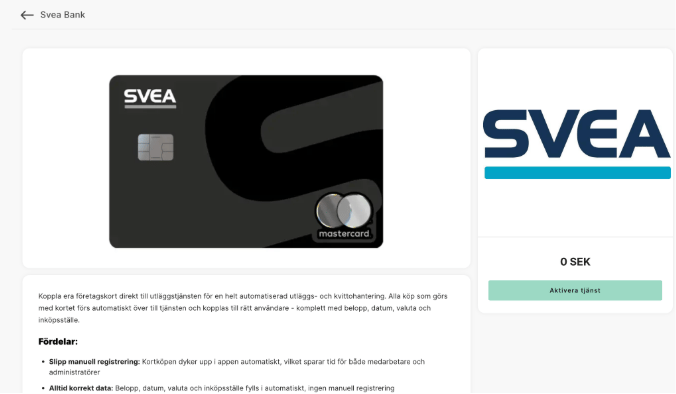
Go to Marketplace, filter by the Cards category or search for Svea. You see two cards: Svea Bank - Företag kreditkort (credit card) and Svea Bank - Företag bankkort (debit card).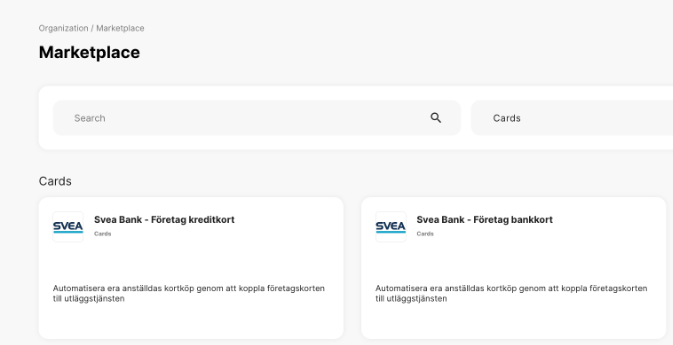
2
Fill in the onboarding form
Under Which card types should be sent to the service, choose Company pays, Personal payment responsibility, or both. Enter the email of the authorized signatory for the organization.
3
Wait for the bank's approval
Svea Bank reviews the application digitally. When approval arrives, the Card management tab becomes active for the Svea cards.
Connect a cardholder
Once the organization is activated, each cardholder completes the connection digitally — no manual card-number entry required.1
Add the user in Card management
Card management › Cardholders › Add cardholder. Choose payment responsibility and accounting settings the same way as for other company cards.
2
The cardholder completes the connection
The user receives instructions to complete a short digital onboarding to link their Svea Bank card — credit or debit. Once done, transactions start arriving in real time on the user’s account.
Good to know
Transaction status
Each Svea transaction is shown with status authorized, cleared, or invoiced. The status updates automatically as the bank sends the next step in the lifecycle. The user can attach the receipt image already on an authorized transaction — there is no need to wait for clearing.The report flow
The report flow is controlled by the payment responsibility, not by the bank. When the company has payment responsibility, a card report is created automatically and waits for the bank’s invoice; under personal payment responsibility, transactions arrive as standalone expenses.Frequently asked questions
Which card types are supported?
Which card types are supported?
Both Svea Bank Company Credit Cards and Svea Bank Company Debit Cards. One activation covers both.
Do I have to link the cards manually?
Do I have to link the cards manually?
No. The cardholder completes a digital connection, and the card is linked automatically when the first transaction arrives. Never type card numbers by hand.
How quickly does a transaction appear?
How quickly does a transaction appear?
In real time. The transaction lands on the user’s account the same second as the purchase, with status authorized. Clearing and invoicing status update automatically as the bank sends them.
Who pays for the card integration?
Who pays for the card integration?
Findity does not charge for the feature itself. Svea Bank may charge for connecting the cards — questions about cost go to the bank.
Can a user have both a Svea credit card and a Svea debit card?
Can a user have both a Svea credit card and a Svea debit card?
Yes. Several cards on the same user work the same way as for other company cards.