> ## Documentation Index
> Fetch the complete documentation index at: https://help.findity.com/llms.txt
> Use this file to discover all available pages before exploring further.
# Temporary approver
**This applies to the following countries**
* All countries
Temporary approver is a handy feature to handle vacations and time off *for* the approver. Depending on your organisation's settings a temporary approver can be appointed by the approver, otherwise an administrator needs to appoint the temporary approver.
Let's start with the setting options. You find these in the *Expense policy* view.
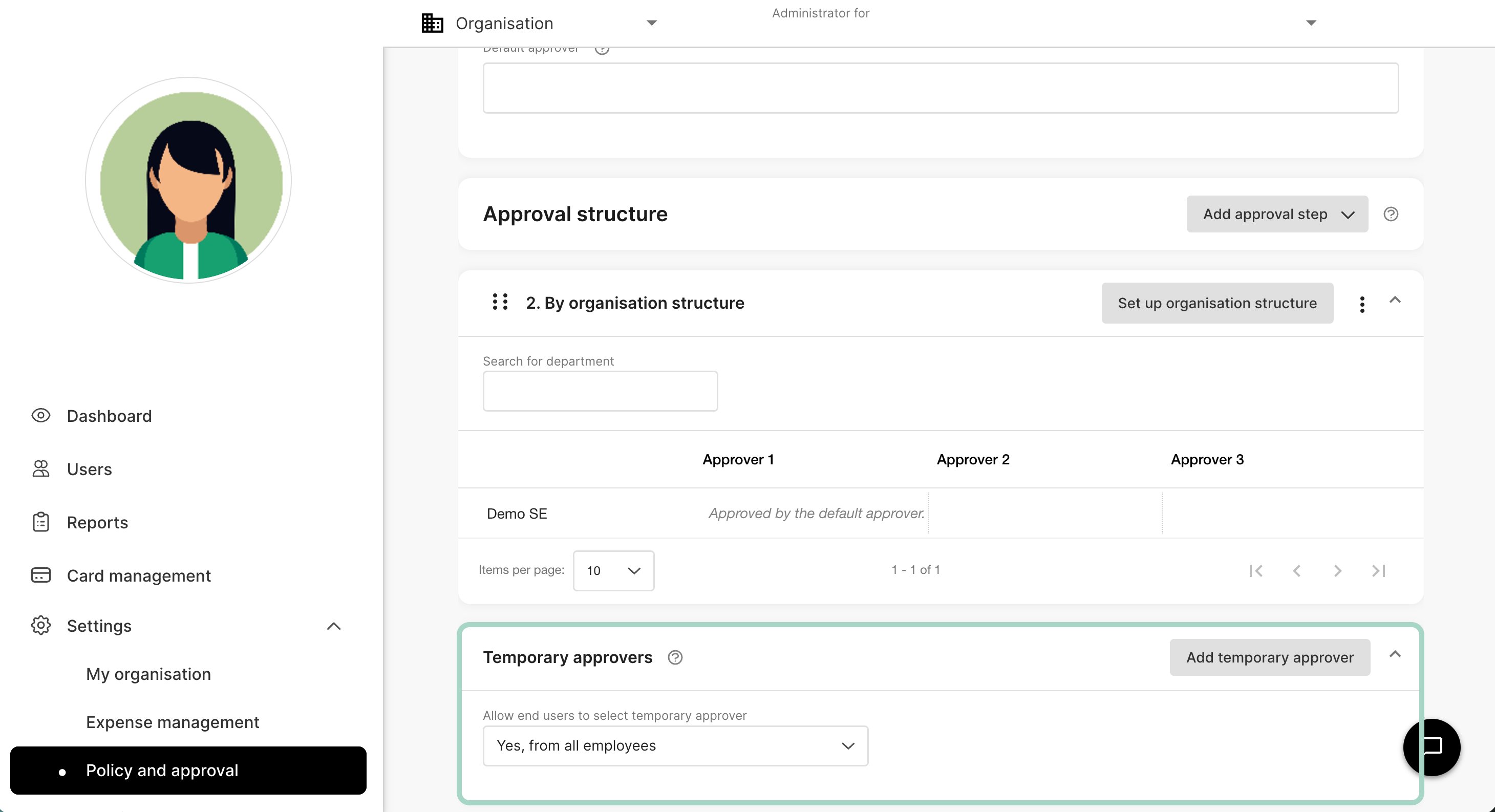 When you set up the approval structure you must choose how to handle temporary approvers. You have three choices.
 *No* = An approver can't add a temporary approver
*Only from approvers with same or higher approval limit* = In this case an approver can choose from other approvers
*Yes, from all employees* = The approver can choose from any user in the organisation
Once this setting is done there is two ways of adding a temporary approver.
For this option to work, settings need to be either *Only from approvers with same or higher approval limit* or *Yes, from all employees*.
1. Go to Settings on your profile.
*No* = An approver can't add a temporary approver
*Only from approvers with same or higher approval limit* = In this case an approver can choose from other approvers
*Yes, from all employees* = The approver can choose from any user in the organisation
Once this setting is done there is two ways of adding a temporary approver.
For this option to work, settings need to be either *Only from approvers with same or higher approval limit* or *Yes, from all employees*.
1. Go to Settings on your profile.
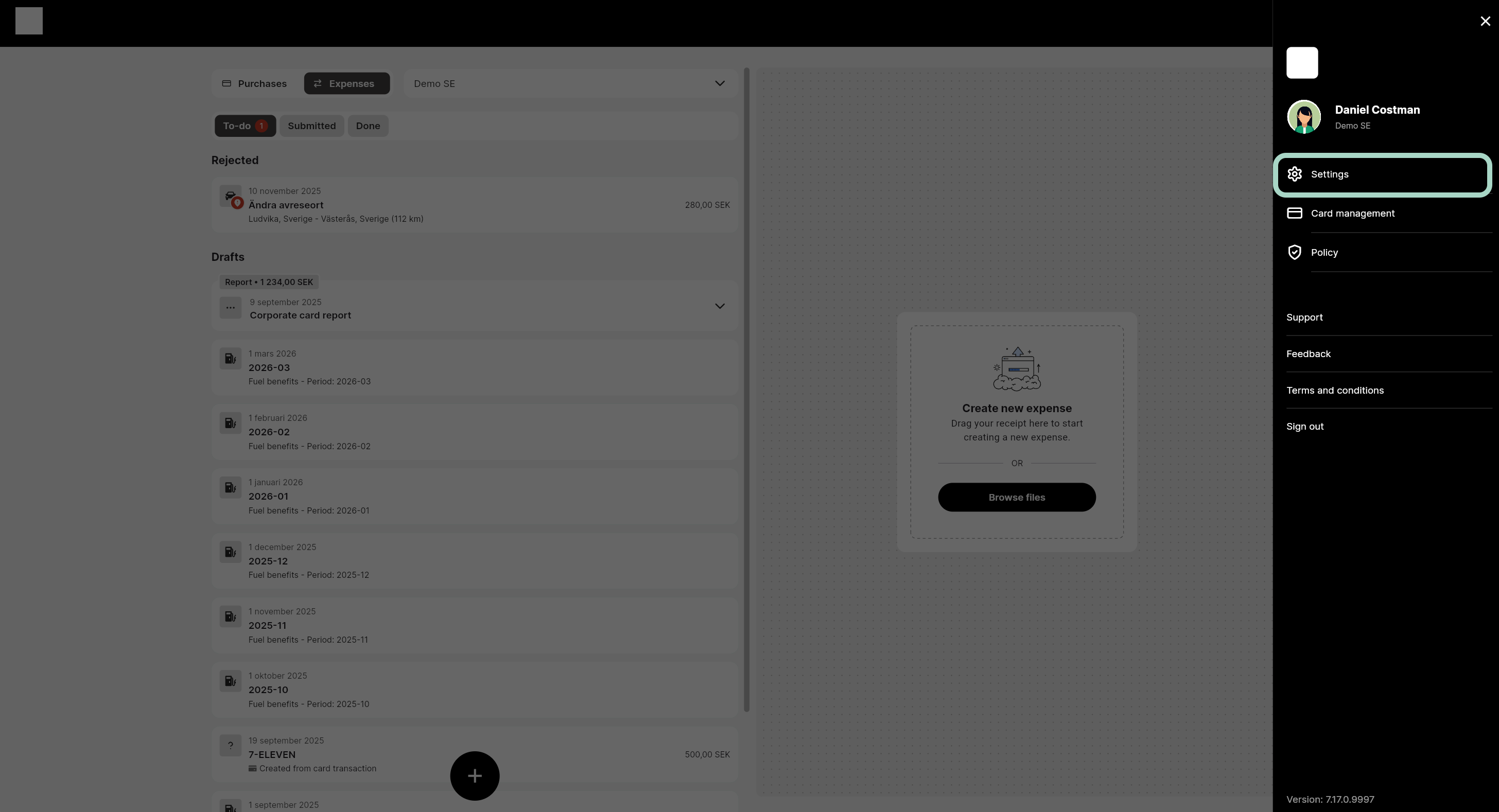 2. Click on approval settings.
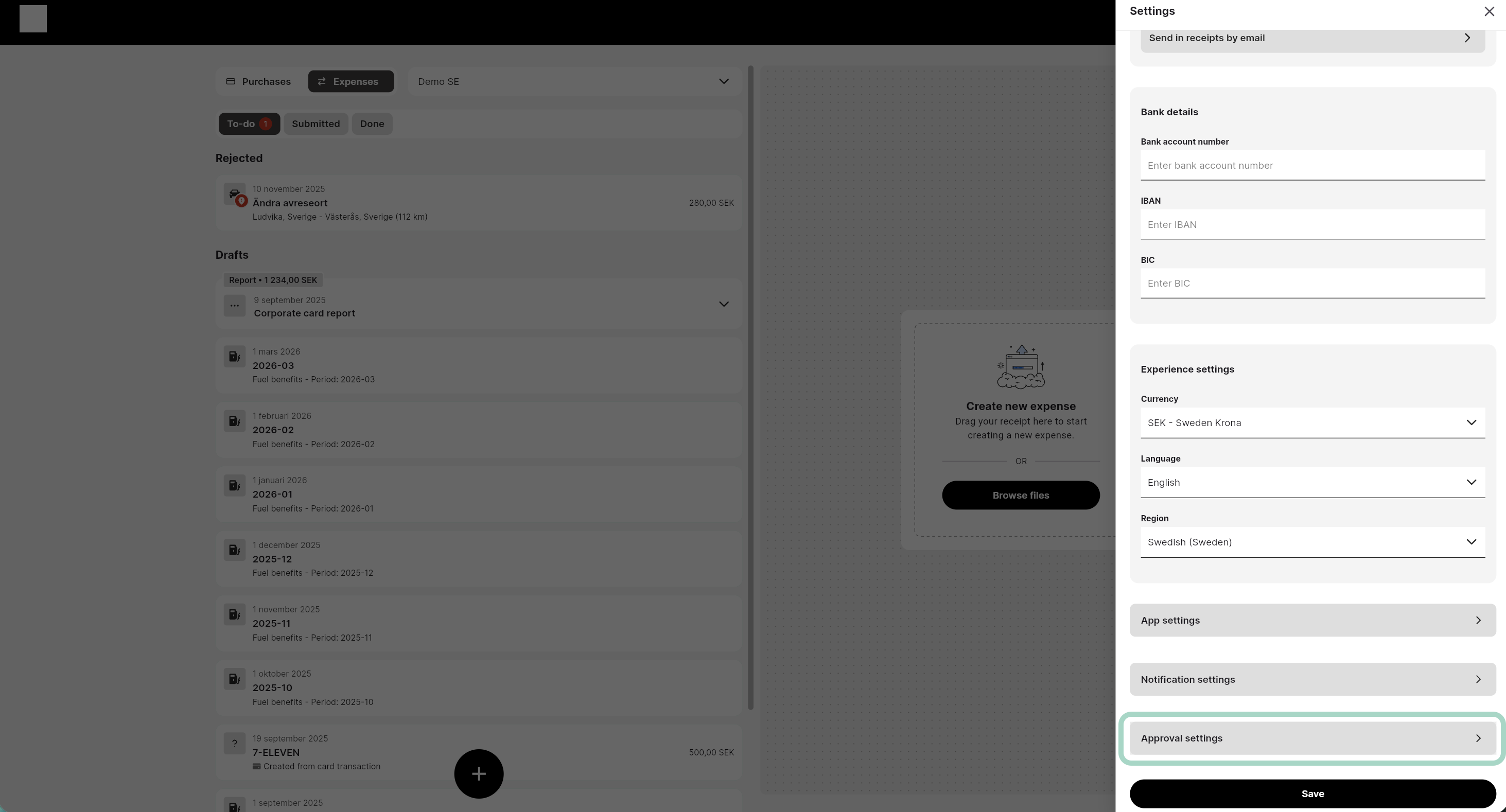 3. Click Add temporary approver.
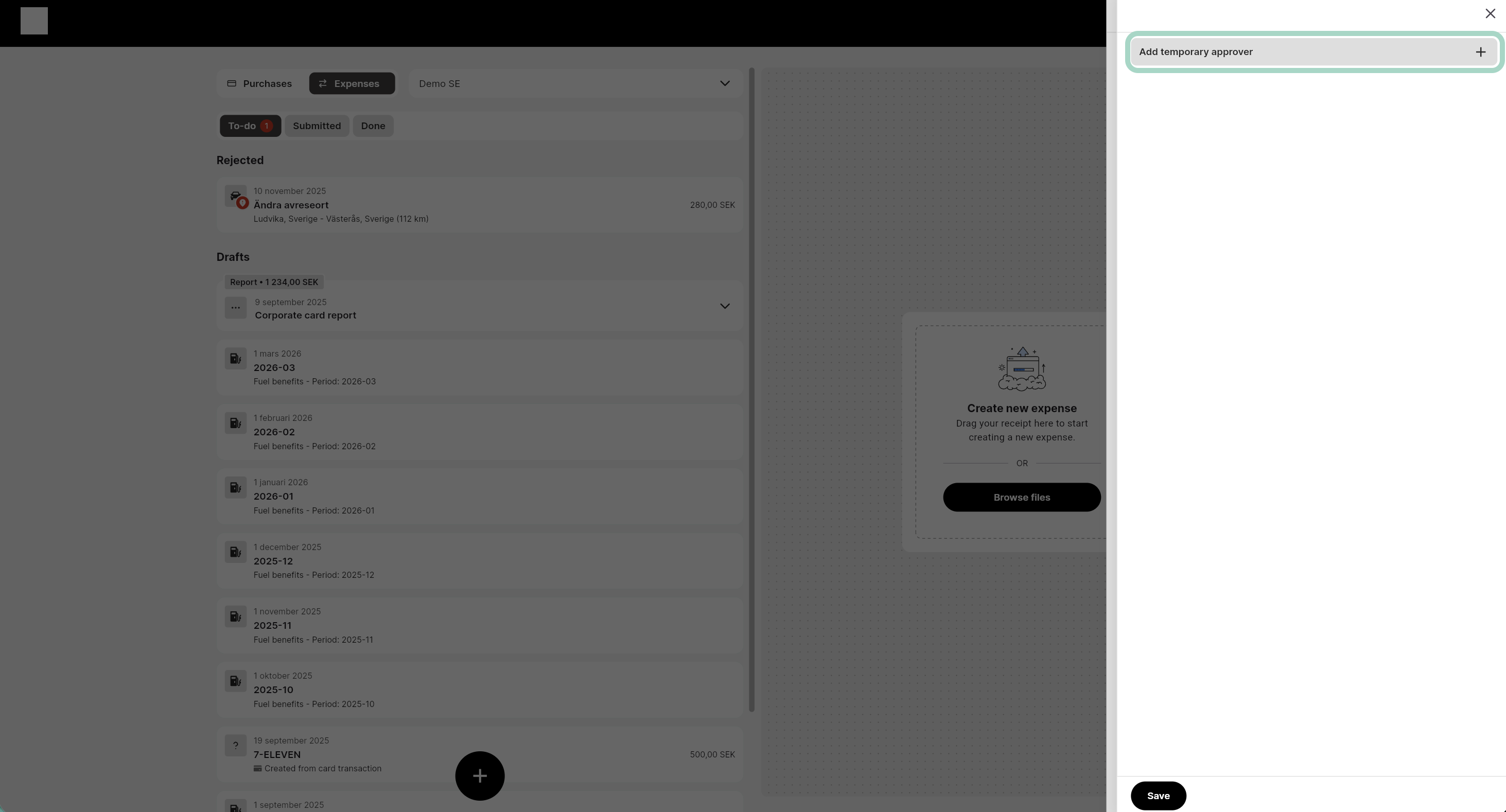 4. Under *Organisation* is a list of the organisations you are approver for. Most approvers only have one choice. Choose the one you want to set a temporary approver for.
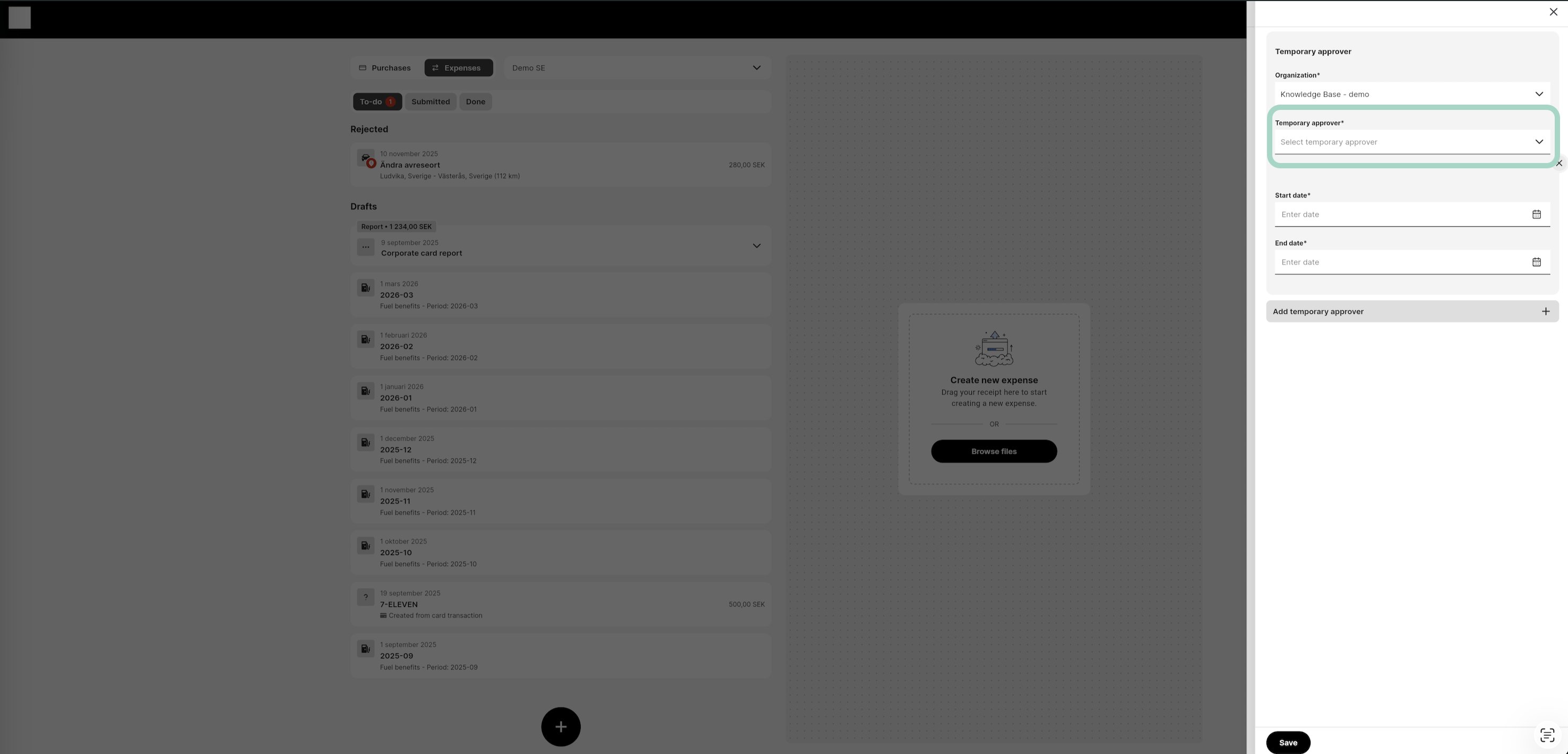
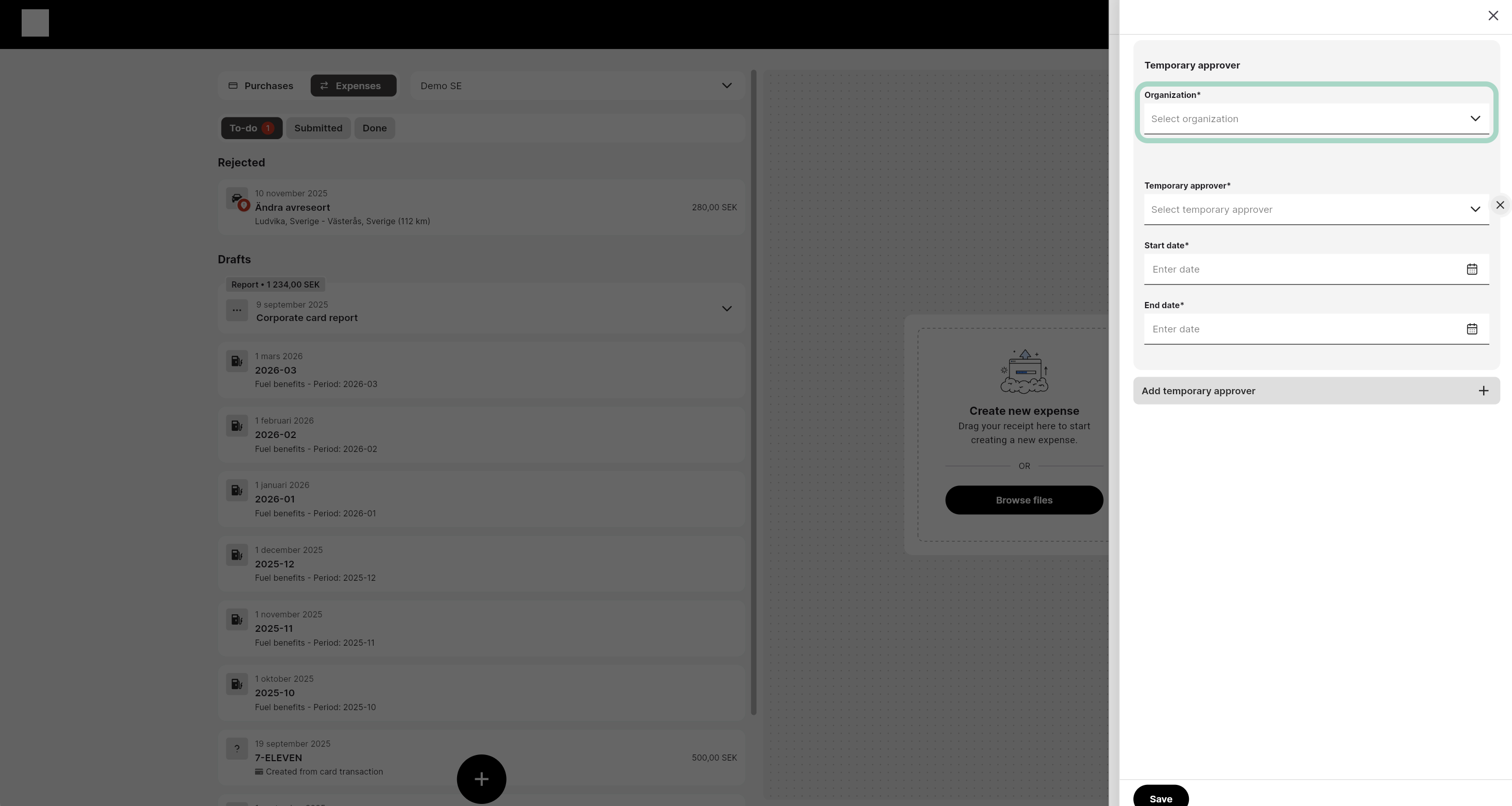 5. Next step is to choose who will be the temporary approver. Click Temporary approver and a list of all available users appears. It is also possible to search for a specific user.
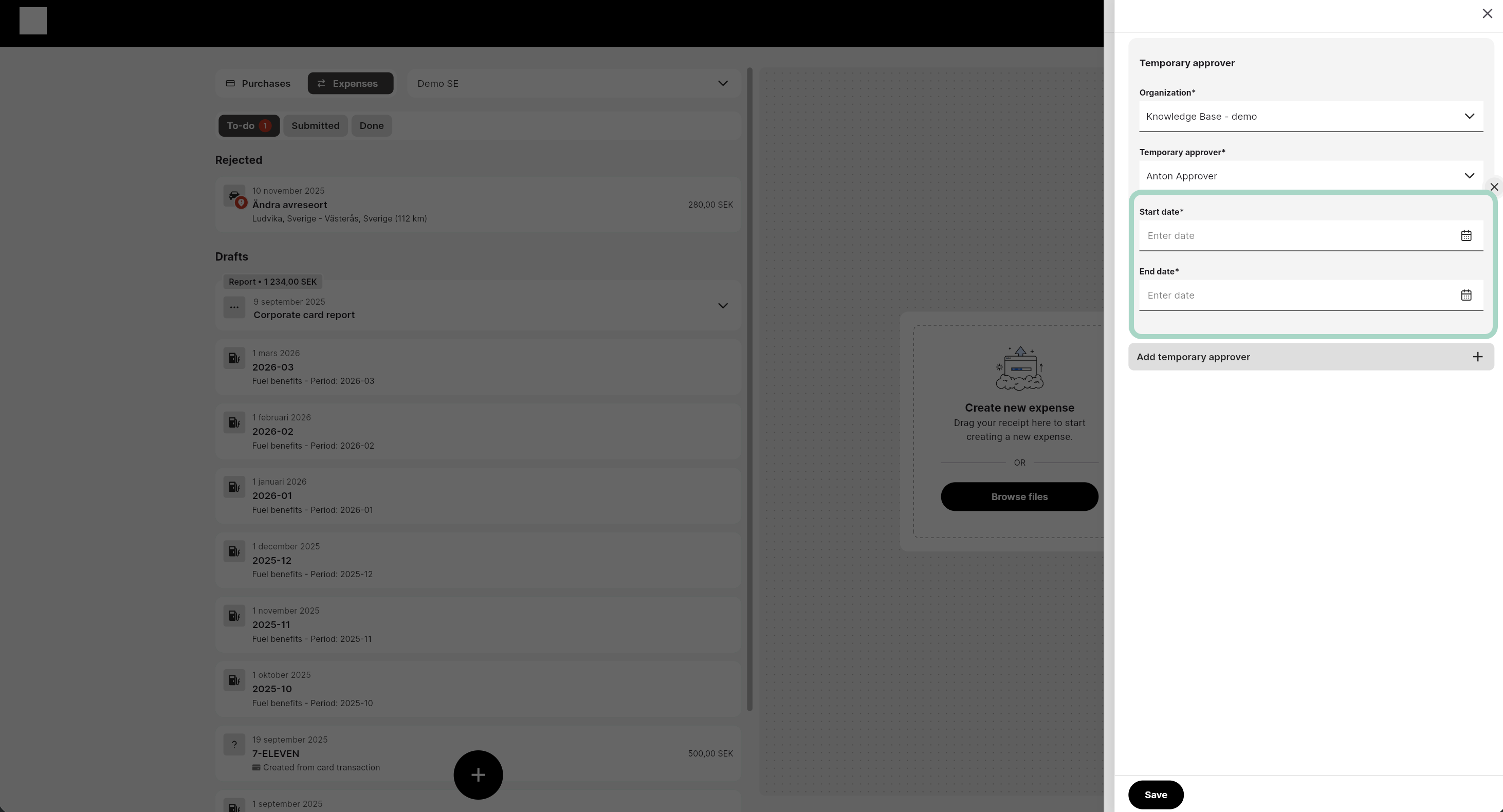
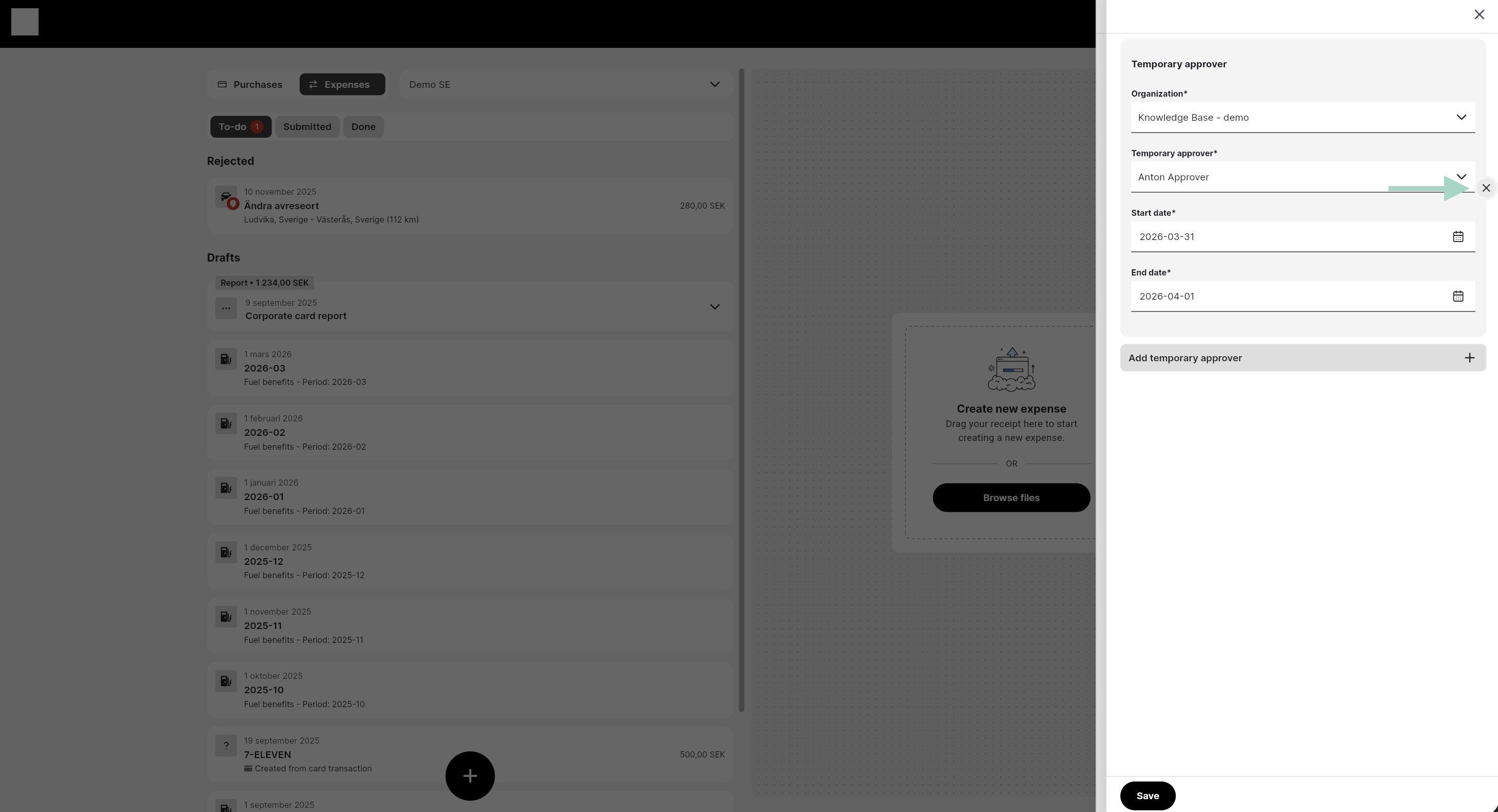
 6. Last step is to add date interval for the temporary user. Don't forget to save
 7. Now you can see a list of the temporary user and between which dates they are valid.
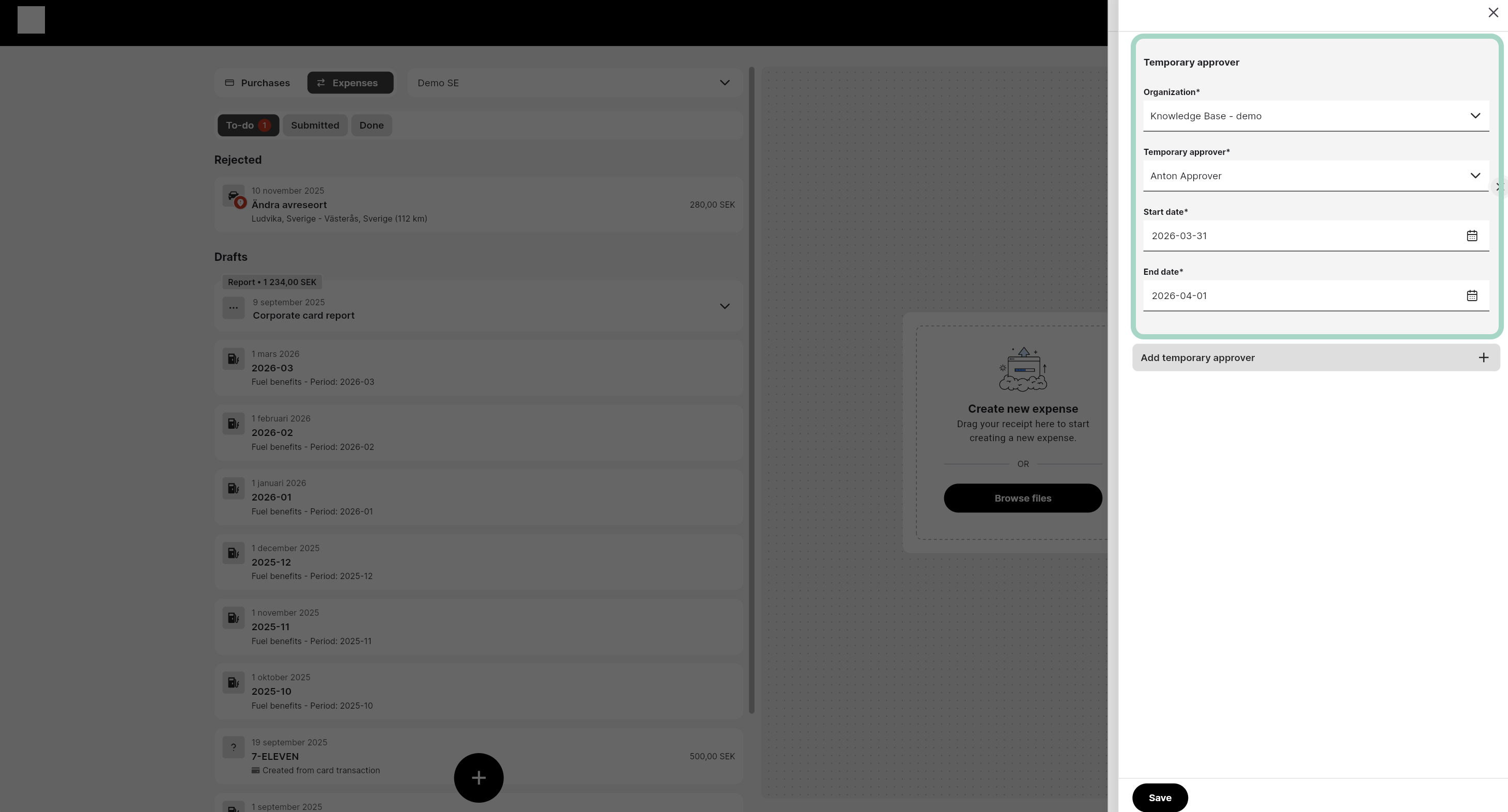 8. If you want to remove a temporary user just click the cross button to the right.
 An administrator can always add a temporary approver for any approver no matter what the settings are under Temporary approver.
1. Go to the expense policy view under Settings -> Policy and approval.
An administrator can always add a temporary approver for any approver no matter what the settings are under Temporary approver.
1. Go to the expense policy view under Settings -> Policy and approval.
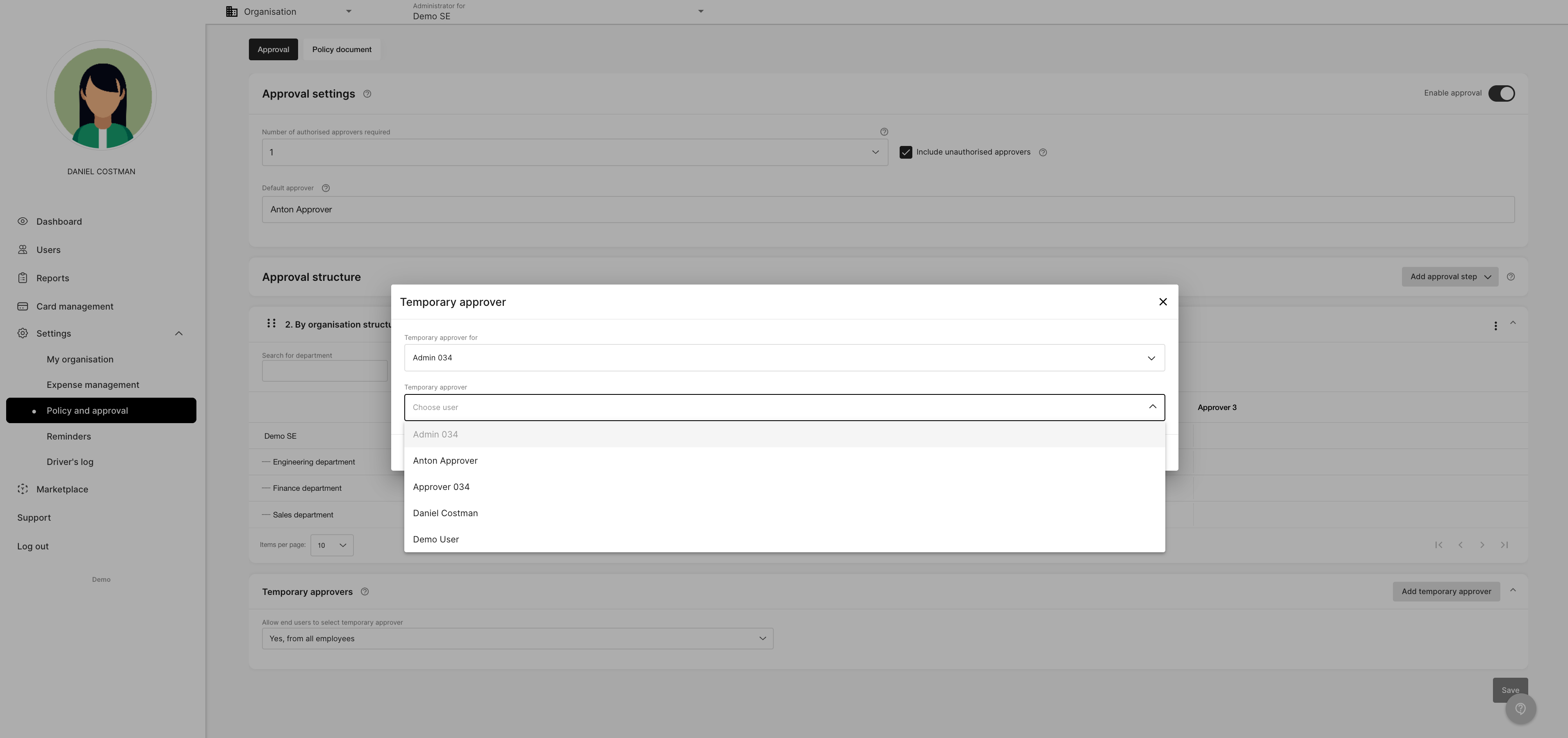
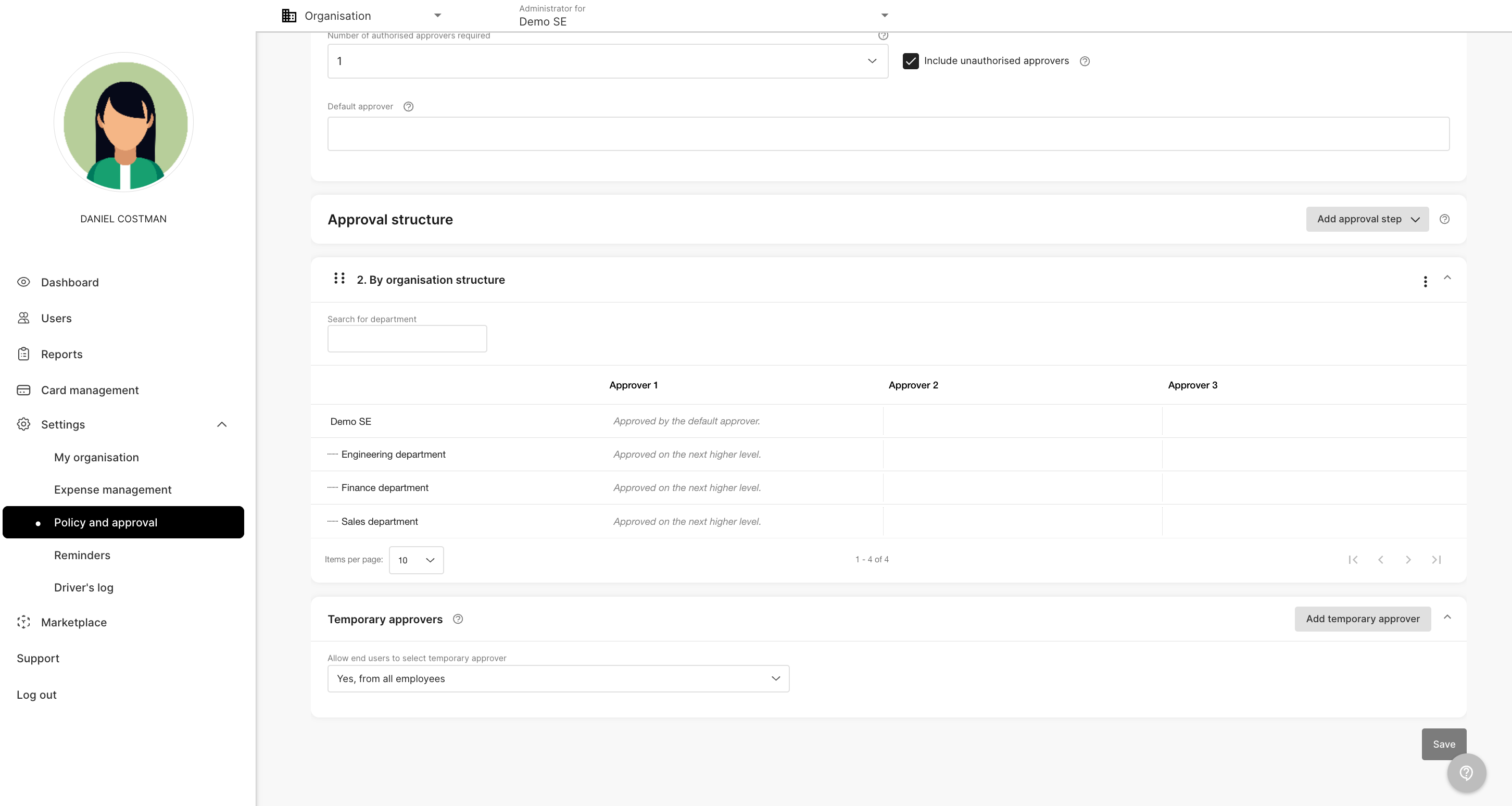 2. In the Temporary approver box click the Add temporary approver button
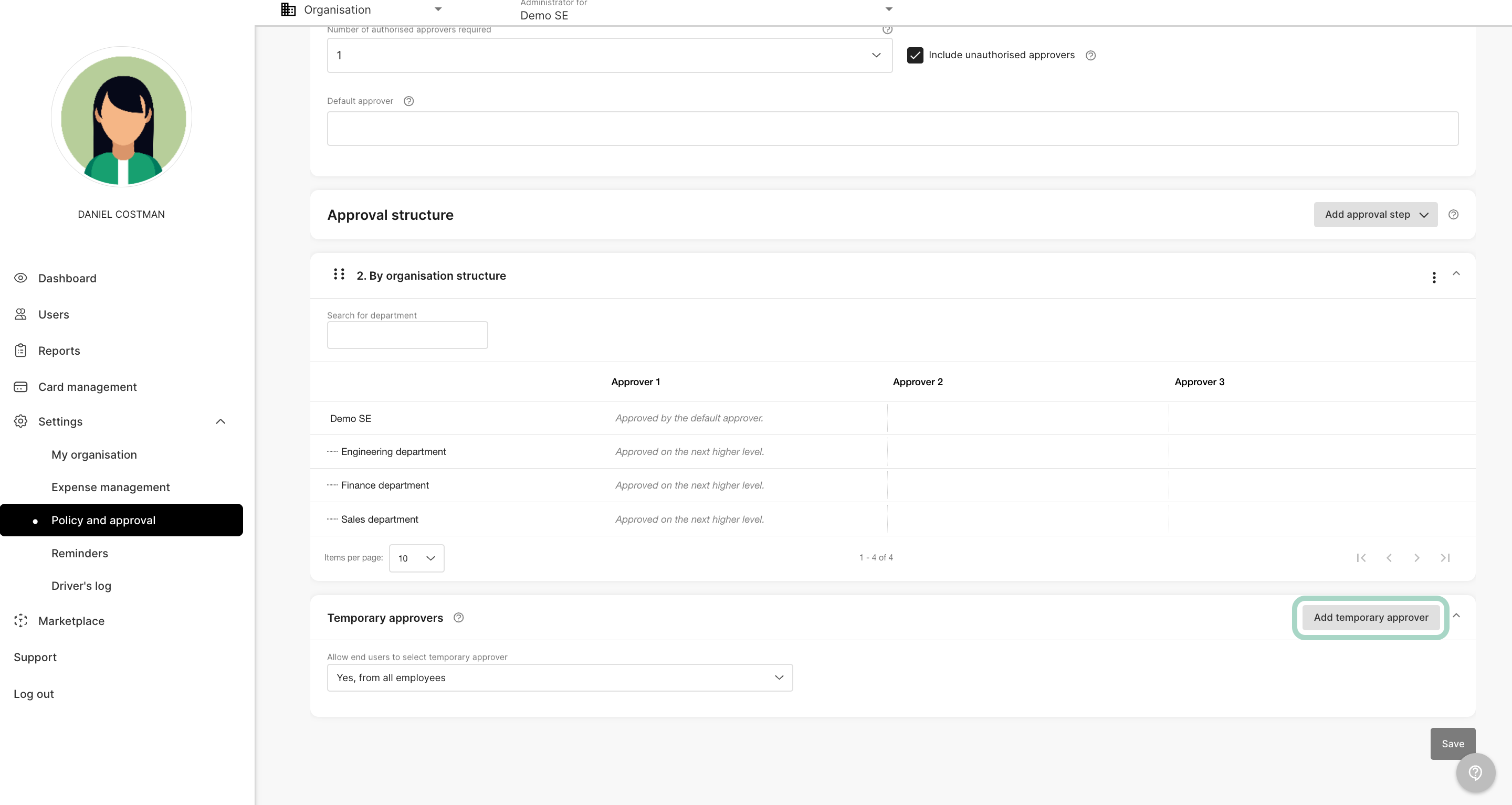 3. Then choose from the list under *Temporary approver* for which approver that are going to be temporary replaced. Choose from the list or search for a name.
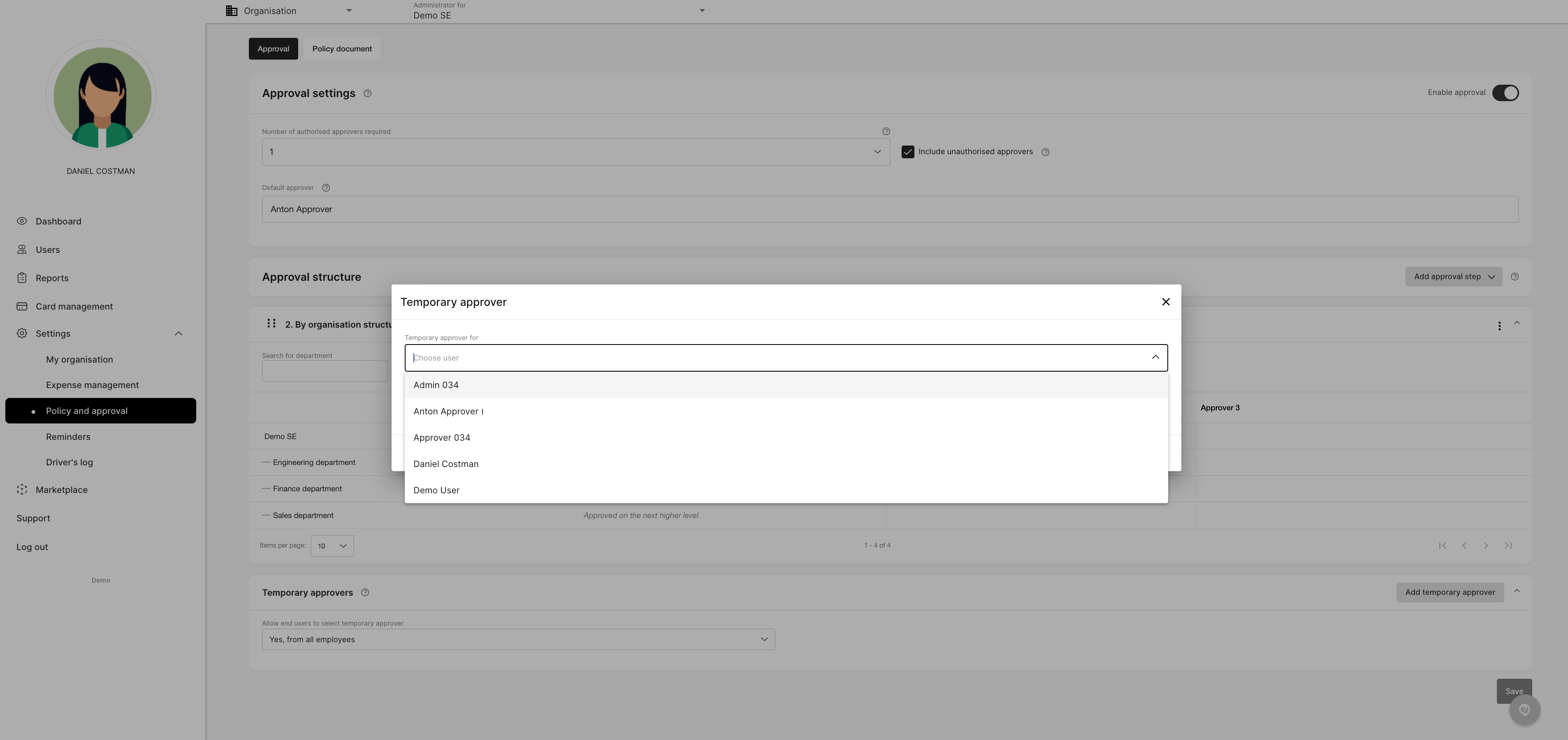 4. Next you choose who will be the temporary approver. Choose from the list or search for a name.
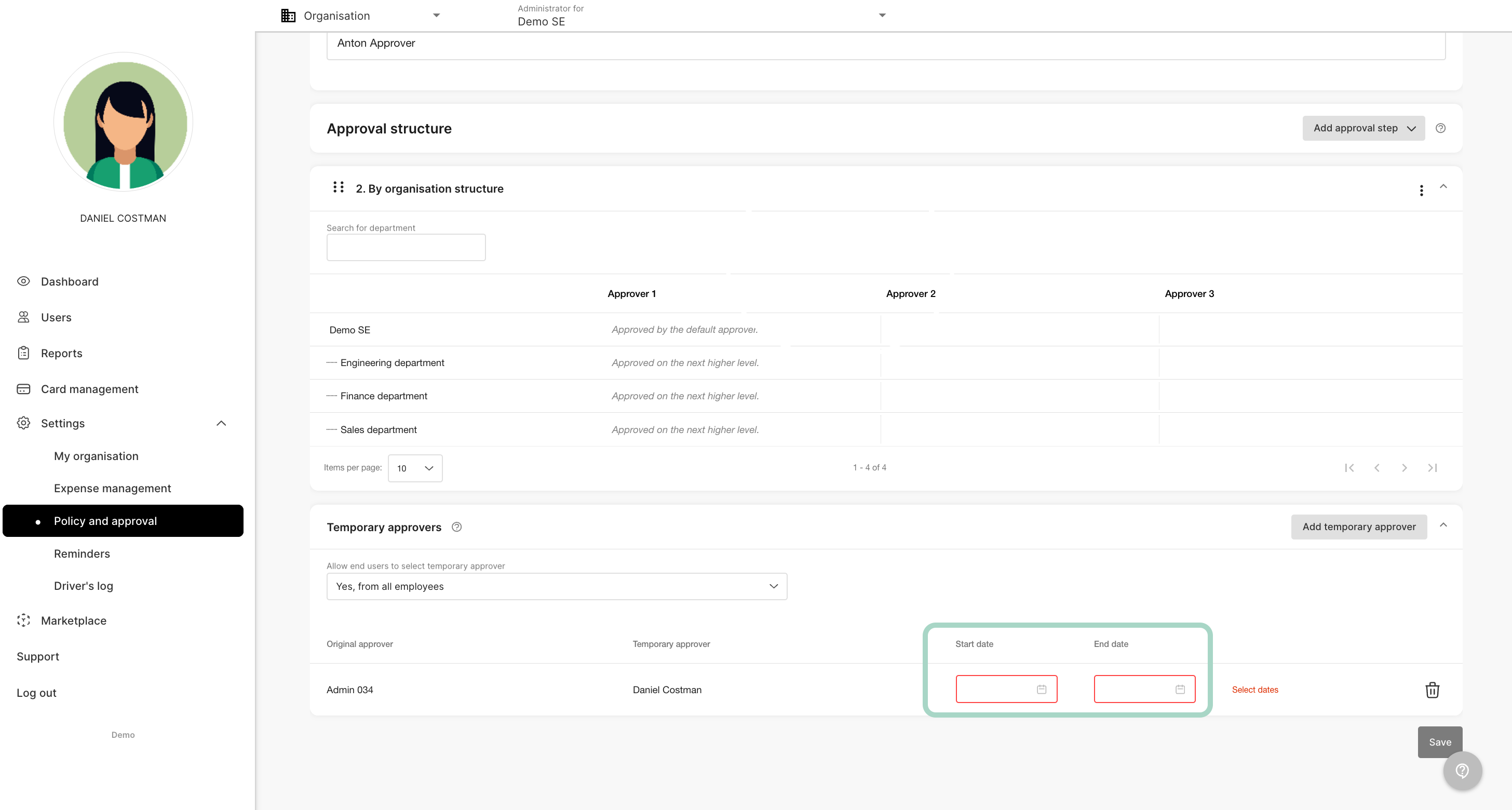
 5. Choose between which date the temporary approver should be valid. Don't forget to save.
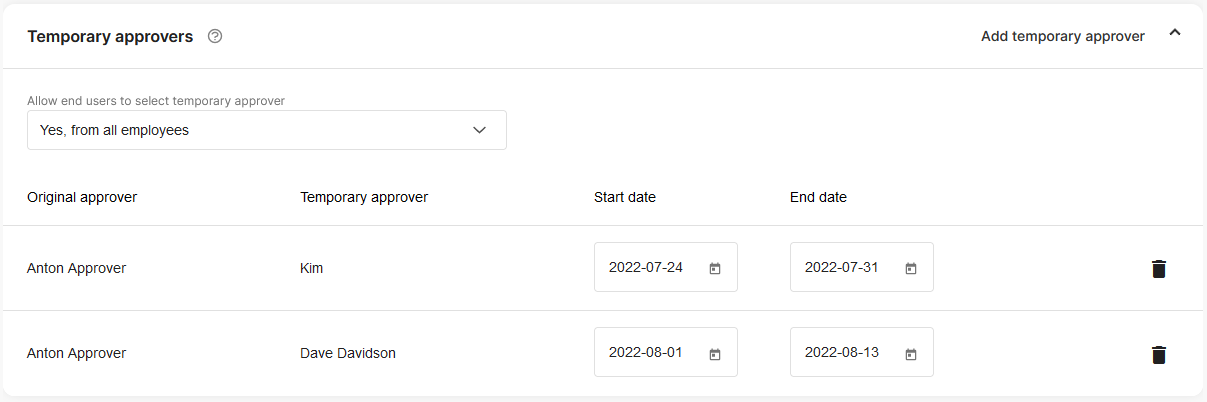
 6. Now you have a list of the temporary approvers and who the are temporary replacing as well as between which dates.
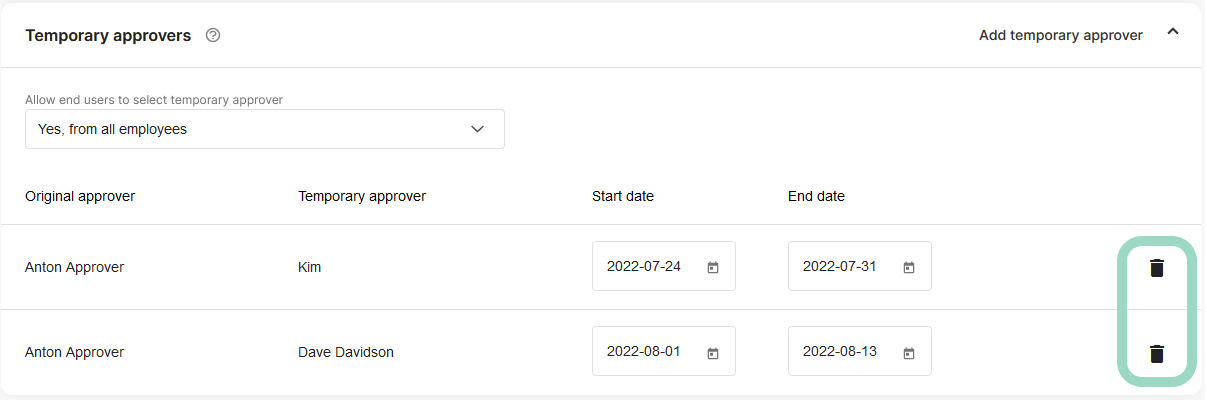
 7. If you want to remove a temporary approver, just click the bin to the right.
 ## Related articles
* [How do I make changes in the organisation structure?](/en/settings-administrator/how-do-i-make-changes-in-the-organisation-structure)
* [How do I set up approvers?](/en/settings-administrator/how-do-i-set-up-approvers)
* [How do I set up the organisation structure?](/en/settings-administrator/how-do-i-set-up-the-organisation-structure)
* [How do I change the voucher series?](/en/settings-administrator/how-do-i-change-the-voucher-series)
* [How do I manage users?](/en/settings-administrator/how-do-i-manage-users)
## Related articles
* [How do I make changes in the organisation structure?](/en/settings-administrator/how-do-i-make-changes-in-the-organisation-structure)
* [How do I set up approvers?](/en/settings-administrator/how-do-i-set-up-approvers)
* [How do I set up the organisation structure?](/en/settings-administrator/how-do-i-set-up-the-organisation-structure)
* [How do I change the voucher series?](/en/settings-administrator/how-do-i-change-the-voucher-series)
* [How do I manage users?](/en/settings-administrator/how-do-i-manage-users)