> ## Documentation Index
> Fetch the complete documentation index at: https://help.findity.com/llms.txt
> Use this file to discover all available pages before exploring further.
# Import dimensions on users
**This article applies to the following countries**
* All countries
If your organisation uses dimensions with preset values on user level, you can set the dimension values when you add/import users. Let’s take a look at a few possible scenarios.
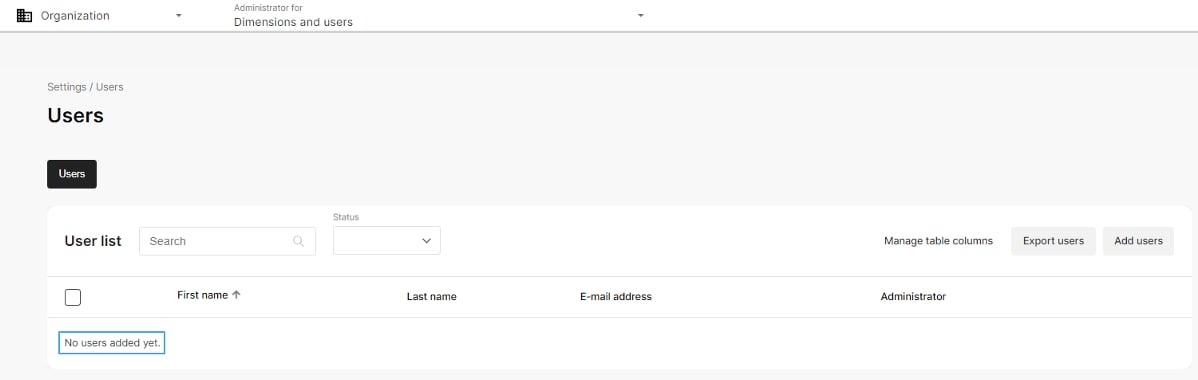
Here’s a newly created organisation that has no users yet. Perhaps not a common scenario, but let’s start with it anyway.
Our organisation, dimensions and users.
 **Prepare the dimensions:**
You can import dimension values, but only to existing dimensions. So:
* The organisation has to have dimensions in order for dimension values to be imported.
* The dimension must use preset values on user level.
* For list and searchable dimensions, all valid values must be defined in the organisation.
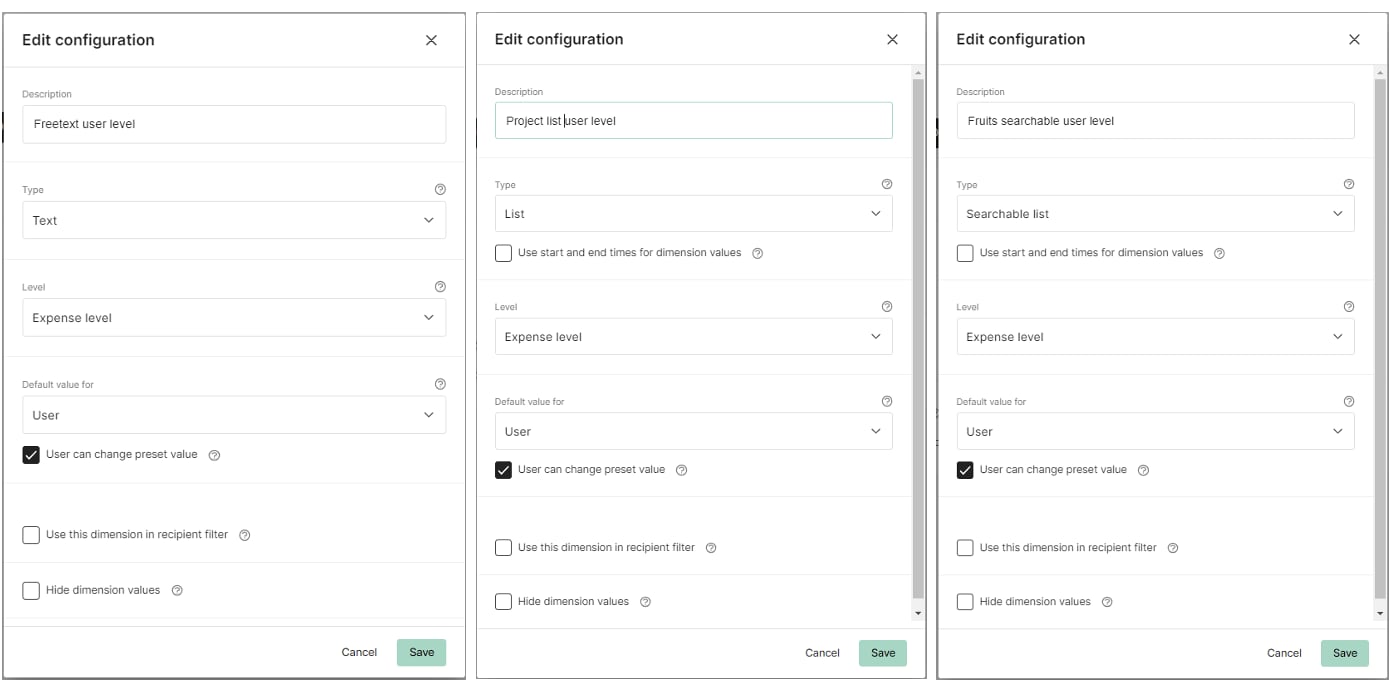
Let’s start! In this example, we use three dimensions.
**Prepare the dimensions:**
You can import dimension values, but only to existing dimensions. So:
* The organisation has to have dimensions in order for dimension values to be imported.
* The dimension must use preset values on user level.
* For list and searchable dimensions, all valid values must be defined in the organisation.
Let’s start! In this example, we use three dimensions.
 Add all allowed values for the list and searchable-list dimensions.
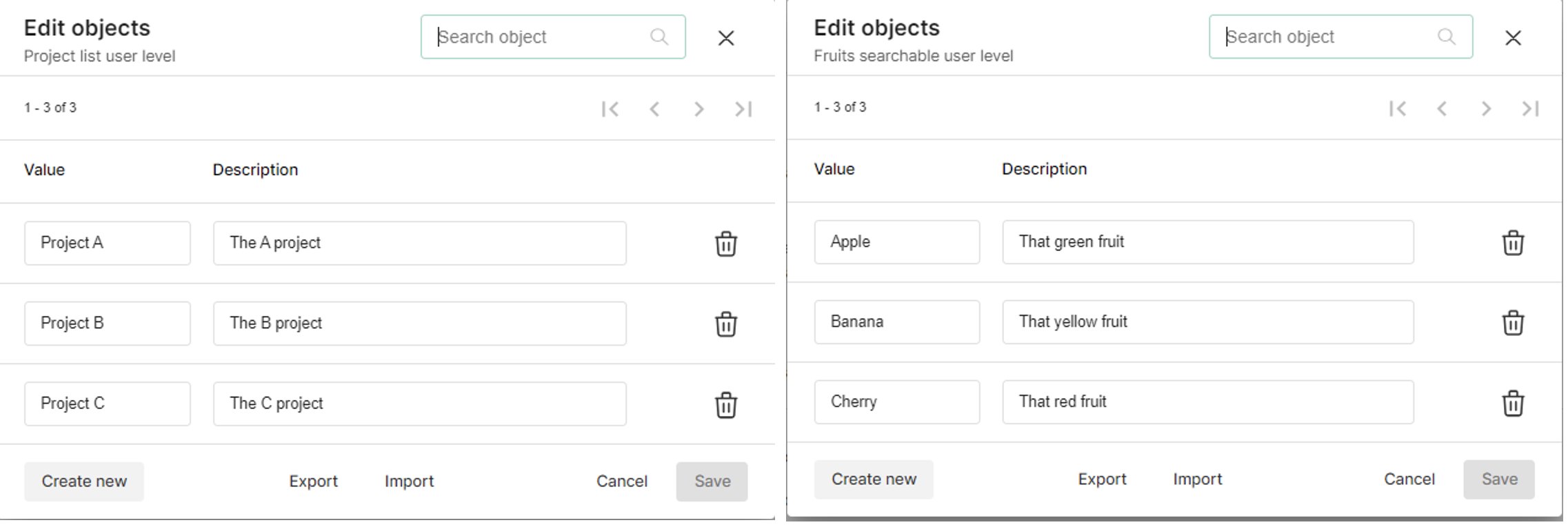 Only existing dimension values can be imported for list dimensions.
The freetext dimensions do ot need to have predefined values.
**Export the user list:**
To get a template file that you can fill with users, you should first export the organisation’s user list (even if there are no users yet.
Go to *Users*.
Only existing dimension values can be imported for list dimensions.
The freetext dimensions do ot need to have predefined values.
**Export the user list:**
To get a template file that you can fill with users, you should first export the organisation’s user list (even if there are no users yet.
Go to *Users*.
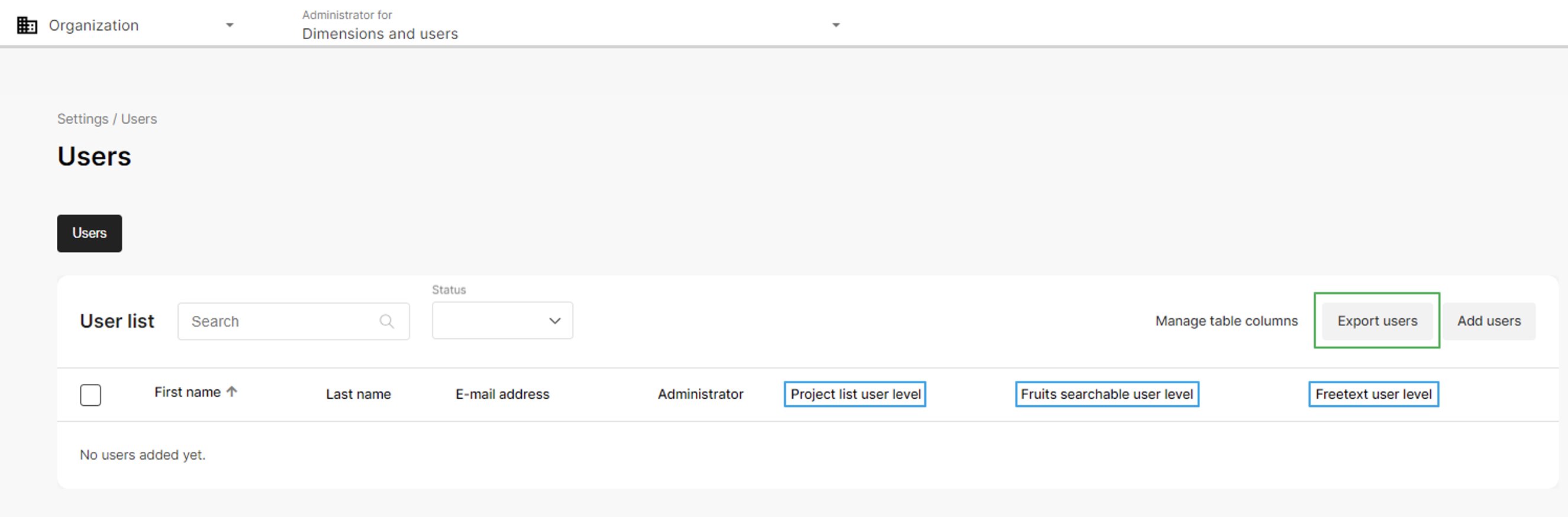 Ready for user list export. Note that the dimension columns have been added to the view.
Click *Export Users*.
Ready for user list export. Note that the dimension columns have been added to the view.
Click *Export Users*.
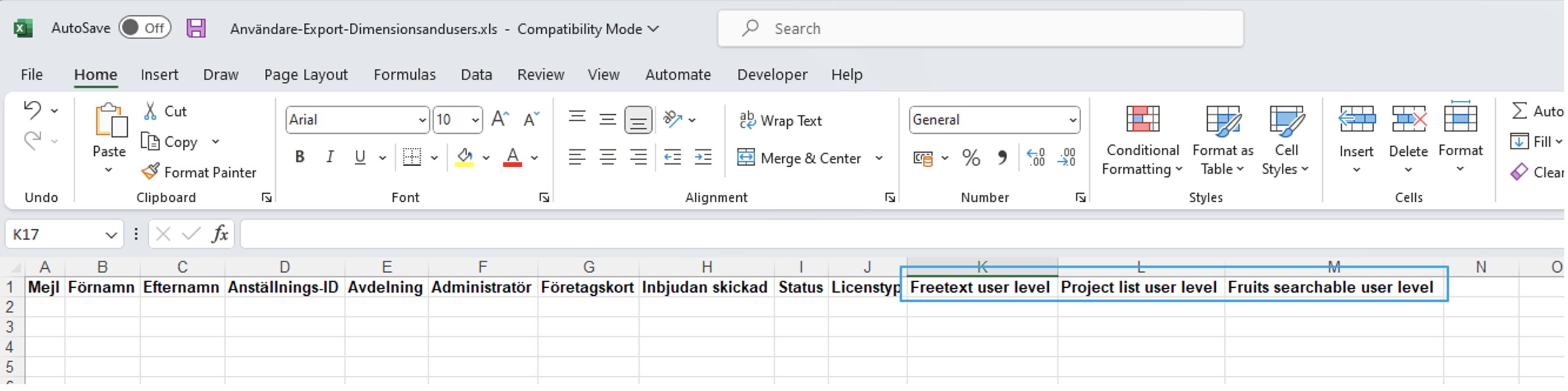 An export file is generated, with placeholders for the dimensions (Swedish columns since the organisation is Swedish).
**Prepare the import file**
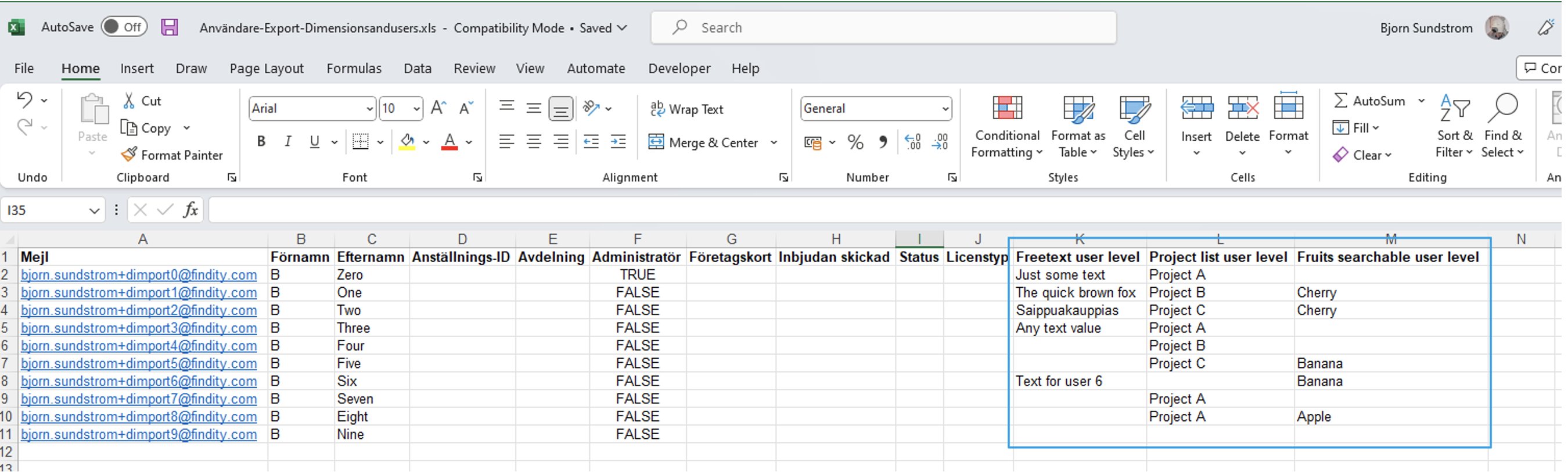
Fill the exported file with users and their preset dimension values. Some rules:
* Each user must have a valid email address
* The list and searchable-list dimension values should exist in the organisation
* Empty dimension values are allowed
* Remember to save the file before importing it
An export file is generated, with placeholders for the dimensions (Swedish columns since the organisation is Swedish).
**Prepare the import file**
Fill the exported file with users and their preset dimension values. Some rules:
* Each user must have a valid email address
* The list and searchable-list dimension values should exist in the organisation
* Empty dimension values are allowed
* Remember to save the file before importing it
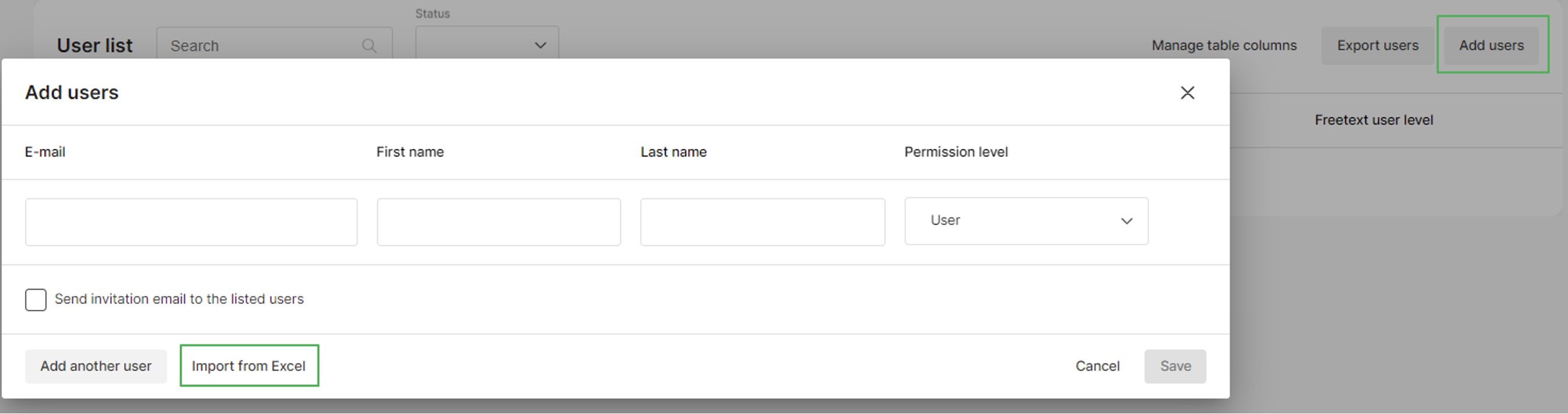
 **Import users and dimensions**
ClickAdd users in the user view. Then clickImport from Excel.
**Import users and dimensions**
ClickAdd users in the user view. Then clickImport from Excel.
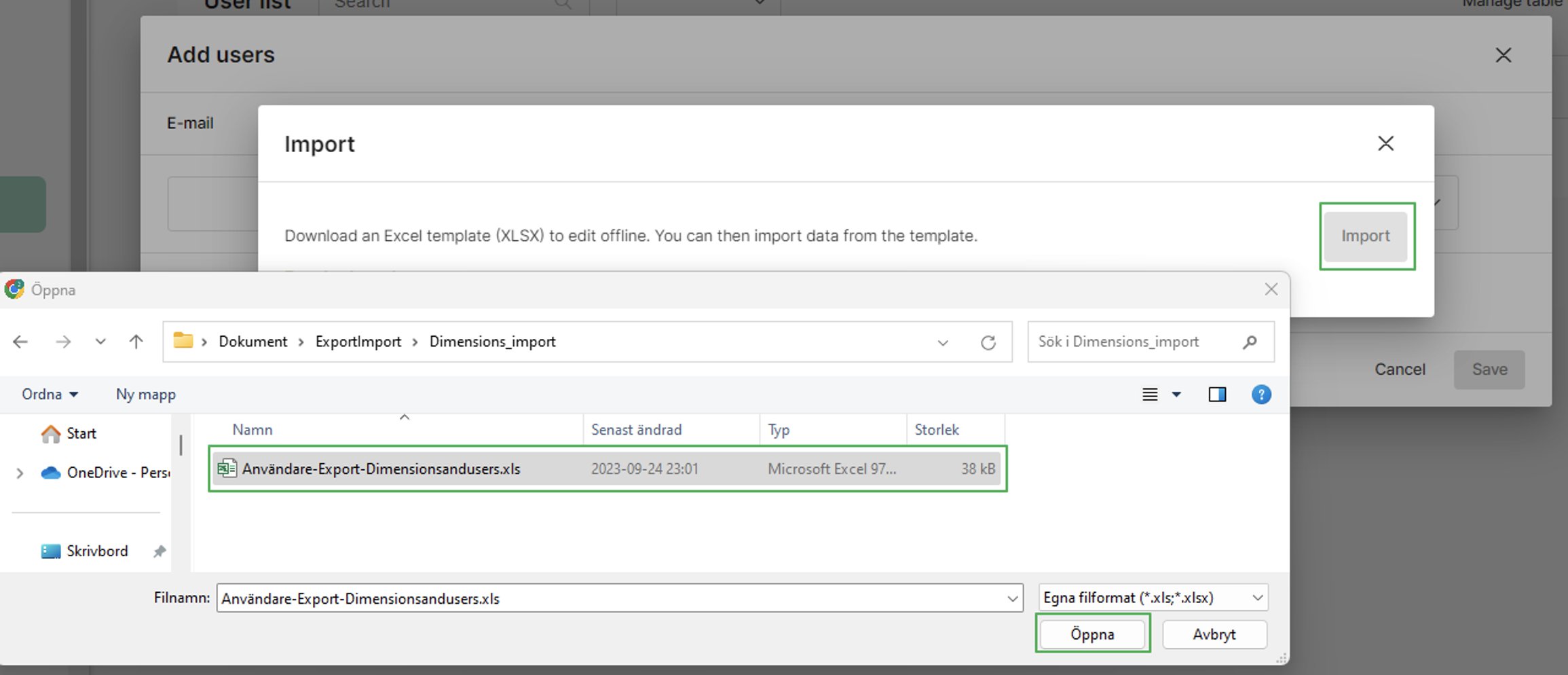
 Click *Import*. A file selection dialog opens. Select the file you prepared and click *Open*.
 If the import was successful, you will see the list of new users.
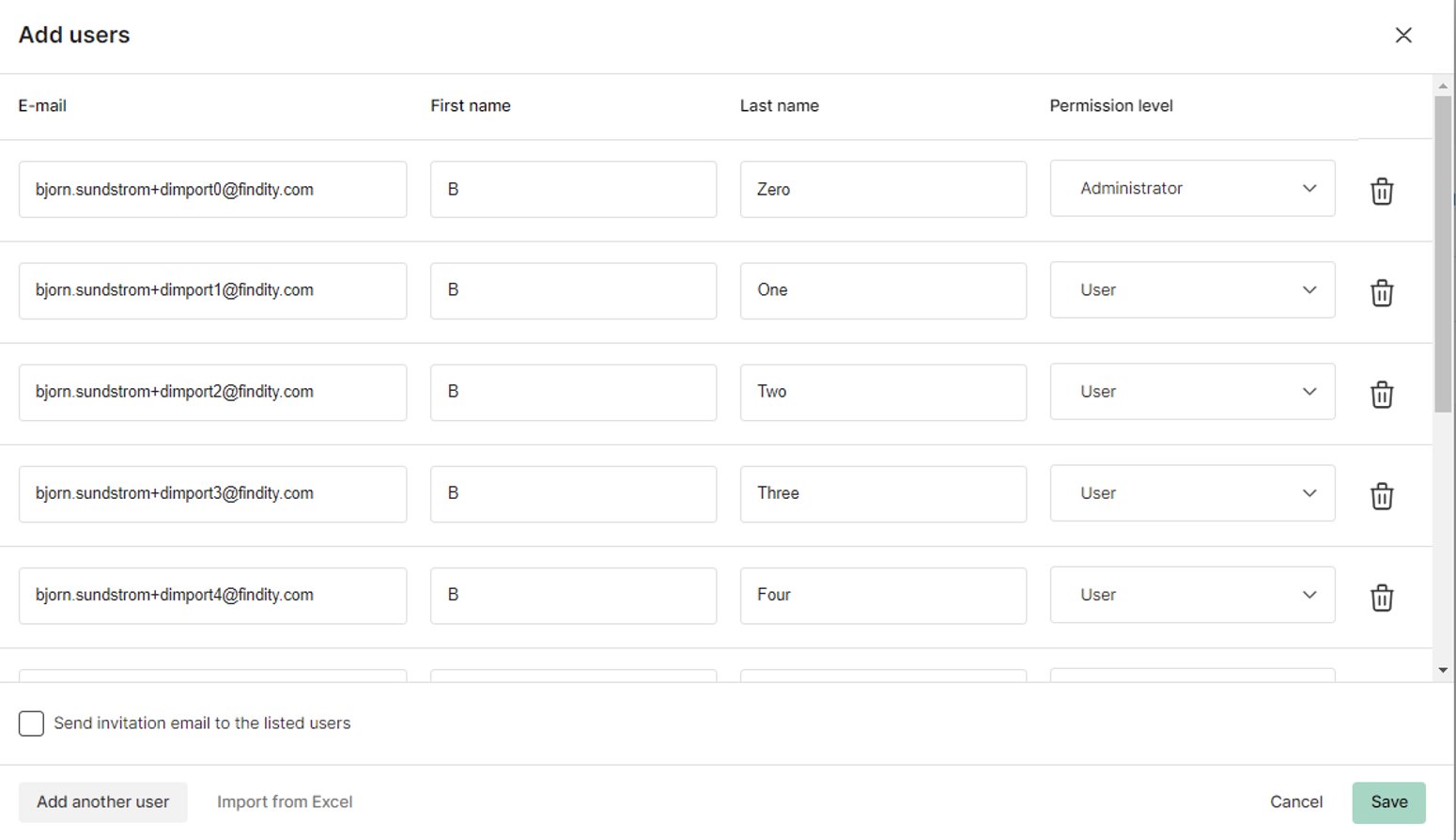 Click *Save* to add the users to the organisation.
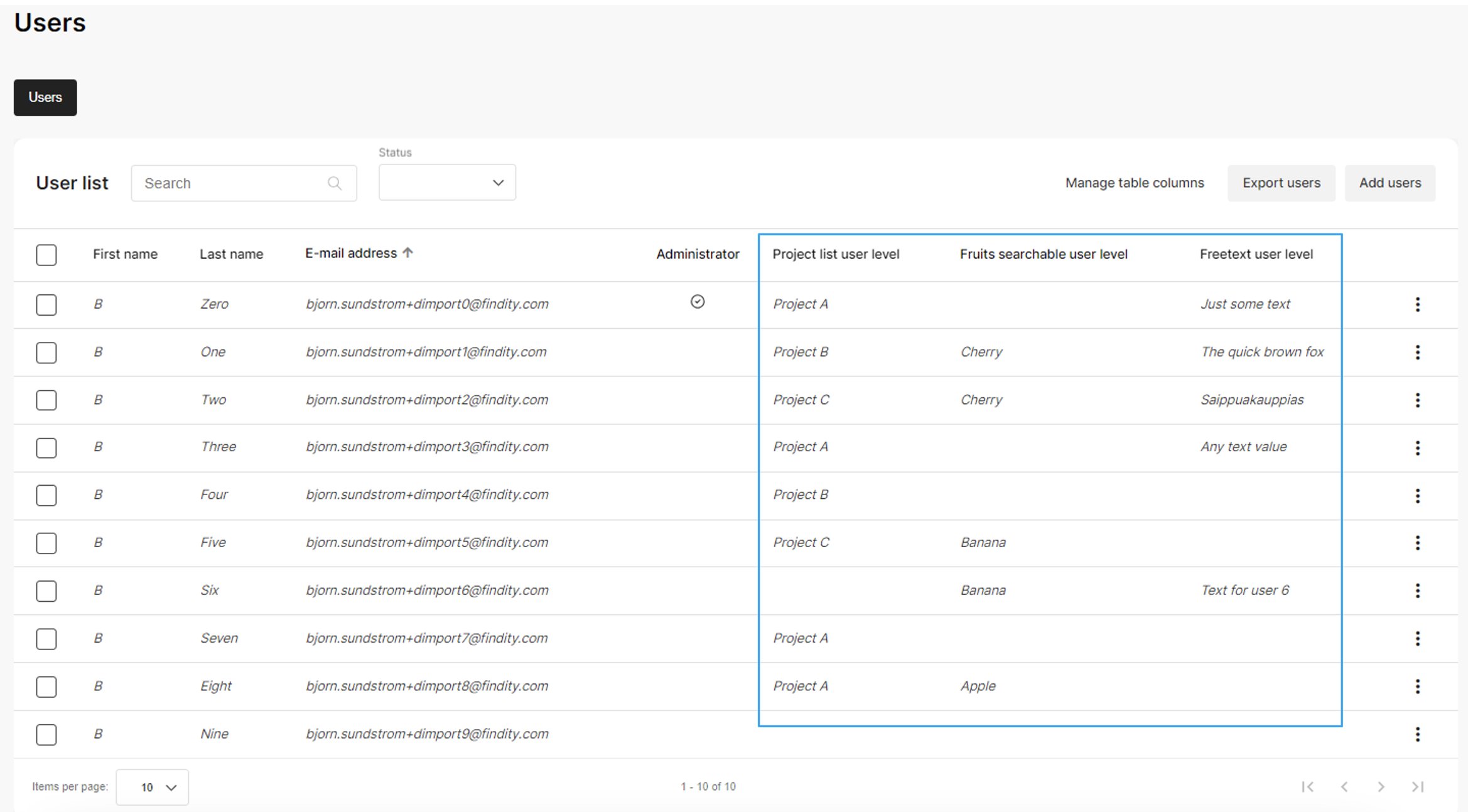 *Users and their dimension values imported to the organisation.*
The “new org without users” scenario is probably not usual. Normally, the organisation already has users, but perhaps you want to set the dimension values for them. Not a problem, just follow these steps.
*Users and their dimension values imported to the organisation.*
The “new org without users” scenario is probably not usual. Normally, the organisation already has users, but perhaps you want to set the dimension values for them. Not a problem, just follow these steps.
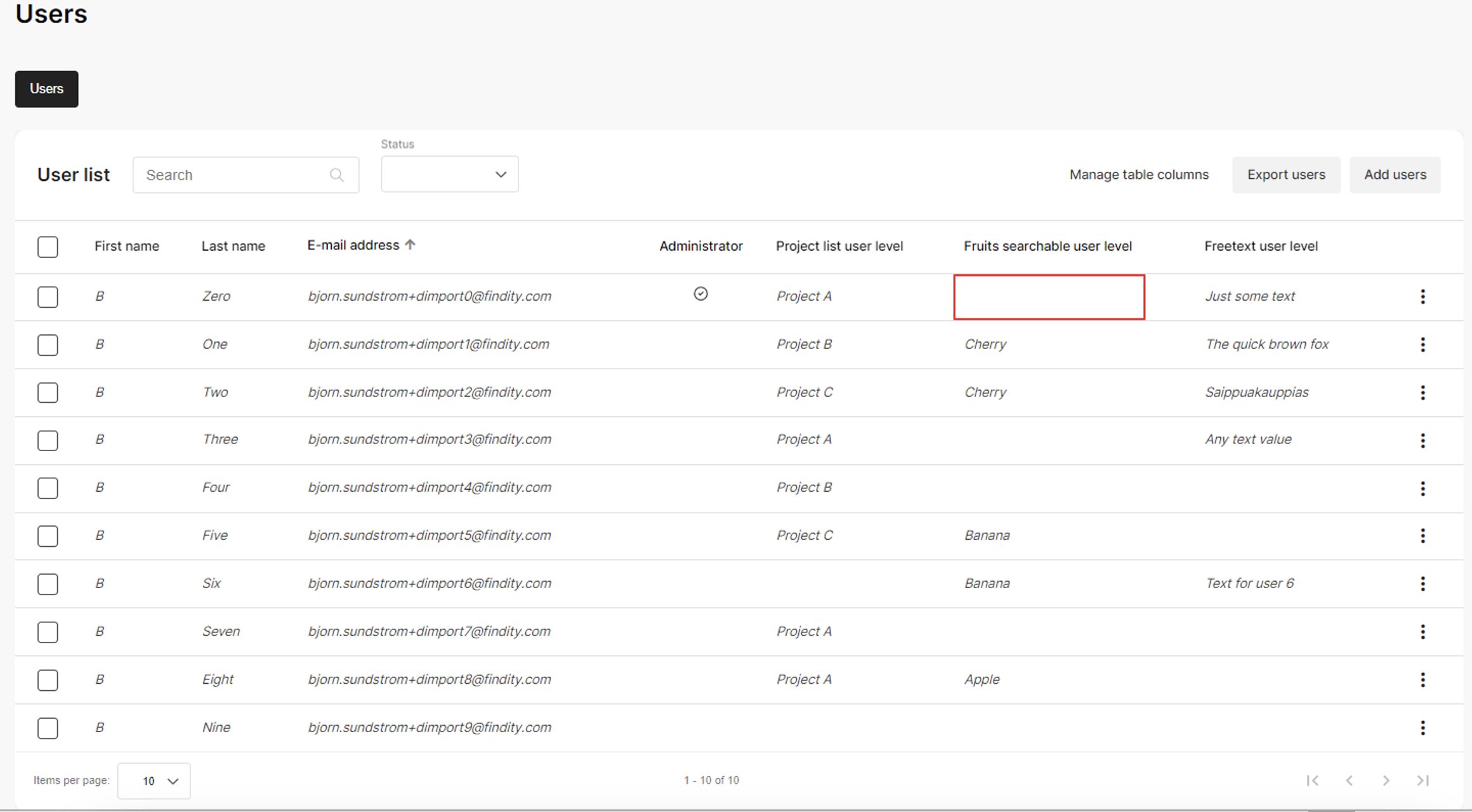 *We want to add a dimension value here.*
**Export the user list:**
Always start by exporting the current list of users. See instructions in tab “New organisation without users”.
**Add the missing dimension values:**
Open the exported file, find the user you want to update, and add the dimension values.
*We want to add a dimension value here.*
**Export the user list:**
Always start by exporting the current list of users. See instructions in tab “New organisation without users”.
**Add the missing dimension values:**
Open the exported file, find the user you want to update, and add the dimension values.
 *Adding the dimension value.*
Save the file.
**Import users and dimensions:**
Import the user list as described above. Existing data will be preserved; new data will be added.
*Adding the dimension value.*
Save the file.
**Import users and dimensions:**
Import the user list as described above. Existing data will be preserved; new data will be added.
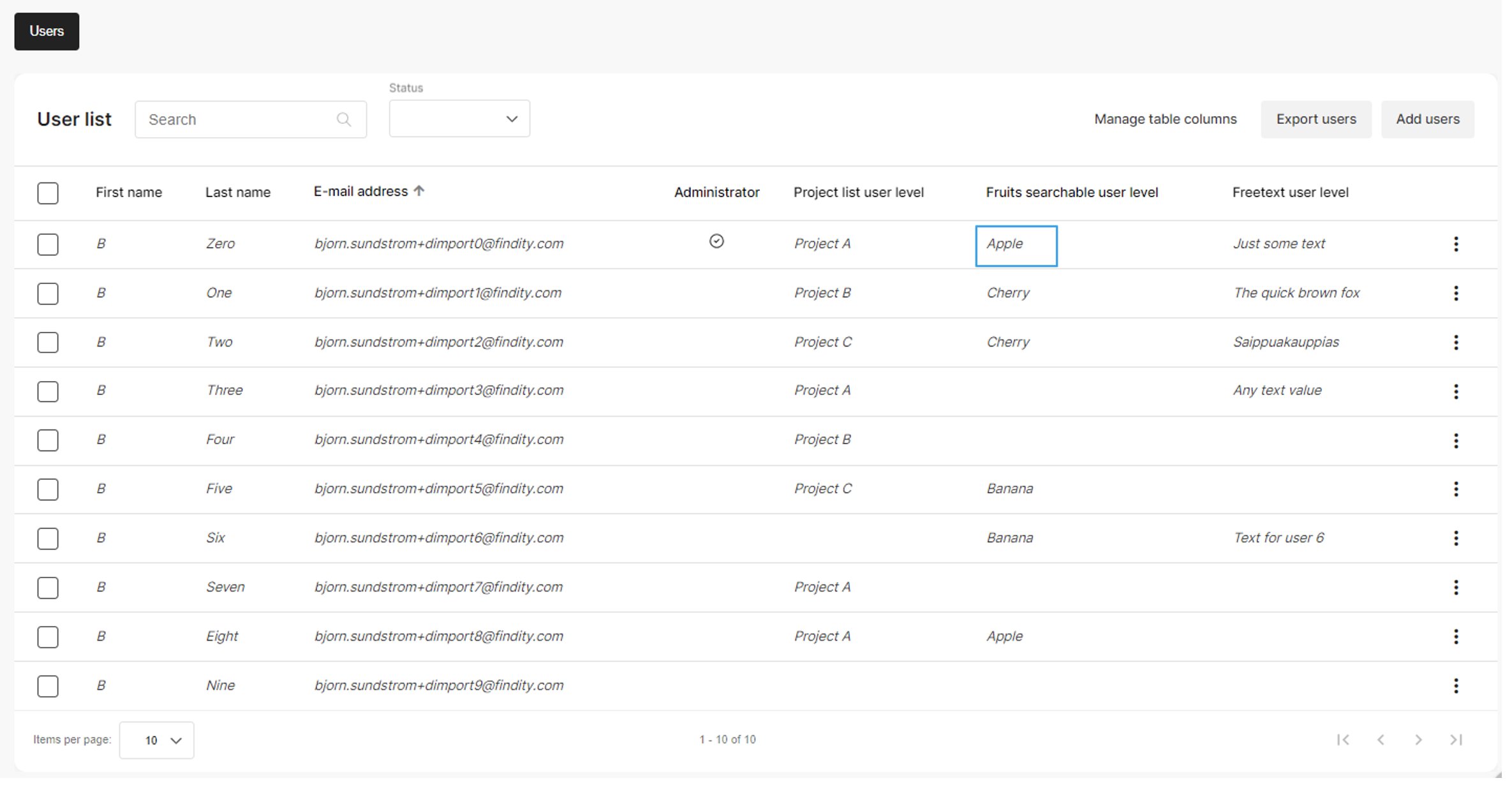 *Updated user.*
Let’s say you need to reassign all staff to a new project, Project D. By re-importing the list of users and dimensions, you can quickly assign the correct dimension values.
**Prepare the dimension values:**
Add or modify the dimension values in the organisation as necessary.
*Updated user.*
Let’s say you need to reassign all staff to a new project, Project D. By re-importing the list of users and dimensions, you can quickly assign the correct dimension values.
**Prepare the dimension values:**
Add or modify the dimension values in the organisation as necessary.
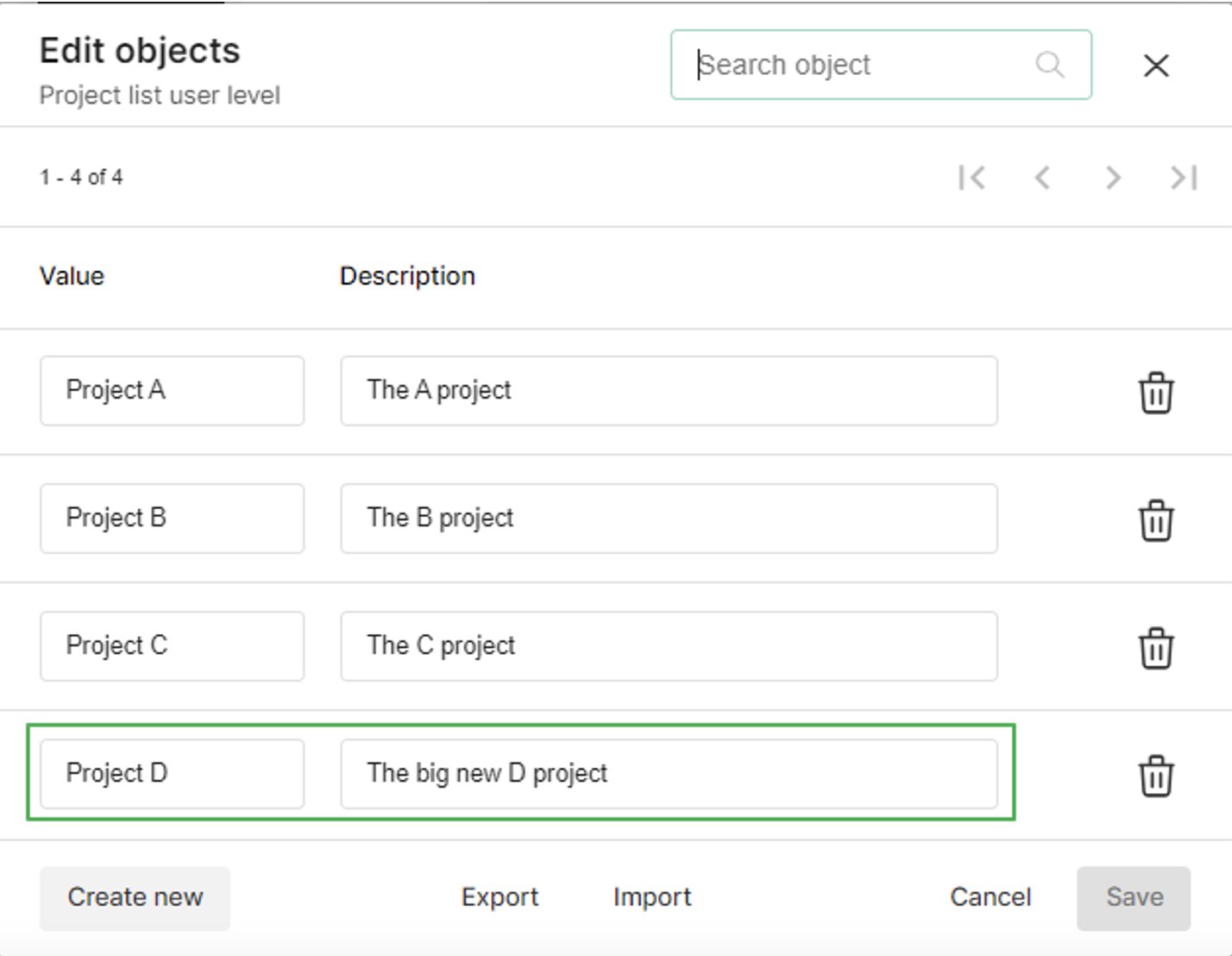 *A new dimension value.*
**Export the user list:**
Always export a current list of users before importing.
**Modify the dimension values:**
Update the exported file to reflect the new dimension values.
*A new dimension value.*
**Export the user list:**
Always export a current list of users before importing.
**Modify the dimension values:**
Update the exported file to reflect the new dimension values.
 *Updated file.*
**Import users and dimensions:**
Import the user list as described above. Existing data will be updated; new data will be added.
*Updated file.*
**Import users and dimensions:**
Import the user list as described above. Existing data will be updated; new data will be added.
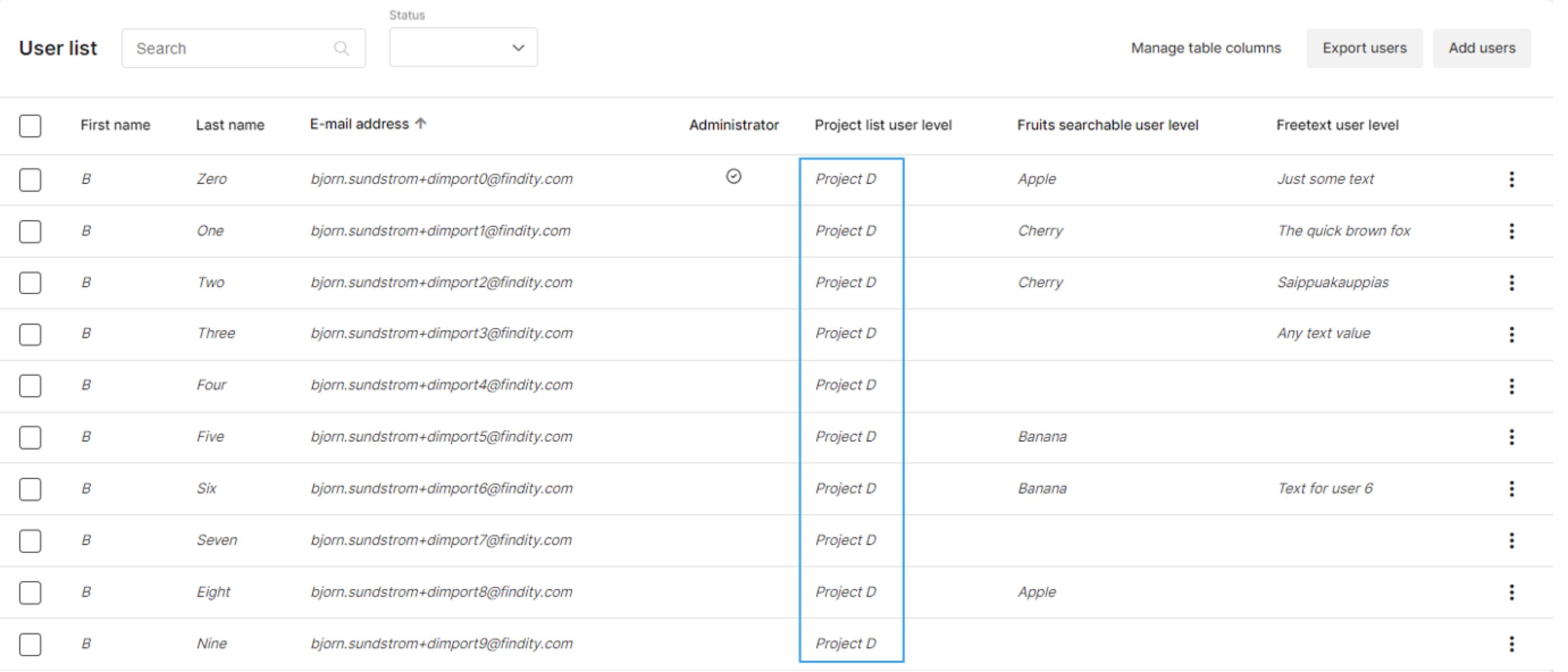 *Updated users.*
**Error handling:**
The import process is designed to handle common issues and has error handling to resolve them.
- If two or more dimension names are identical, the import is cancelled. Since we match imported dimension names to the organisation’s dimensions, the names must be unique.
- If unknown dimension names are found during import, the import continues but the unknown dimensions are ignored. In other words, you cannot add dimensions to the organisation by importing them.
- If unknown dimension values are found during import, the import continues but the unknown values are ignored. In other words, you cannot add dimension values to existing dimensions by importing them.
Note: Blank dimension values are ignored. That means you cannot “delete” an existing dimension value for a user by importing a blank value.
## Related articles
* [How do I add one-day assignments for per diem?](/en/settings-administrator/how-do-i-add-one-day-assignments-for-per-diem)
* [We want to have approval according to cost centers or department structure that is preset on the user. How do we do this set up step by step?](/en/settings-administrator/we-want-to-have-approval-according-to-cost-centers-or-department-structure-that-is-preset-on-the-user-how-do-we-do-this-set-up-step-by-step)
* [How do I make changes in the organisation structure?](/en/settings-administrator/how-do-i-make-changes-in-the-organisation-structure)
* [What settings do we need to update on organisation level prior to a new year?](/en/other/what-settings-do-we-need-to-update-on-organisation-level-prior-to-a-new-year)
*Updated users.*
**Error handling:**
The import process is designed to handle common issues and has error handling to resolve them.
- If two or more dimension names are identical, the import is cancelled. Since we match imported dimension names to the organisation’s dimensions, the names must be unique.
- If unknown dimension names are found during import, the import continues but the unknown dimensions are ignored. In other words, you cannot add dimensions to the organisation by importing them.
- If unknown dimension values are found during import, the import continues but the unknown values are ignored. In other words, you cannot add dimension values to existing dimensions by importing them.
Note: Blank dimension values are ignored. That means you cannot “delete” an existing dimension value for a user by importing a blank value.
## Related articles
* [How do I add one-day assignments for per diem?](/en/settings-administrator/how-do-i-add-one-day-assignments-for-per-diem)
* [We want to have approval according to cost centers or department structure that is preset on the user. How do we do this set up step by step?](/en/settings-administrator/we-want-to-have-approval-according-to-cost-centers-or-department-structure-that-is-preset-on-the-user-how-do-we-do-this-set-up-step-by-step)
* [How do I make changes in the organisation structure?](/en/settings-administrator/how-do-i-make-changes-in-the-organisation-structure)
* [What settings do we need to update on organisation level prior to a new year?](/en/other/what-settings-do-we-need-to-update-on-organisation-level-prior-to-a-new-year)