> ## Documentation Index
> Fetch the complete documentation index at: https://help.findity.com/llms.txt
> Use this file to discover all available pages before exploring further.
# Approval guidance & Bulk approval
> AI assistance that flags expenses as ready to approve or in need of review, so you can move through the approval list faster.
**This applies to the following countries**
* All countries
Approval Guidance is an AI assistant for approvers. It reads the receipt, amount, and policy and tags every expense in your **To-do** list with one of two statuses, so you can focus your time on what actually needs a closer look.
Approval Guidance requires that you are set up as an **approver**. If you are not an approver, you will not see the statuses. See [Approving reports](/en/other-users/how-do-i-approve-reject-a-report-or-an-expense) for how the approval flow works.
## Before you start
* You are set up as an approver in the organisation.
* Your organisation has Approval Guidance enabled. It is on by default, but administrators can turn it off.
* Works in both the **mobile app** and the **web interface**.
## How it works
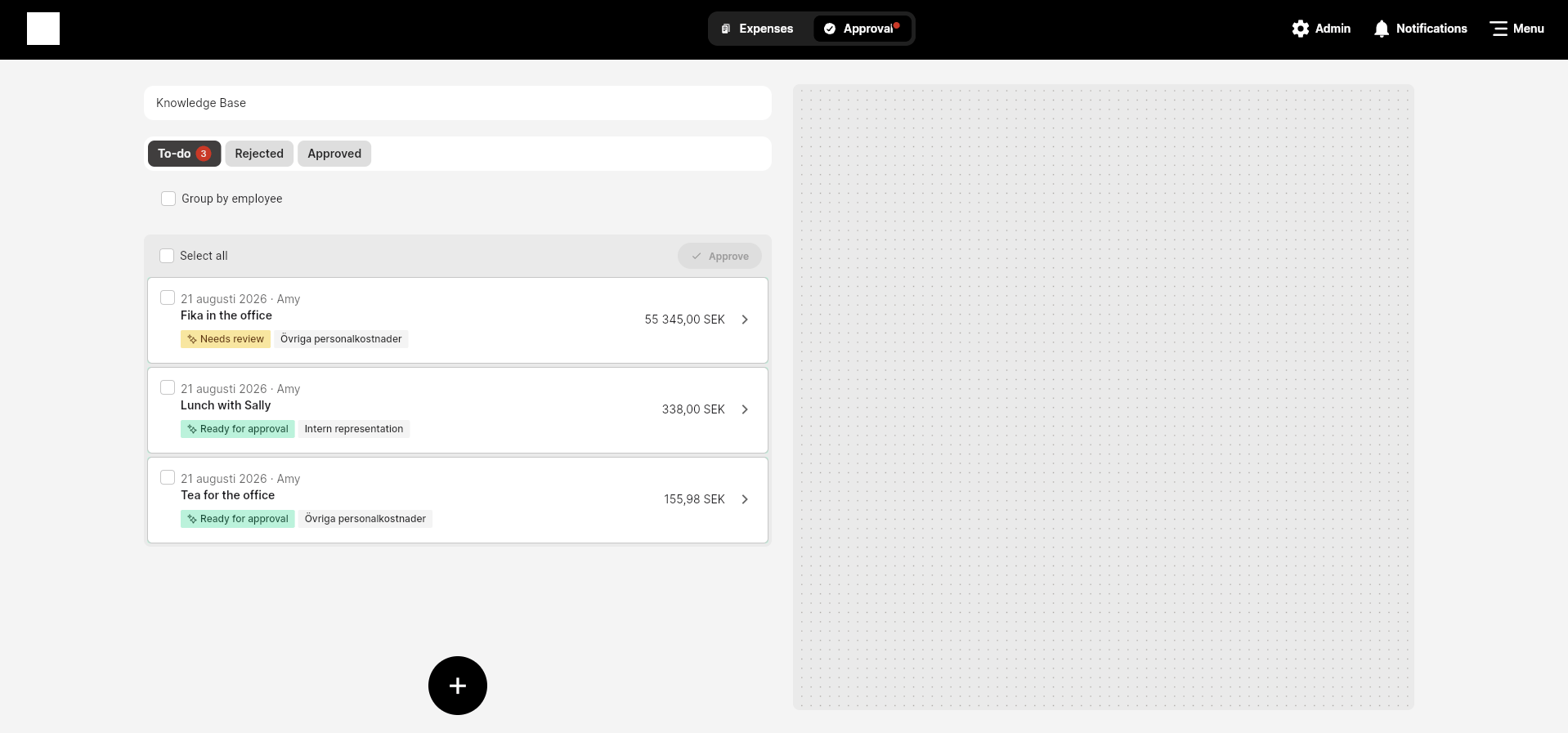
When an expense is submitted, the system compares the receipt image, amount, and policy against similar expenses submitted by the same user, the organisation, and all users. The expense then appears in your approval list with one of two statuses:
* **✨ Ready for approval** — The expense matches the receipt, complies with policy, and is low-risk. Can be approved right away.
* **✨ Needs review** — The expense has a possible policy issue or something that does not match. Open it and read the reason before you approve or reject.
 The status is based on an internal confidence score. The score itself is not shown, but when an expense is marked **Needs review** you will see the reason in the expense view, for example *Invalid receipt* or *Similar expenses have previously been rejected*.
## Review and approve expenses
Go to **Approval** in the app or on the web and open the **To-do** tab.
Expenses marked **✨ Ready for approval** can be processed right away. Expenses marked **✨ Needs review** show a reason — start with those.
Click an expense to see the details and the reason for the status before you approve or reject it.
Tick the checkboxes next to the expenses you want to approve, or tick the top checkbox to select all. Then click **Approve**.
## Good to know
* The statuses are guidance, not a decision. You are still the one who approves or rejects.
* **Ready for approval** means low risk, not that the policy has been checked in every detail. Open the expense if you are unsure.
* The system learns continuously from previous approvals and rejections in the organisation.
## For administrators
Approval Guidance is on by default for new organisations. To turn it off for the whole organisation:
Go to the organisation's **Admin** view.
Go to **Settings → Expense management → Report workflow / Advanced settings**.
Tick **Disable all AI features** and save. All AI features in the expense management platform are turned off for the organisation from that point on.
## Next steps
How the approval flow works end to end.
Set up notifications for new reports to approve.
## FAQ
Open the expense — the reason is shown in the expense view. Common reasons are an invalid receipt, a policy deviation, or that similar expenses have previously been rejected.
Yes. The status is guidance — you decide. Read the reason first and approve if the expense is in order.
No. The system uses an internal confidence score that is not shown. You only see the status and, for **Needs review**, the reason.
Yes. The statuses are shown in both places.
The statuses disappear from the approval list and you review reports as usual. See [Approving reports](/en/other-users/how-do-i-approve-reject-a-report-or-an-expense).
The status is based on an internal confidence score. The score itself is not shown, but when an expense is marked **Needs review** you will see the reason in the expense view, for example *Invalid receipt* or *Similar expenses have previously been rejected*.
## Review and approve expenses
Go to **Approval** in the app or on the web and open the **To-do** tab.
Expenses marked **✨ Ready for approval** can be processed right away. Expenses marked **✨ Needs review** show a reason — start with those.
Click an expense to see the details and the reason for the status before you approve or reject it.
Tick the checkboxes next to the expenses you want to approve, or tick the top checkbox to select all. Then click **Approve**.
## Good to know
* The statuses are guidance, not a decision. You are still the one who approves or rejects.
* **Ready for approval** means low risk, not that the policy has been checked in every detail. Open the expense if you are unsure.
* The system learns continuously from previous approvals and rejections in the organisation.
## For administrators
Approval Guidance is on by default for new organisations. To turn it off for the whole organisation:
Go to the organisation's **Admin** view.
Go to **Settings → Expense management → Report workflow / Advanced settings**.
Tick **Disable all AI features** and save. All AI features in the expense management platform are turned off for the organisation from that point on.
## Next steps
How the approval flow works end to end.
Set up notifications for new reports to approve.
## FAQ
Open the expense — the reason is shown in the expense view. Common reasons are an invalid receipt, a policy deviation, or that similar expenses have previously been rejected.
Yes. The status is guidance — you decide. Read the reason first and approve if the expense is in order.
No. The system uses an internal confidence score that is not shown. You only see the status and, for **Needs review**, the reason.
Yes. The statuses are shown in both places.
The statuses disappear from the approval list and you review reports as usual. See [Approving reports](/en/other-users/how-do-i-approve-reject-a-report-or-an-expense).