> ## Documentation Index
> Fetch the complete documentation index at: https://help.findity.com/llms.txt
> Use this file to discover all available pages before exploring further.
# Retract Expense
**This article applies to the following countries**
* All countries
### Retract expense
The feature enables users to **retract** their own expenses if they realize that there has been a **misstake** in the expense, or that they need to **update** the information they have submitted.
Eliminates **unnecessary** expense related communication between the **approver**.
### How it works
* User submits an expense and **realizes** e.g. the amount was entered incorrectly.
* User navigates to the **“Submitted”** tab in the app.
* User **selects** the specific expense/report.
* User clicks the **Retract button**, and confirms the confirmation pop-up.
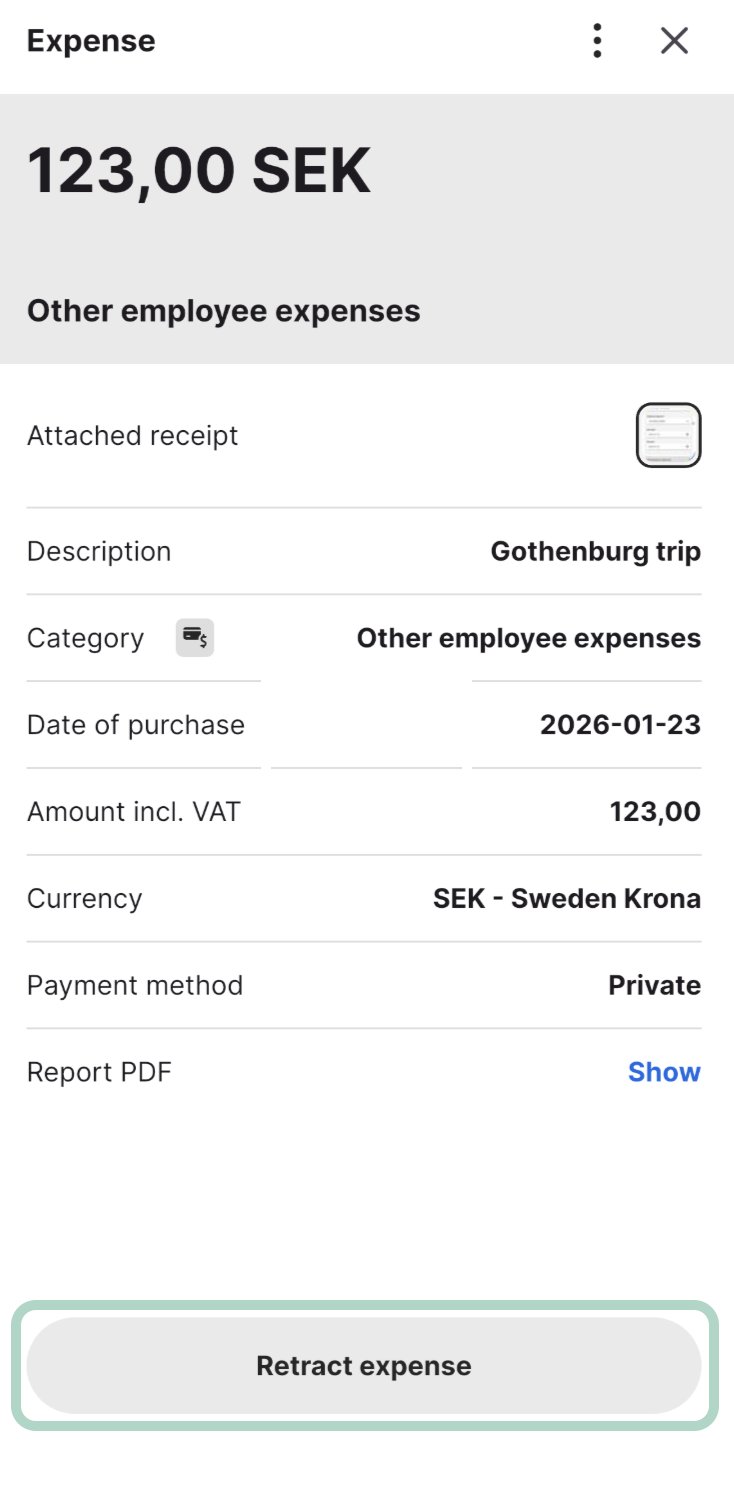 The expense is instantly moved to the **“To-do”** tab and is avaliable to open and manage in the **Edit Mode**.
* The approver receives a notification that the item was **retracted**.
* Retraction is **only possible before** the approver has approved/rejected the expense, and the report has been moved to the status **“done”**
## Related articles
* [How do i delete a corporate card report?](/en/corporate-cards-administrator/how-do-i-delete-a-corporate-card-report)
* [How do I send a submitted report back to the user?](/en/expense-and-reports-administrator/how-do-i-send-a-submitted-report-back-to-the-user)
The expense is instantly moved to the **“To-do”** tab and is avaliable to open and manage in the **Edit Mode**.
* The approver receives a notification that the item was **retracted**.
* Retraction is **only possible before** the approver has approved/rejected the expense, and the report has been moved to the status **“done”**
## Related articles
* [How do i delete a corporate card report?](/en/corporate-cards-administrator/how-do-i-delete-a-corporate-card-report)
* [How do I send a submitted report back to the user?](/en/expense-and-reports-administrator/how-do-i-send-a-submitted-report-back-to-the-user)