> ## Documentation Index
> Fetch the complete documentation index at: https://help.findity.com/llms.txt
> Use this file to discover all available pages before exploring further.
# Mastercard - Real time transactions
**This article applies to the following countries**
* European Union
* United Kingdom
* Norway
* Switzerland
* Canada
## Mastercard Real-Time Transactions
Mastercard Real-Time Transactions allow users to connect their eligible Mastercard cards directly in the mobile app, enabling real-time updates for transactions made on the card. The solution is built for employees, administrators, and partners who want a faster, more flexible, and paper-free way to handle their expenses.
**Key benefits include:**
* **Instant card connection** (no paperwork or manual approval); the user is responsible for linking and connecting the card directly in the app.
* **Real-time push notifications** for each transaction.
* **Simplified expense management** through "click-and-create expenses" with receipts.
* **Verified transaction data** for administrators and approvers.
* **Automatic exchange rates** for international purchases.
### Eligible Mastercard Cards:
✅ **Personal credit cards** (note: personal debit cards are not supported)
✅ **All types of company cards** (credit and debit cards)
❌ Eurocard (Airplus), SEB and DnB cards are not supported under this Mastercard integration but are supported via Findity's direct integrations.
### Geographies where real-time support is available (based on issuing region):
* European Union
* Norway
* Switzerland
* United Kingdom
* Canada
### How It Works (Step-by-Step)
* **Connecting a card:** Users connect their Mastercard directly in the mobile app via a simple flow that includes 3DS verification during onboarding. No paper forms are needed.
* **Card type detection:** The app automatically detects whether the card is personal or a company card.
* **Personal cards:** The user decides which purchases to submit as expenses. A transaction triggers a push notification → tap to create expense → upload receipt → done.
* **Company cards:** Every transaction triggers a push notification and creates an expense → upload receipt → done.
* **For administrators:** Verified transactions appear in the system for better control and accountability.
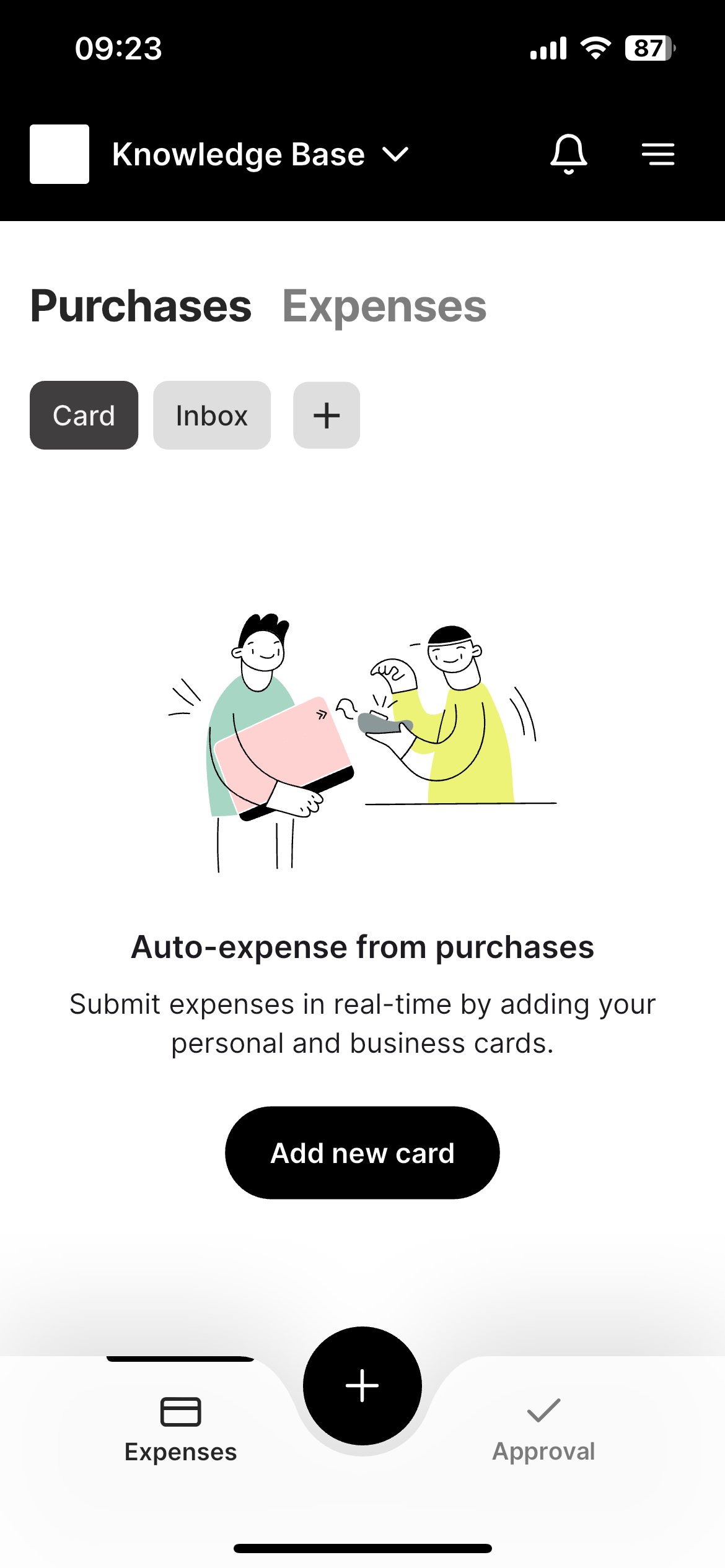
Under the **Purchases** tab, then **Card**, click the **Add new card** button to start linking your card.
 ### Frequently Asked Questions
**What if the card fails to connect?**
* Make sure that internet purchases are enabled on your card.
* Personal debit Mastercards are not supported.
* SEB and Eurocard are not supported via this integration but can be connected by the administrator via our direct integrations with these issuing banks.
**Why didn't I receive a transaction notification?**
* One reason for not seeing the purchase in real-time could be that the terminal was offline.
**Which card types are not supported?**
* Personal debit cards
**Can I connect more than one card?**
* Yes, you are allowed to connect up to two cards per user.
**Is my transaction data private?**
* Yes, transaction data is only visible to the cardholder. We will not share it with your organization. Only expenses that are based on a transaction and submitted will be visible to relevant users, such as managers, approvers, and administrators.
**How do I confirm if a card was successfully connected?**
* The user will be notified directly when enrolling their card once it is successfully connected.
### For Help and Support
* Firstly, contact an administrator within your organization.
* For further assistance, contact our customer support at [support@findity.com](mailto:support@findity.com).
## Related articles
* [I made a personal purchase with my corporate card. How do I report this as a personal purchase?](/en/corporate-cards-users/i-made-a-personal-purchase-with-my-corporate-card-how-do-i-report-this-as-a-personal-purchase)
* [I have submitted a report with a manually created expense but now I have received bank transactions on my user for the same expense/receipt. What should I do?](/en/corporate-cards-users/i-have-submitted-a-report-with-a-manually-created-expense-but-now-i-have-received-bank-transactions-on-my-user-for-the-same-expense-receipt-what-should-i-do)
* [How do I import a receipt for my corporate card transaction from an already existing expense?](/en/corporate-cards-users/how-do-i-import-a-receipt-for-my-corporate-card-transaction-from-an-already-existing-expense)
* [How do I connect my VISA card?](/en/corporate-cards-users/how-do-i-connect-my-visa-card)
* [How do I manage my transactions from Nordea First Card Real Time?](/en/corporate-cards-users/how-do-i-manage-my-transactions-from-nordea-first-card-real-time)
### Frequently Asked Questions
**What if the card fails to connect?**
* Make sure that internet purchases are enabled on your card.
* Personal debit Mastercards are not supported.
* SEB and Eurocard are not supported via this integration but can be connected by the administrator via our direct integrations with these issuing banks.
**Why didn't I receive a transaction notification?**
* One reason for not seeing the purchase in real-time could be that the terminal was offline.
**Which card types are not supported?**
* Personal debit cards
**Can I connect more than one card?**
* Yes, you are allowed to connect up to two cards per user.
**Is my transaction data private?**
* Yes, transaction data is only visible to the cardholder. We will not share it with your organization. Only expenses that are based on a transaction and submitted will be visible to relevant users, such as managers, approvers, and administrators.
**How do I confirm if a card was successfully connected?**
* The user will be notified directly when enrolling their card once it is successfully connected.
### For Help and Support
* Firstly, contact an administrator within your organization.
* For further assistance, contact our customer support at [support@findity.com](mailto:support@findity.com).
## Related articles
* [I made a personal purchase with my corporate card. How do I report this as a personal purchase?](/en/corporate-cards-users/i-made-a-personal-purchase-with-my-corporate-card-how-do-i-report-this-as-a-personal-purchase)
* [I have submitted a report with a manually created expense but now I have received bank transactions on my user for the same expense/receipt. What should I do?](/en/corporate-cards-users/i-have-submitted-a-report-with-a-manually-created-expense-but-now-i-have-received-bank-transactions-on-my-user-for-the-same-expense-receipt-what-should-i-do)
* [How do I import a receipt for my corporate card transaction from an already existing expense?](/en/corporate-cards-users/how-do-i-import-a-receipt-for-my-corporate-card-transaction-from-an-already-existing-expense)
* [How do I connect my VISA card?](/en/corporate-cards-users/how-do-i-connect-my-visa-card)
* [How do I manage my transactions from Nordea First Card Real Time?](/en/corporate-cards-users/how-do-i-manage-my-transactions-from-nordea-first-card-real-time)