> ## Documentation Index
> Fetch the complete documentation index at: https://help.findity.com/llms.txt
> Use this file to discover all available pages before exploring further.
# Card management - how do I connect the card to the user?
**This article applies to the following countries**
* All countries
This article will describe how you, as an administrator, can manage and connect transactions and coporate cards that have been received in the system to the users in the organisation.
In the menu on the left, you will find the **Card management** tab, which is divided into two sections, an upper section for managing card transactions and a lower section for managing cardholders.
The lower section where cardholders are managed is the same view that was previously found under Settings > Corporate Cards.
*Please note that if you do not see this in the service, it is because this feature has not been enabled for your organisation yet.*
The first thing you need to do is navigate to **Card management** in the menu on the left. Then, under **Card holders**, add the user you want to link a card to. You do this by clicking the **Add card holder** button.
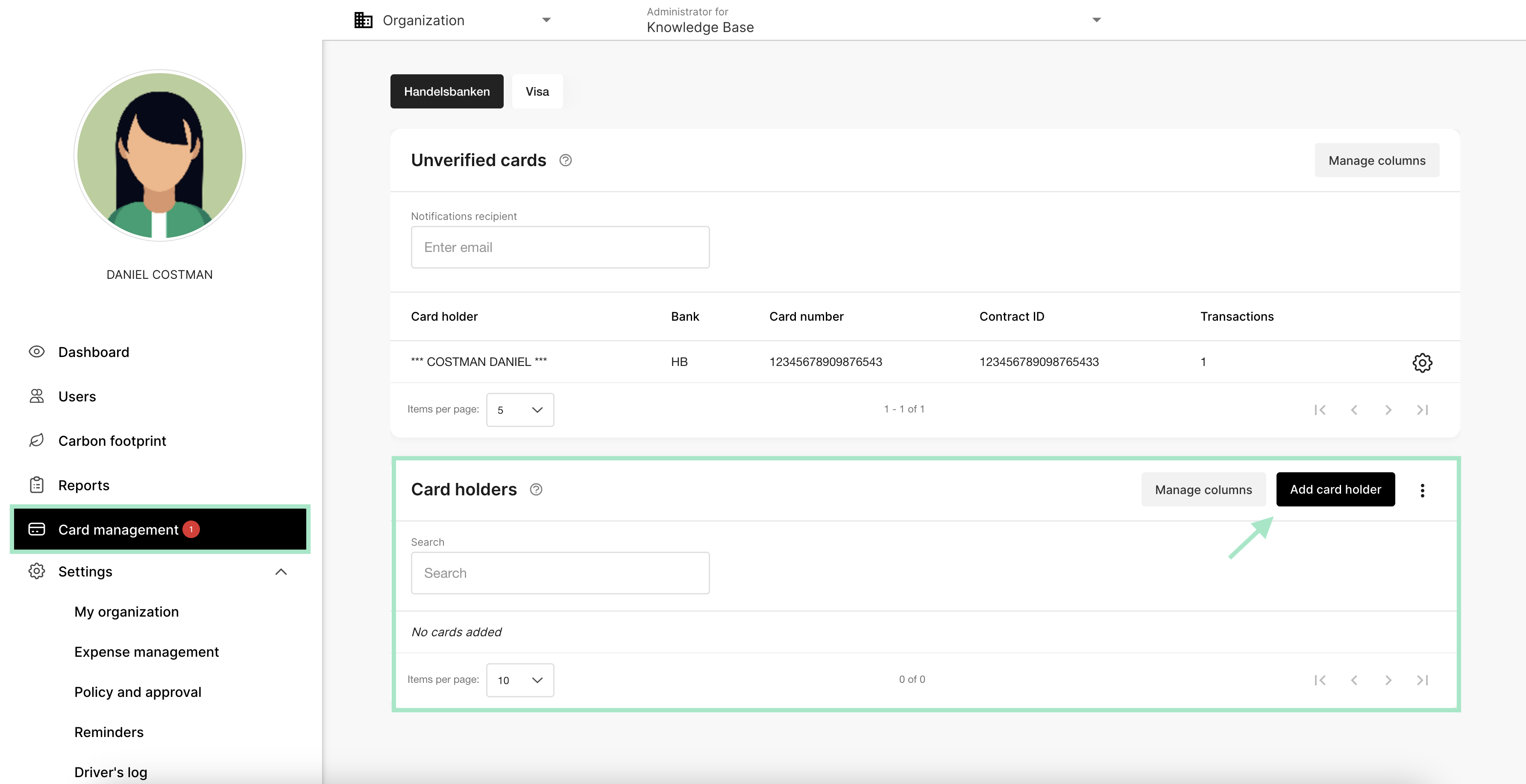 In the window that opens, first select the user you want to add as a cardholder by checking the box next to the desired user.
Then, click **Add selected users**.
In the window that opens, first select the user you want to add as a cardholder by checking the box next to the desired user.
Then, click **Add selected users**.
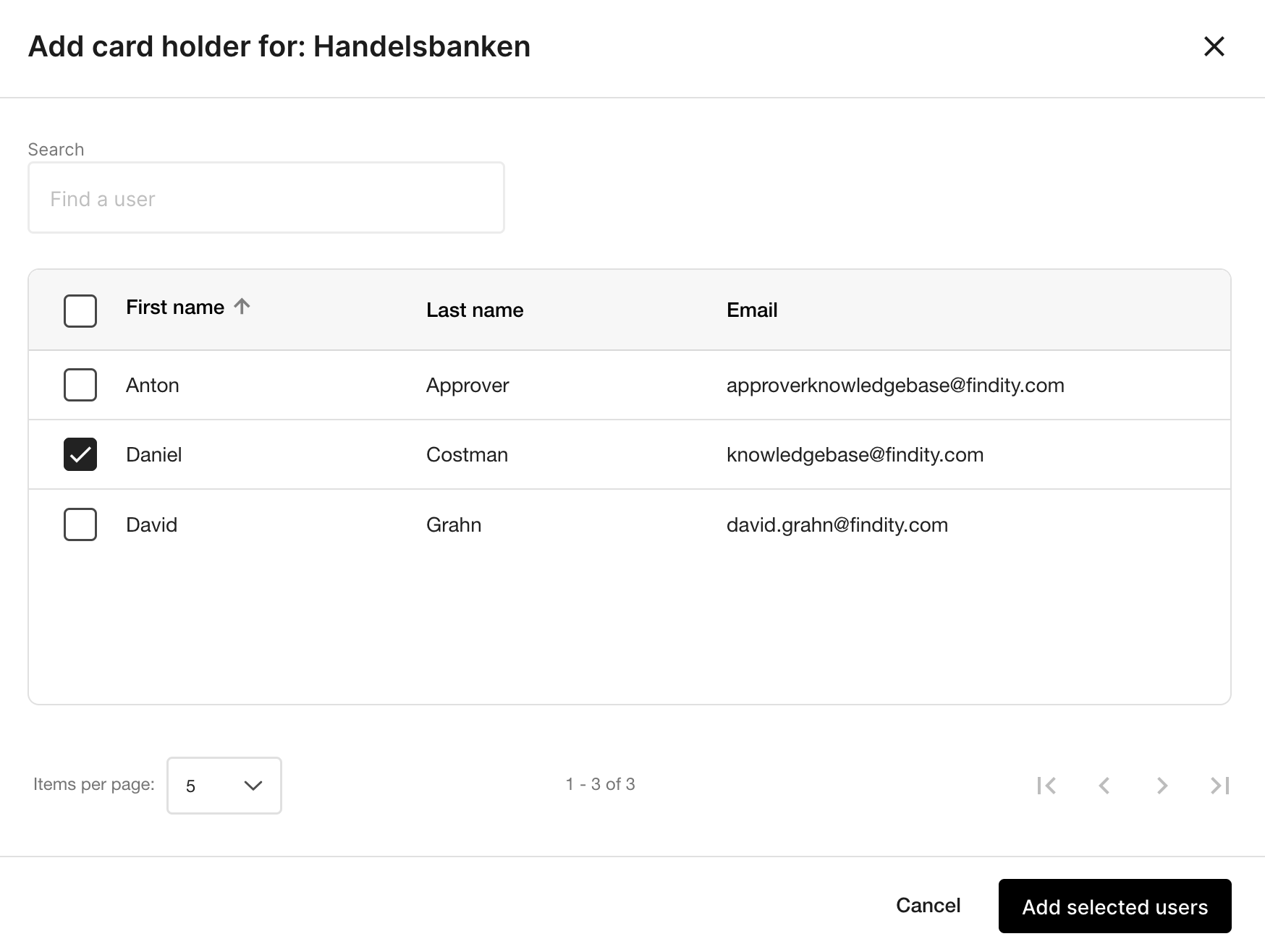 In the next step, select the payment liability for the card, whether it should be private or if the organisation will be responsible for the payments.
Click **Save changes** after making your selection.
In the next step, select the payment liability for the card, whether it should be private or if the organisation will be responsible for the payments.
Click **Save changes** after making your selection.
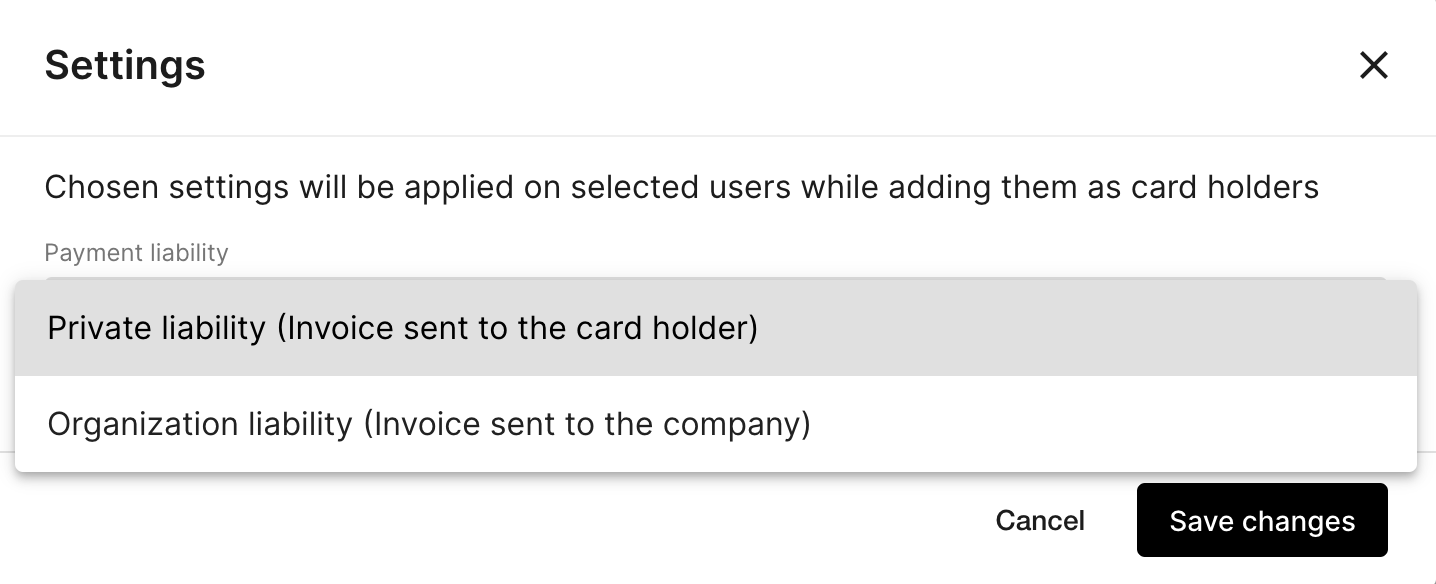 If you choose for the organisation to be responsible for payments, a new settings window will appear where you need to specify accounting settings under **Account** and **Salary Types**.
To modify the account settings, check the box for **Override default account settings**; otherwise, you can proceed by clicking **Save Changes** in the bottom right corner.
**Note:** *You do not enter the cardholder’s card number or contract ID here. This will be linked automatically when the card is connected to the cardholder.*
If you choose for the organisation to be responsible for payments, a new settings window will appear where you need to specify accounting settings under **Account** and **Salary Types**.
To modify the account settings, check the box for **Override default account settings**; otherwise, you can proceed by clicking **Save Changes** in the bottom right corner.
**Note:** *You do not enter the cardholder’s card number or contract ID here. This will be linked automatically when the card is connected to the cardholder.*
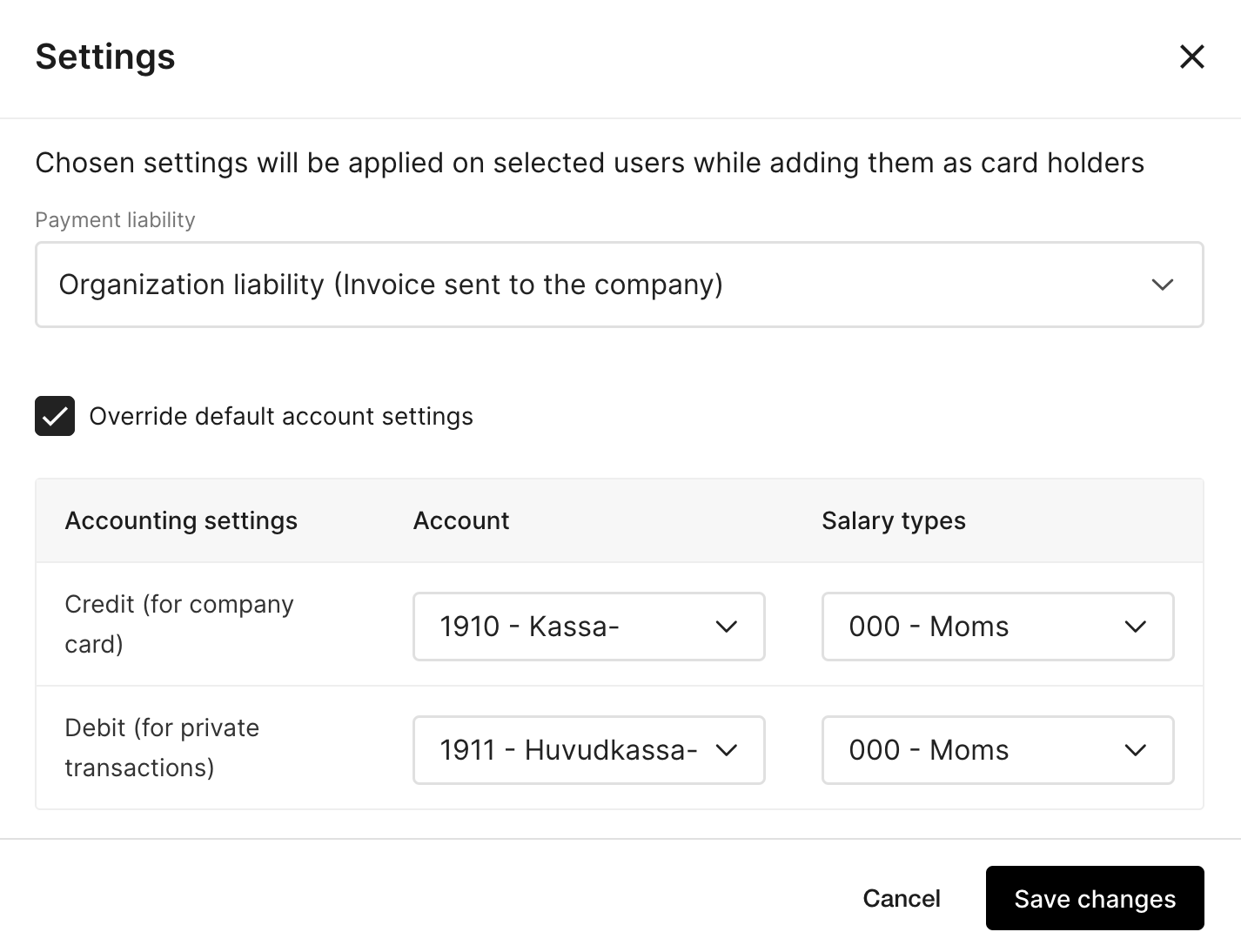 The cardholder has now been added, and the settings have been configured.
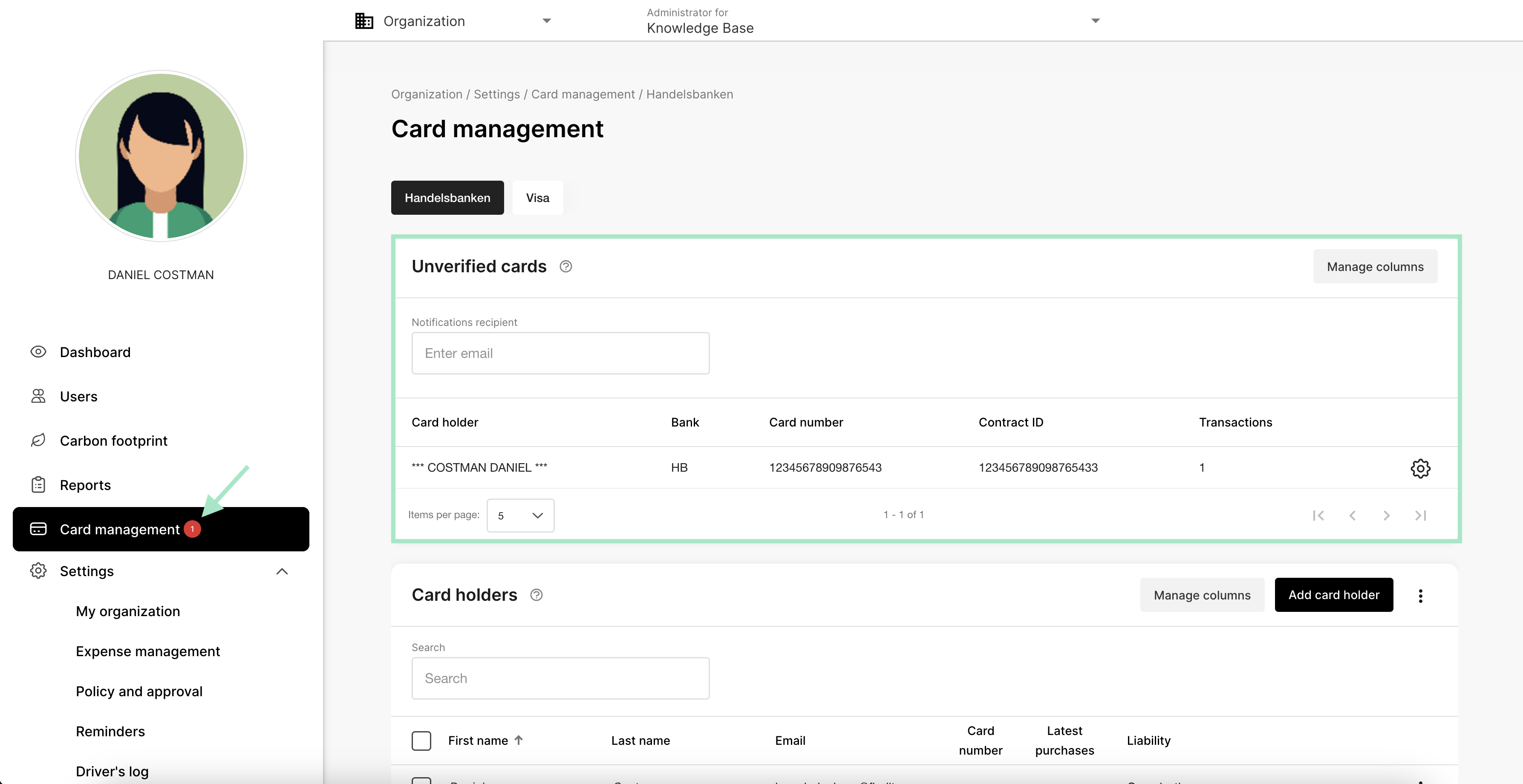
 When transactions are received from the bank into the system, you will be able to find the user’s card along with its associated transactions under **Card management** in the **Unverified cards** section.
A notification will appear in the left-hand menu in the **Card management** tab when there is an unverified card that can be connected to a user.
When transactions are received from the bank into the system, you will be able to find the user’s card along with its associated transactions under **Card management** in the **Unverified cards** section.
A notification will appear in the left-hand menu in the **Card management** tab when there is an unverified card that can be connected to a user.
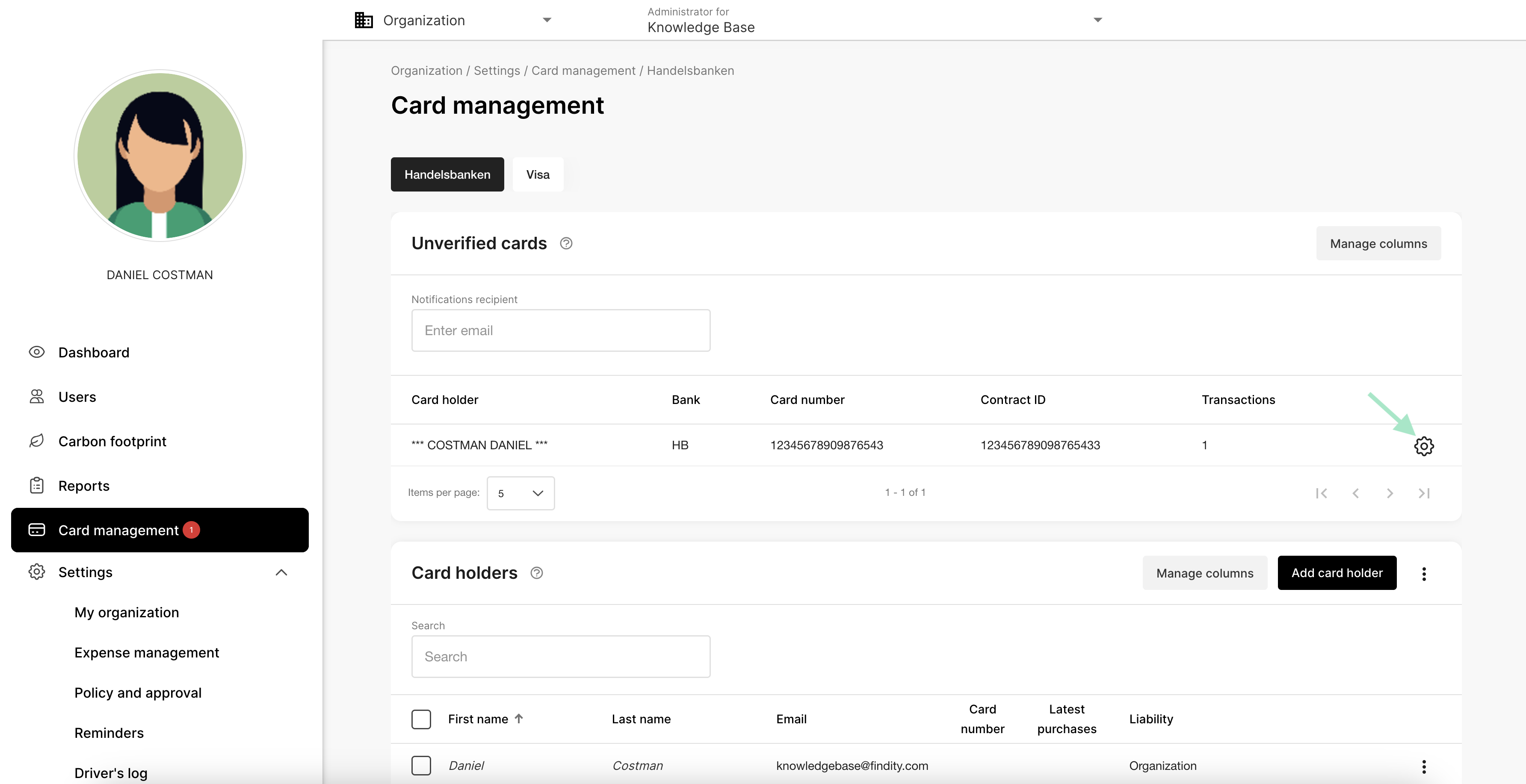
 To link the unverified card to the user, click on the **gear icon** on the far right.
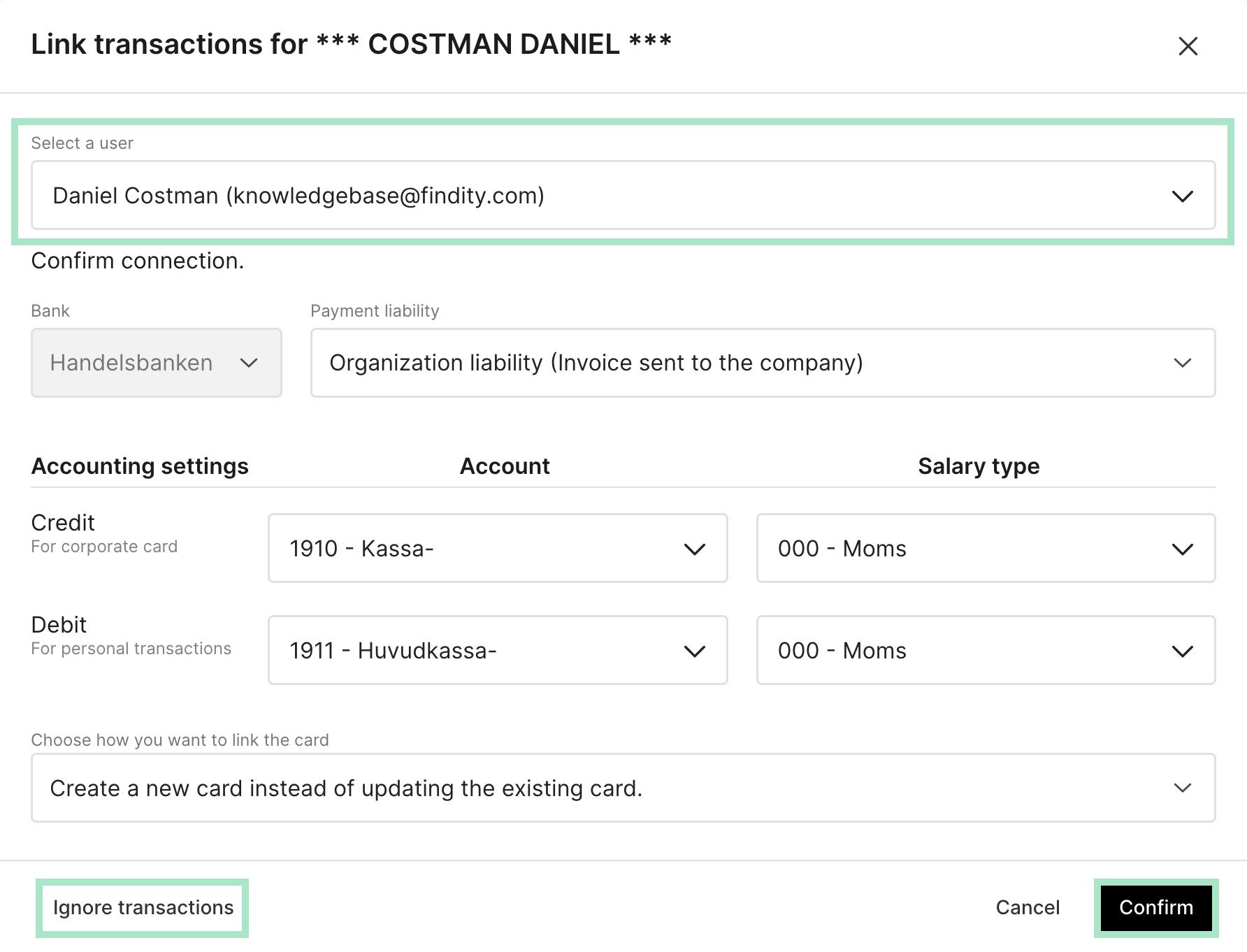
 In the window that opens, you can select which user the card should be linked to.
Here, you can also choose to **Ignore transactions** in the bottom left if the card should not be linked to any user in the system.
Otherwise, click **Confirm** in the bottom right corner after selecting a user.
In the window that opens, you can select which user the card should be linked to.
Here, you can also choose to **Ignore transactions** in the bottom left if the card should not be linked to any user in the system.
Otherwise, click **Confirm** in the bottom right corner after selecting a user.
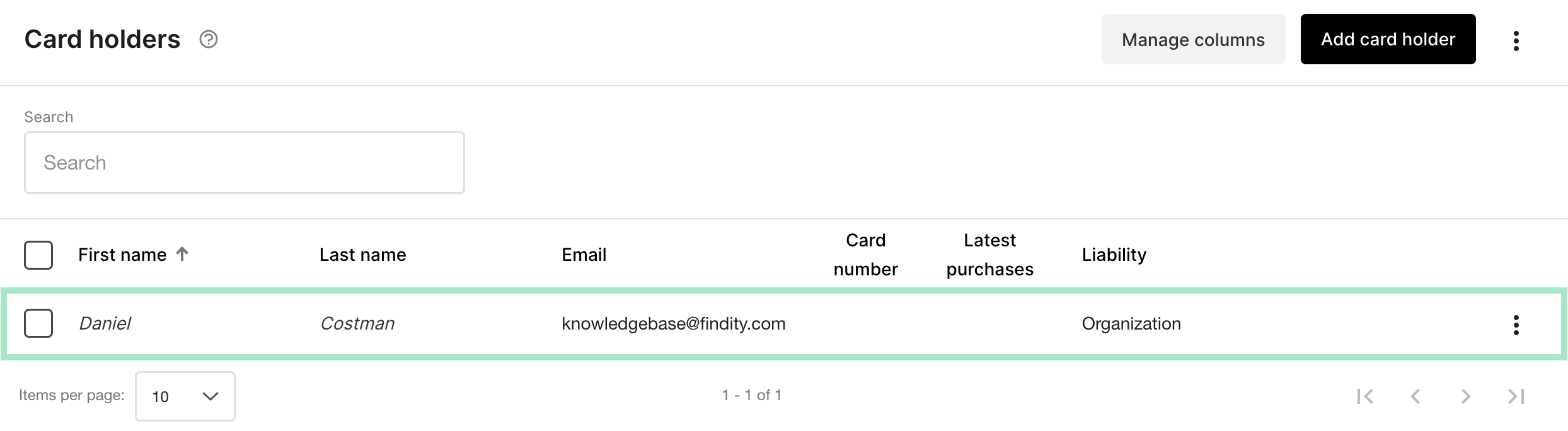
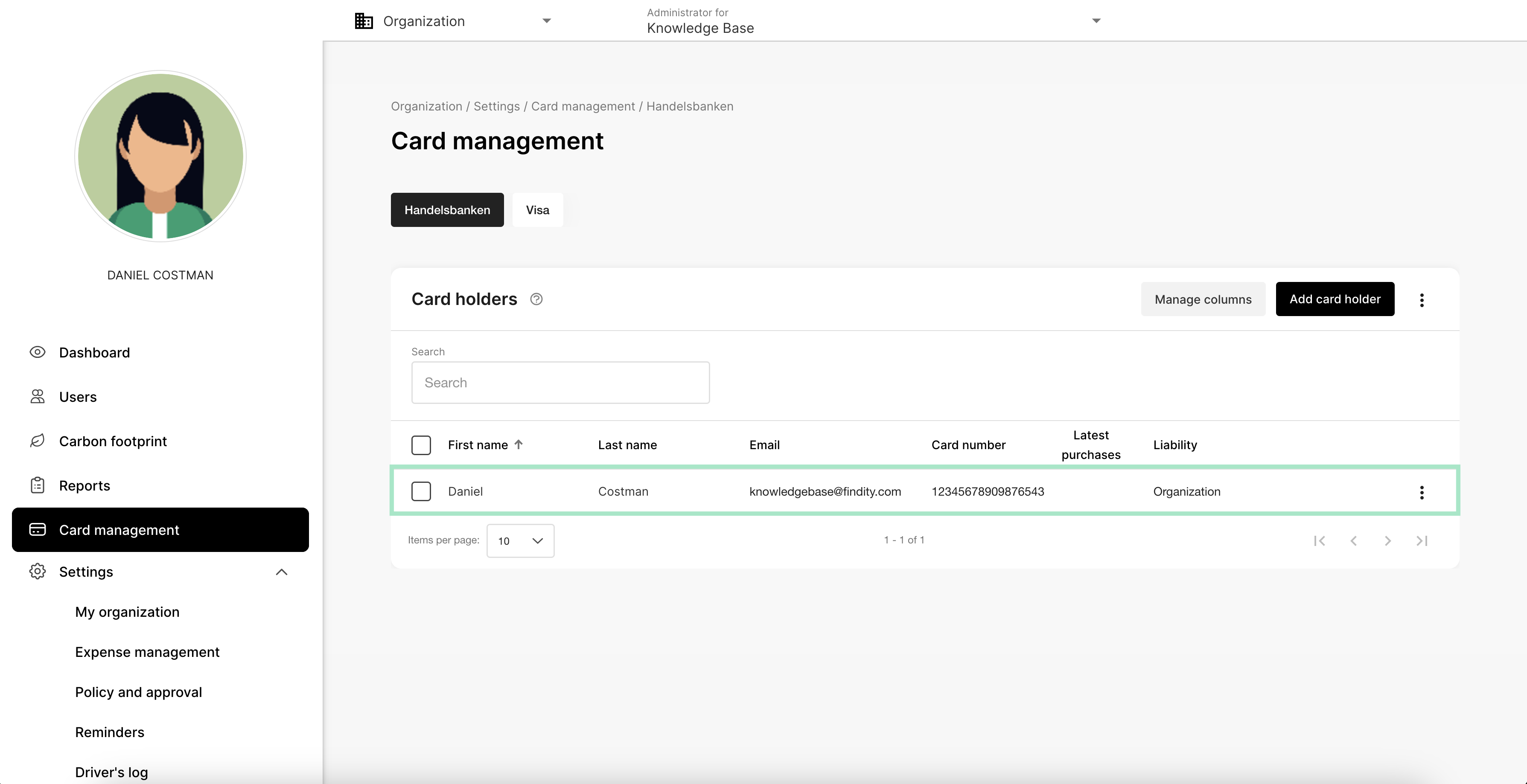
 The card is now linked to the user, and the card number will be visible next to the user under **Card holders**.
 ## Related articles
* [How do I cancel the connection to corporate cards on the organisation?](/en/corporate-cards-administrator/how-do-i-cancel-the-connection-to-corporate-cards-on-the-organisation)
* [What does the tab corporate card under reports mean?](/en/corporate-cards-administrator/what-does-the-tab-corporate-card-under-reports-mean)
* [Corporate card reports should only be sent to the accounting recipient. How do I add that setting?](/en/corporate-cards-administrator/corporate-card-reports-should-only-be-sent-to-the-accounting-recipient-how-do-i-add-that-setting)
* [Activate corporate cards on our organisation and add cardholders](/en/corporate-cards-administrator/activate-corporate-cards-on-our-organisation-and-add-cardholders)
* [Activating bank integration (Nordea First Card Real Time)](/en/corporate-cards-administrator/activating-bank-integration-nordea-first-card-real-time)
## Related articles
* [How do I cancel the connection to corporate cards on the organisation?](/en/corporate-cards-administrator/how-do-i-cancel-the-connection-to-corporate-cards-on-the-organisation)
* [What does the tab corporate card under reports mean?](/en/corporate-cards-administrator/what-does-the-tab-corporate-card-under-reports-mean)
* [Corporate card reports should only be sent to the accounting recipient. How do I add that setting?](/en/corporate-cards-administrator/corporate-card-reports-should-only-be-sent-to-the-accounting-recipient-how-do-i-add-that-setting)
* [Activate corporate cards on our organisation and add cardholders](/en/corporate-cards-administrator/activate-corporate-cards-on-our-organisation-and-add-cardholders)
* [Activating bank integration (Nordea First Card Real Time)](/en/corporate-cards-administrator/activating-bank-integration-nordea-first-card-real-time)